
Launching the site: category, settings, and appearance
The website builder builds your company site from inside the system itself — no developer and no separate hosting. What you write here appears on the public site immediately.
The dashboard
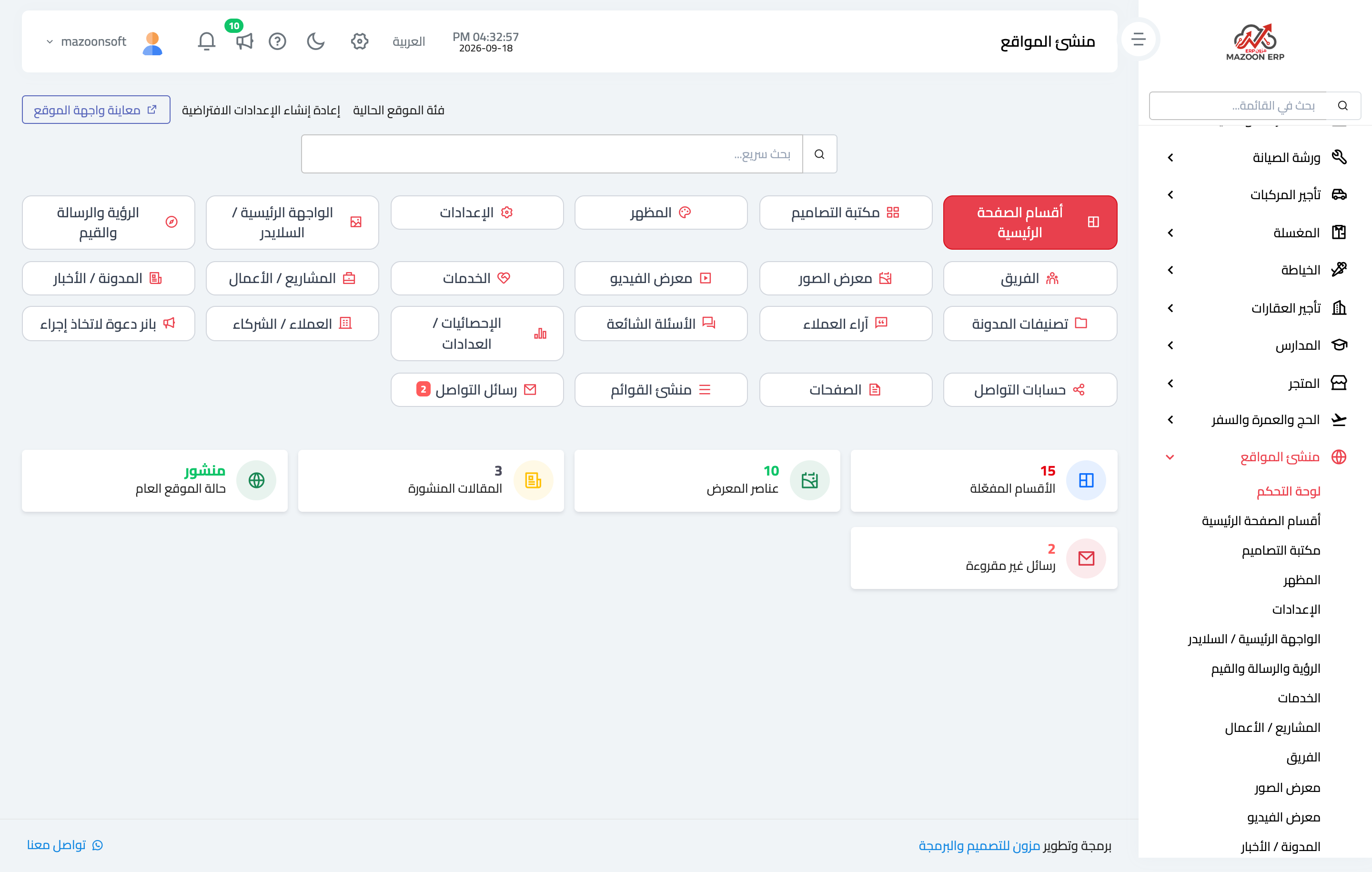
The dashboard — Figure 1 — gathers every part of the site on one screen, and below it shows the site status, the number of enabled sections, the published posts, and the unread messages.
At the top sits the Preview site button, the shortest route to seeing the effect of any change you make.
Site category and starter content
Before anything else, choose the site category — law, services, real estate, and so on. On choosing it the system seeds a complete set of starter content suited to that line of business: services, projects, team, FAQs, and written introductory copy.
That content is not final; it is a draft you edit, replacing its images with your own. The benefit is that the site looks complete from the first minute instead of showing a blank page.
Settings
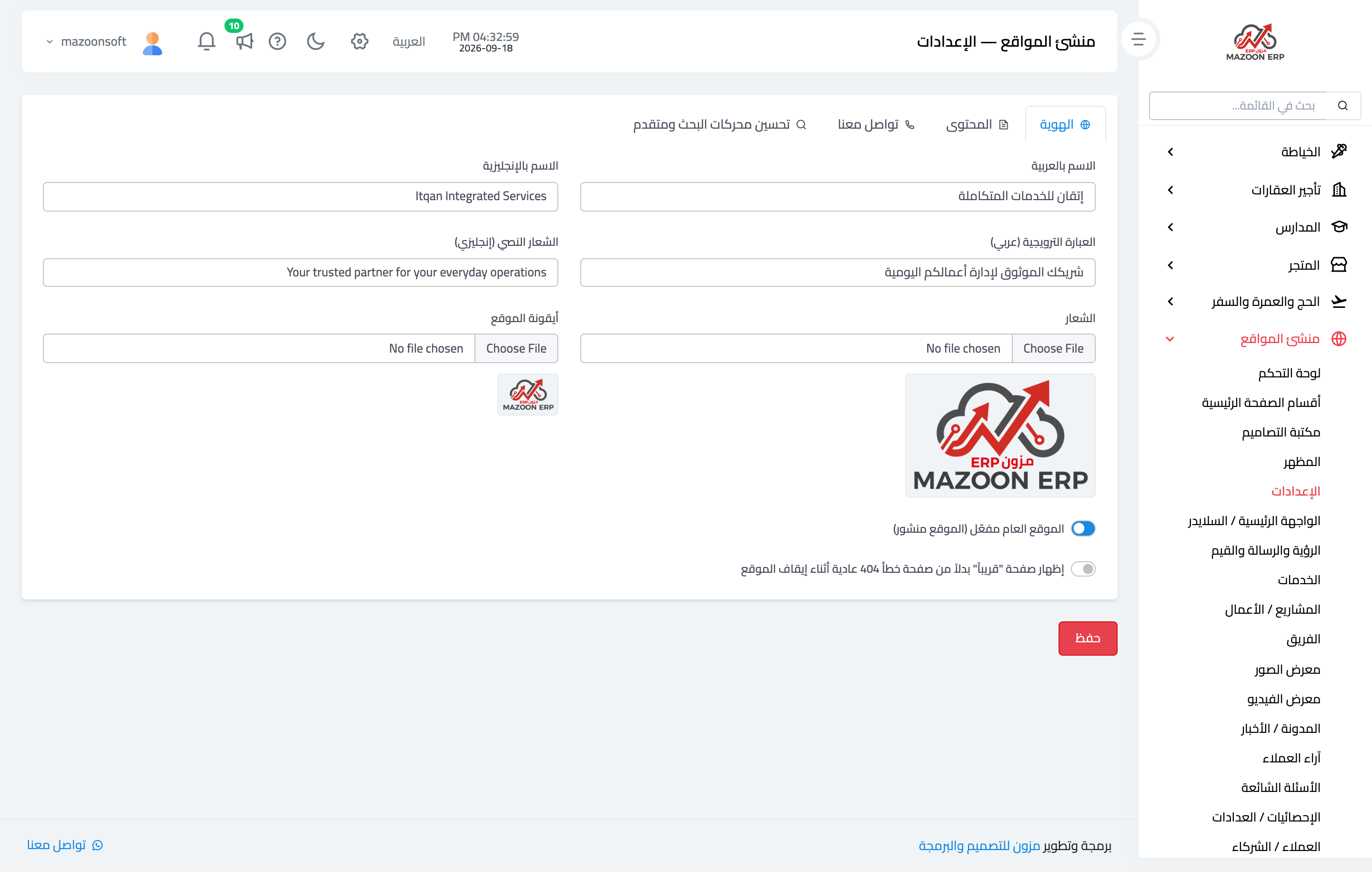
The Settings screen — Figure 2 — is split into four tabs:
- Identity — the site name in both languages, the tagline, the logo, the favicon, and the switch that publishes the public site.
- Content — the “About us” heading, its text, and its image.
- Contact — phone, WhatsApp, email, address, and the Google Maps embed code.
- SEO and advanced — the site description and keywords, and a place for tracking scripts.
The identity tab carries two important switches: enable the public site, and show a “coming soon” page instead of an error page while the site is off — which is what you want during setup.
Appearance
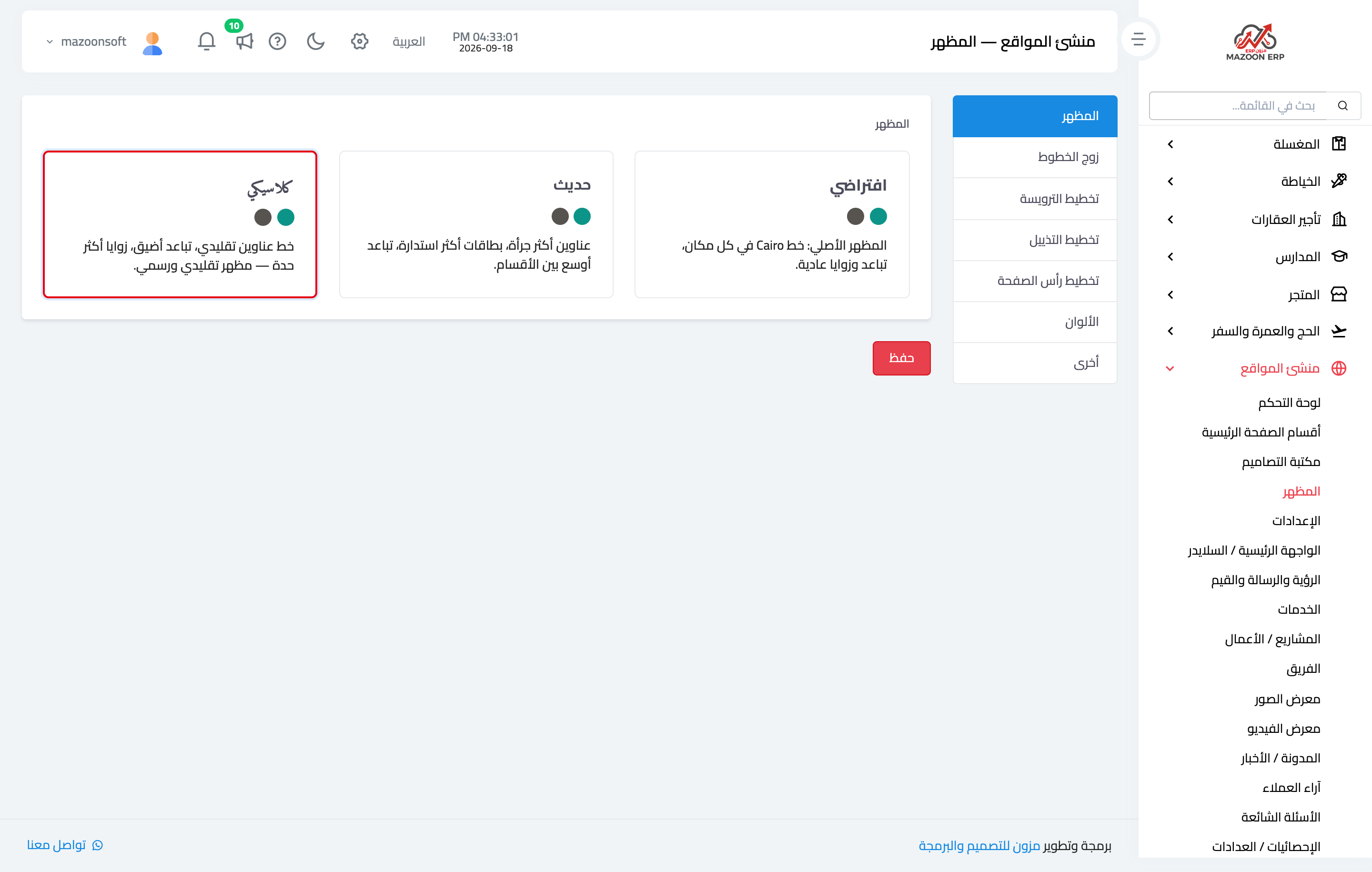
On the Appearance screen — Figure 3 — you pick the overall theme (default, modern, classic), then the font pairing, then the header, footer, and page-header layouts.
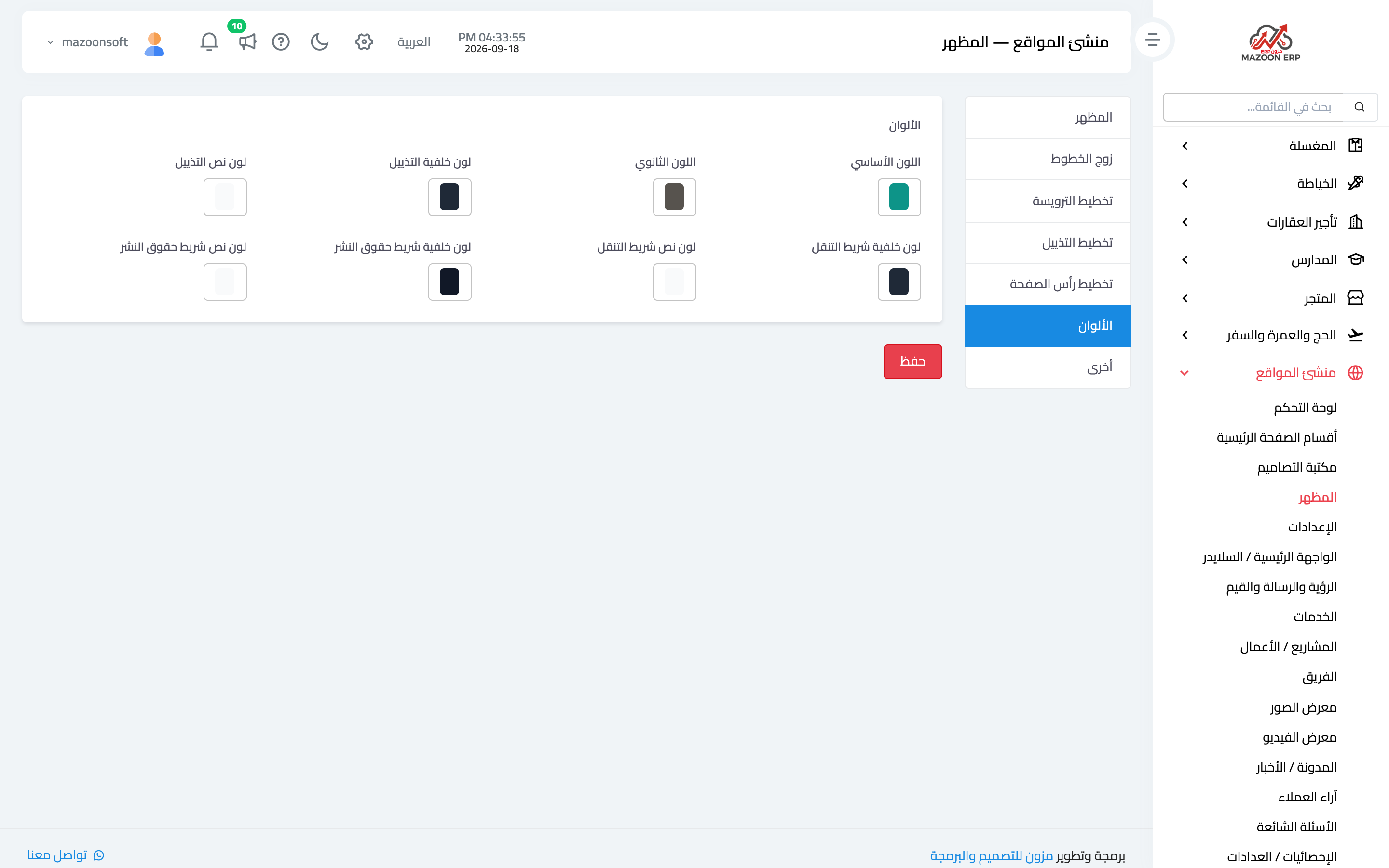
The Colours tab — Figure 4 — sets the primary and secondary colours and the colours of the footer, breadcrumb, and copyright bar. The advice here is to stay with two colours from your own brand and no more.
The design library
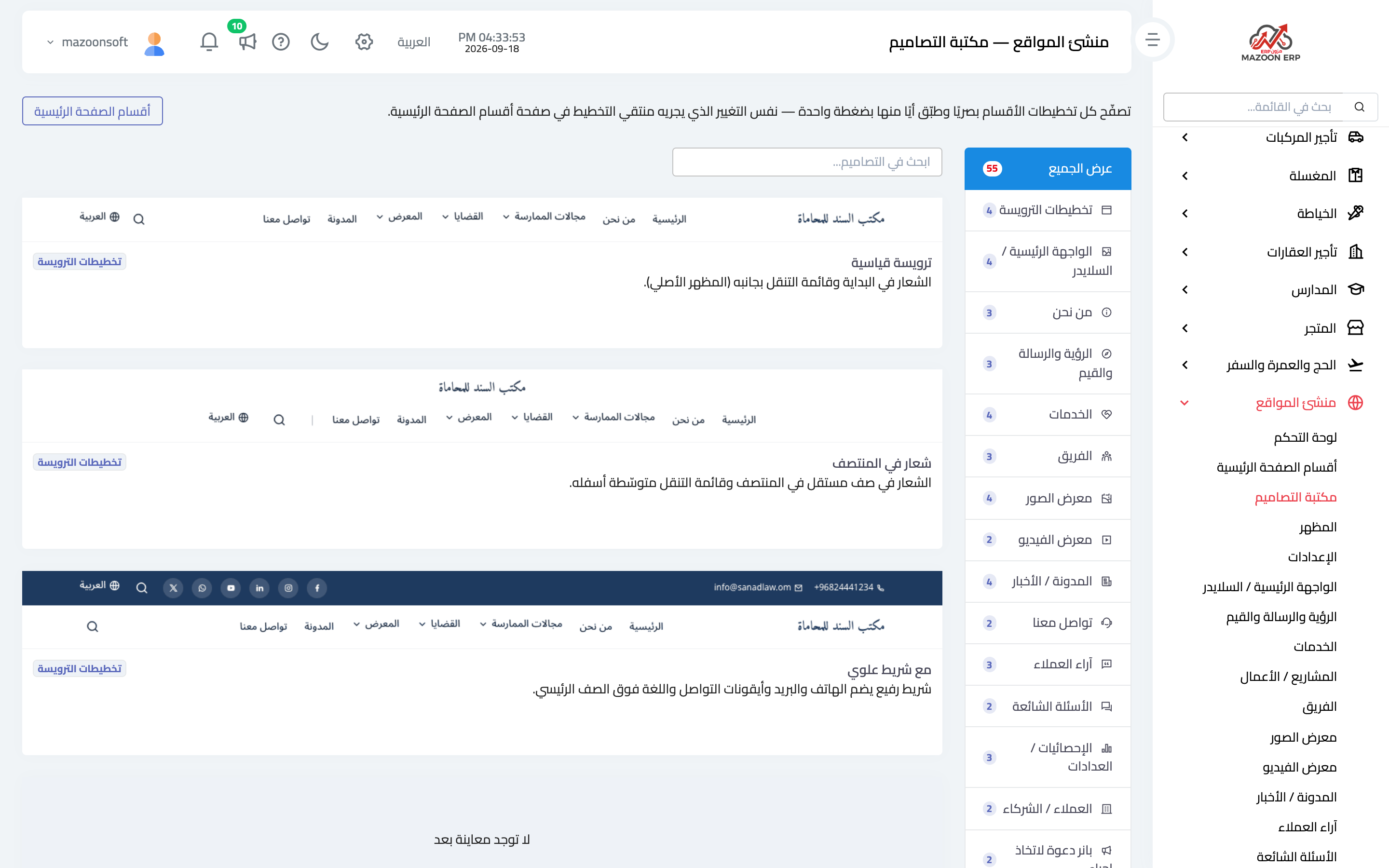
Rather than picking a layout by its name, the design library — Figure 5 — draws every section layout in front of you, and applies any of them in one click.
It is grouped by section: header layouts, hero, about, services, team, gallery, and the rest.
Home page sections
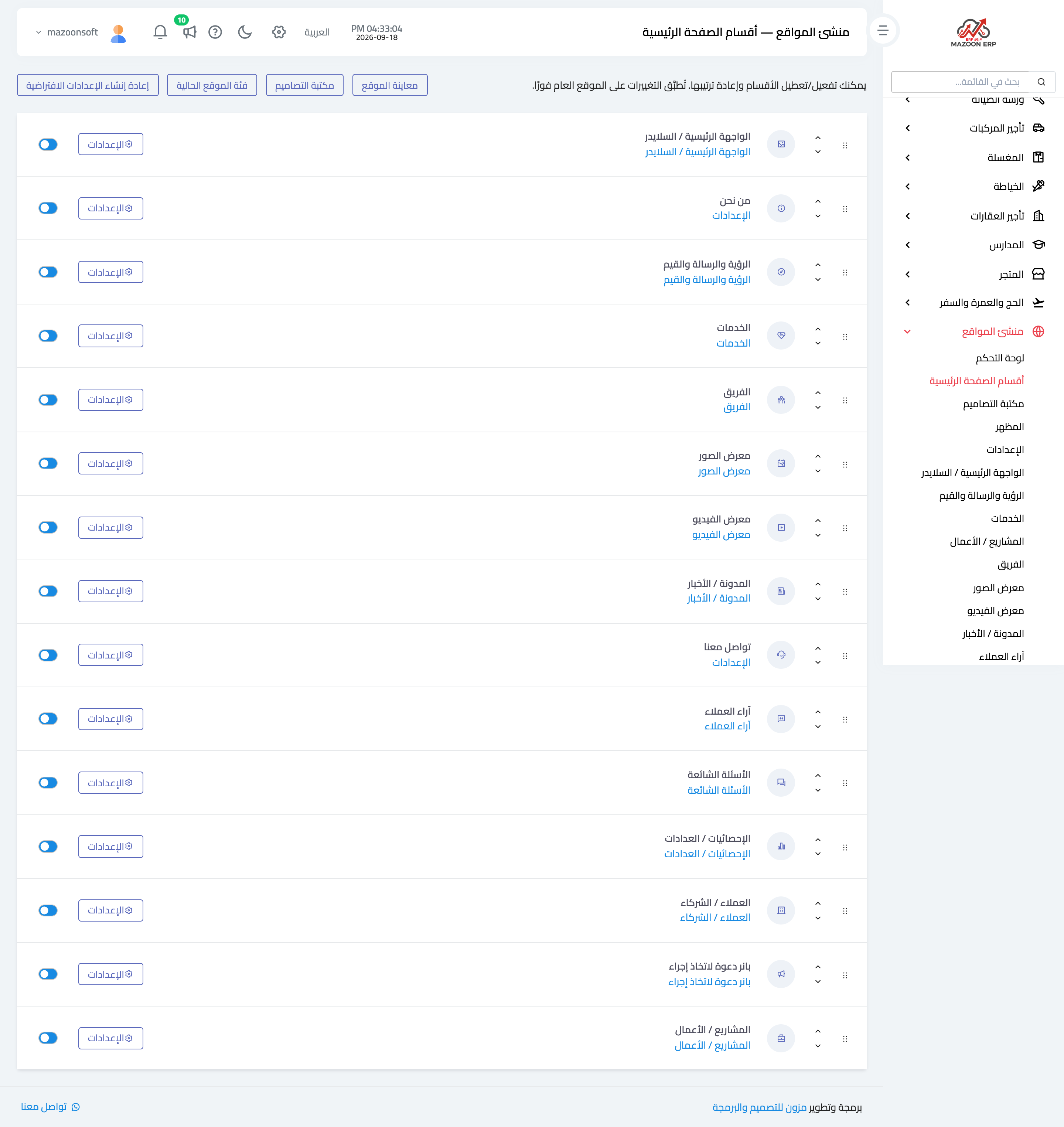
The home page is an ordered series of sections — Figure 6 — and on this screen you enable or disable a section, move it up or down, and change its layout, its heading, and how many items of it show on the home page.
Disabling does not delete the content; it only hides the section from the site, so switch off anything you have no real content for until you prepare it.
Preview
At any moment the preview button shows the site as a visitor sees it — Figure 7 — with the order, colours, and content you have set.
Notes
- Keep the site off with the “coming soon” page until you have replaced the starter content with your own.
- Do not press reseed the default settings after writing your own content; it is for starting over.
- Set the site description and keywords before publishing; they are what appears in search results and when the link is shared.
- Check the preview after every substantial edit; a change takes effect on the public site immediately.
Screenshots

Try what you just read on your own data
Open a free 7-day trial — no credit card, with your own company link in minutes.