
How do I generate my website for the first time and choose its category?
Do not start from a blank page. Pick a category close to your line of work and the system builds you a complete website with starter content; then you replace the text and images with your own.
Steps
- Open Website Builder → Dashboard — Figure 1.
- Press Generate my website — Figure 2.
- Choose the site category closest to your business; each category comes with sections, wording and images that suit it.
- Press Generate my website; the settings, sections and starter content are all created in one go.
- Then start editing what was generated, section by section.
Changing the category later
The same screen offers Replace content with another category. This wipes the current content and cannot be undone, which is why it asks for an explicit confirmation.
Notes
- The Regenerate defaults button resets sections and content to the defaults without touching what you entered yourself — that is not the same as a full replacement.
- Generated content is only a skeleton; a site published with its default wording does more harm than good.
- Do not rush to change the category after you have written your content, because you will lose all of it.
Screenshots
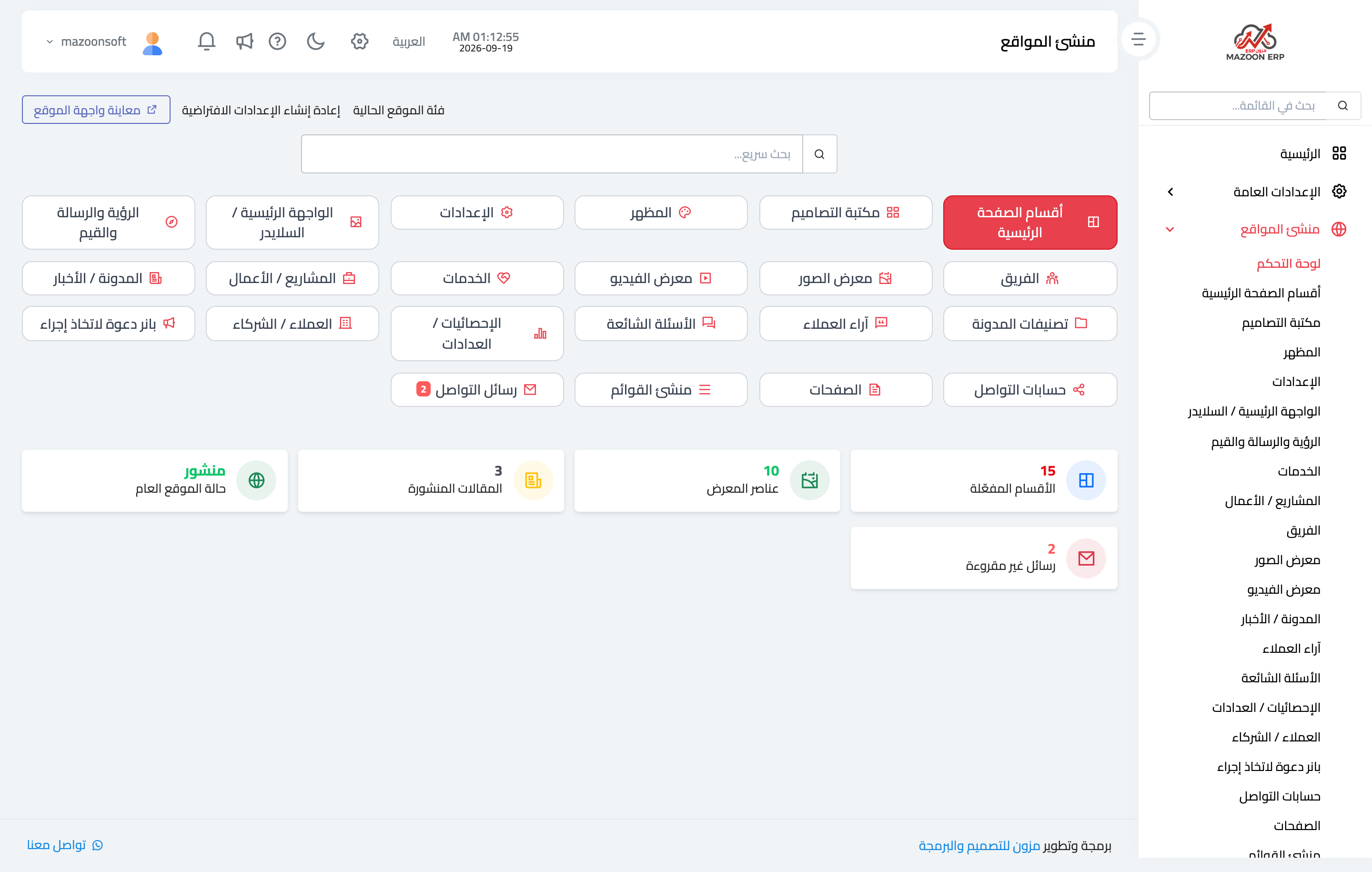
Figure 1
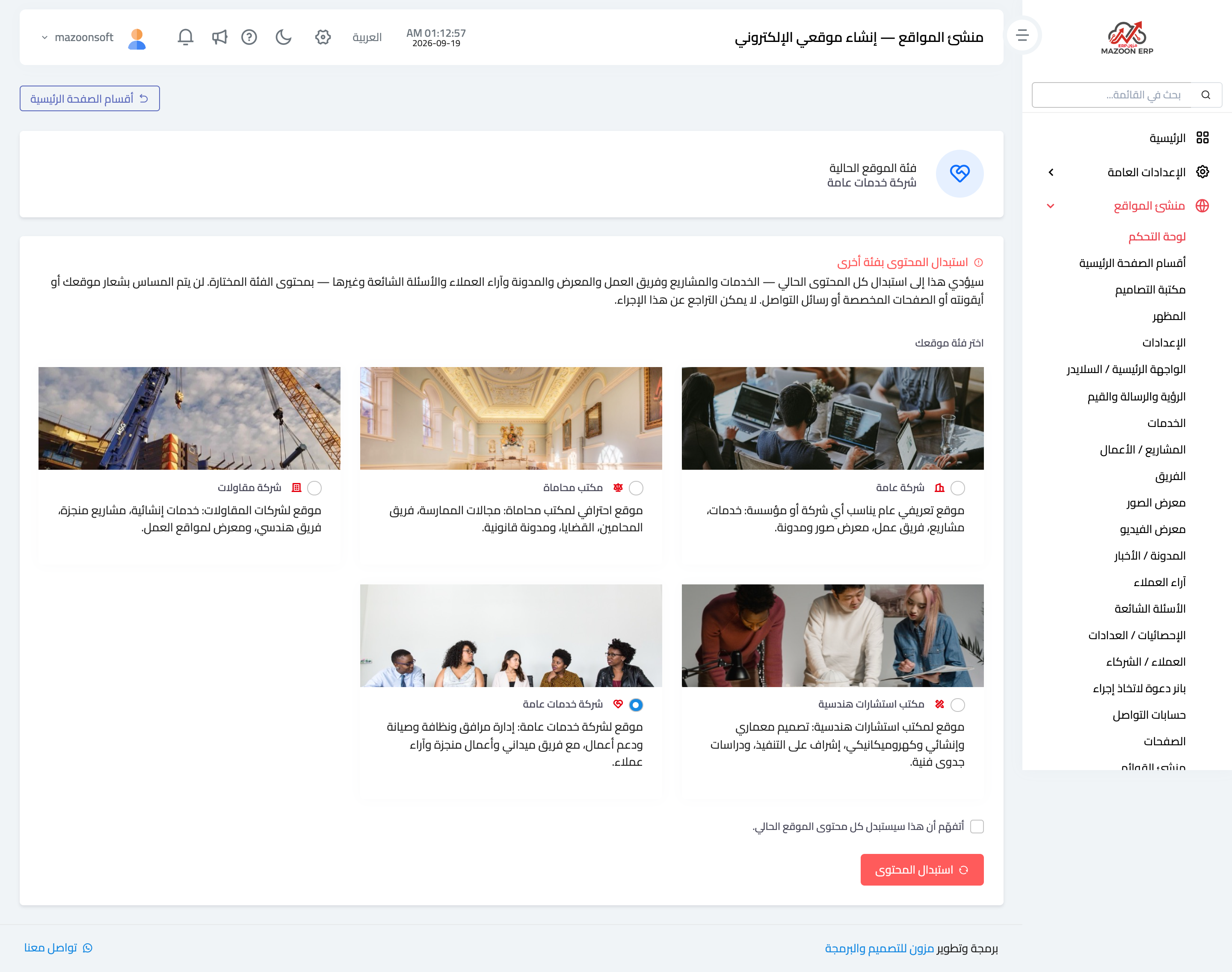
Figure 2
Try what you just read on your own data
Open a free 7-day trial — no credit card, with your own company link in minutes.