
What is the Design Library and how do I pick a section’s look from it?
Picking a layout from a dropdown is guesswork; the Design Library shows you every option as a picture before you choose.
Steps
- Open Website Builder → Design Library — Figure 1.
- Browse the previews: every section’s layouts, plus header and footer styles and themes.
- Use the search to jump to a particular section; whatever is currently in use is marked Selected.
- Press Use this design and it is applied to your site immediately.
- Then open Preview Storefront to see the result against your own content.
Notes
- The previews use sample content, so judge properly only after applying it to your own text and images.
- Keep one visual character; mixing clashing layouts on one page makes the site look patched together.
- The quality of your images matters more than the layout you pick; a poor photo ruins the best design.
Screenshots
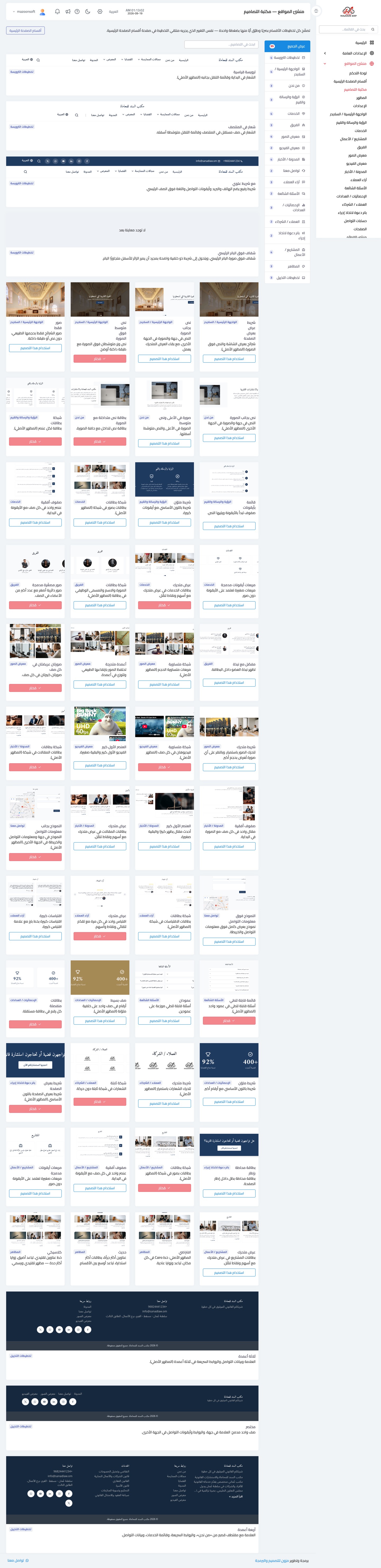
Figure 1
Try what you just read on your own data
Open a free 7-day trial — no credit card, with your own company link in minutes.