
How do I switch on the public booking site?
The module ships with a ready public site that shows your venues with their photos, prices and availability calendar, and takes bookings straight into the system.
Steps
- Open Halls & Chalets → Settings — Figure 1.
- Enter the phone, WhatsApp, email, address and Google Maps embed code.
- Pick the primary colour and the dark colour to match your brand.
- Choose the payment policy: either require full payment, or an advance payment amount paid at booking.
- Set the pending booking timeout in minutes; an unpaid booking is auto-cancelled after it, so a date is not closed for nothing.
- Save, then open the site and check how it looks — Figure 2.
What happens when a booking arrives
A booking is created in the system as pending, appearing in the bookings list and the calendar like any other, and all you have to do is review and confirm it.
Notes
- Do not open the site before the photos, prices and pricing rules are right; a first visitor rarely comes back.
- A short pending timeout beats a long one; a night held without payment blocks a serious customer.
- If you are not ready for online payment yet, keep the site as a shop window for your venues with call and WhatsApp buttons.
- Review the site on your phone, not only on a computer; most people searching for a venue search from a mobile.
Screenshots
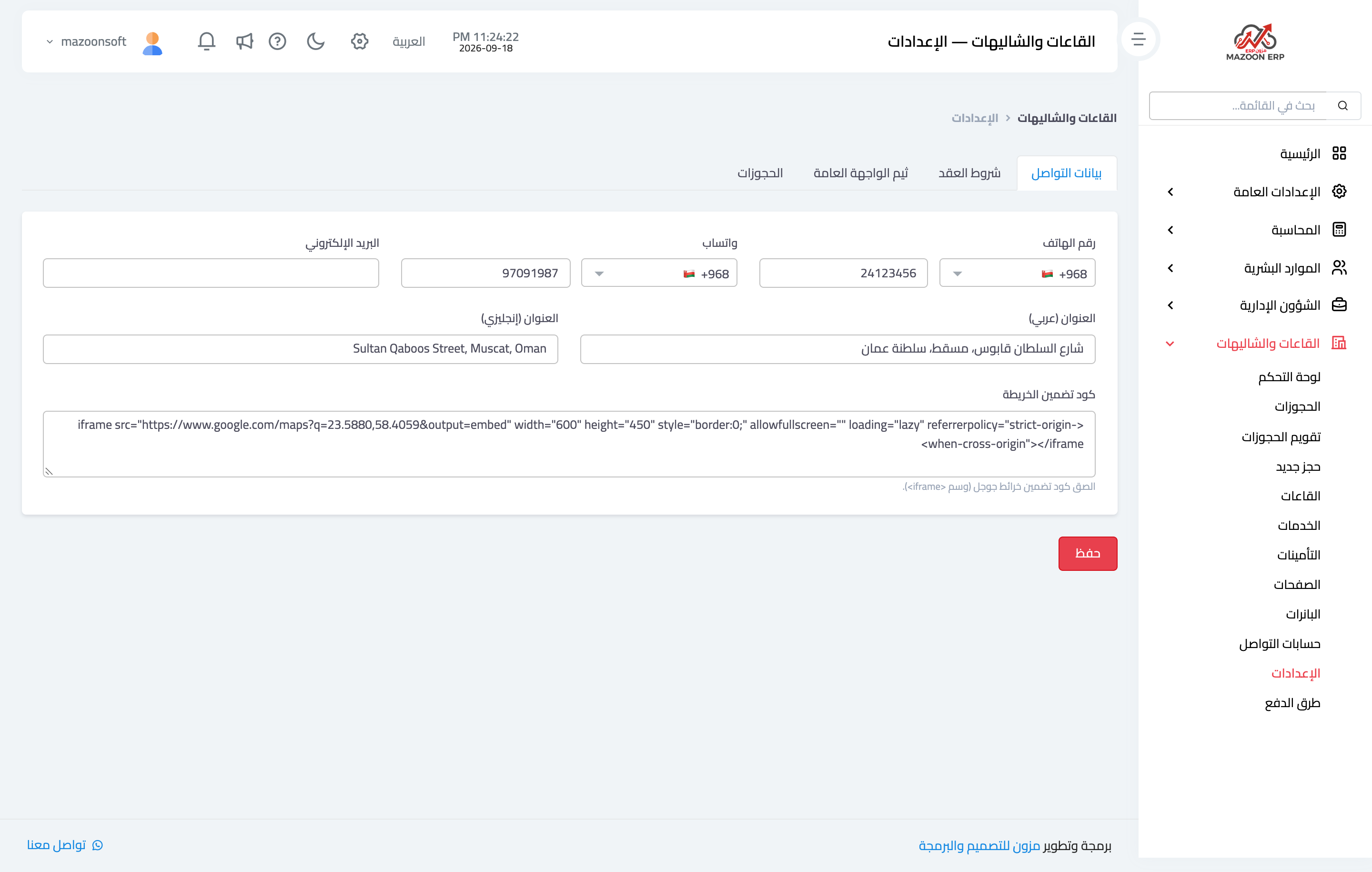
Figure 1
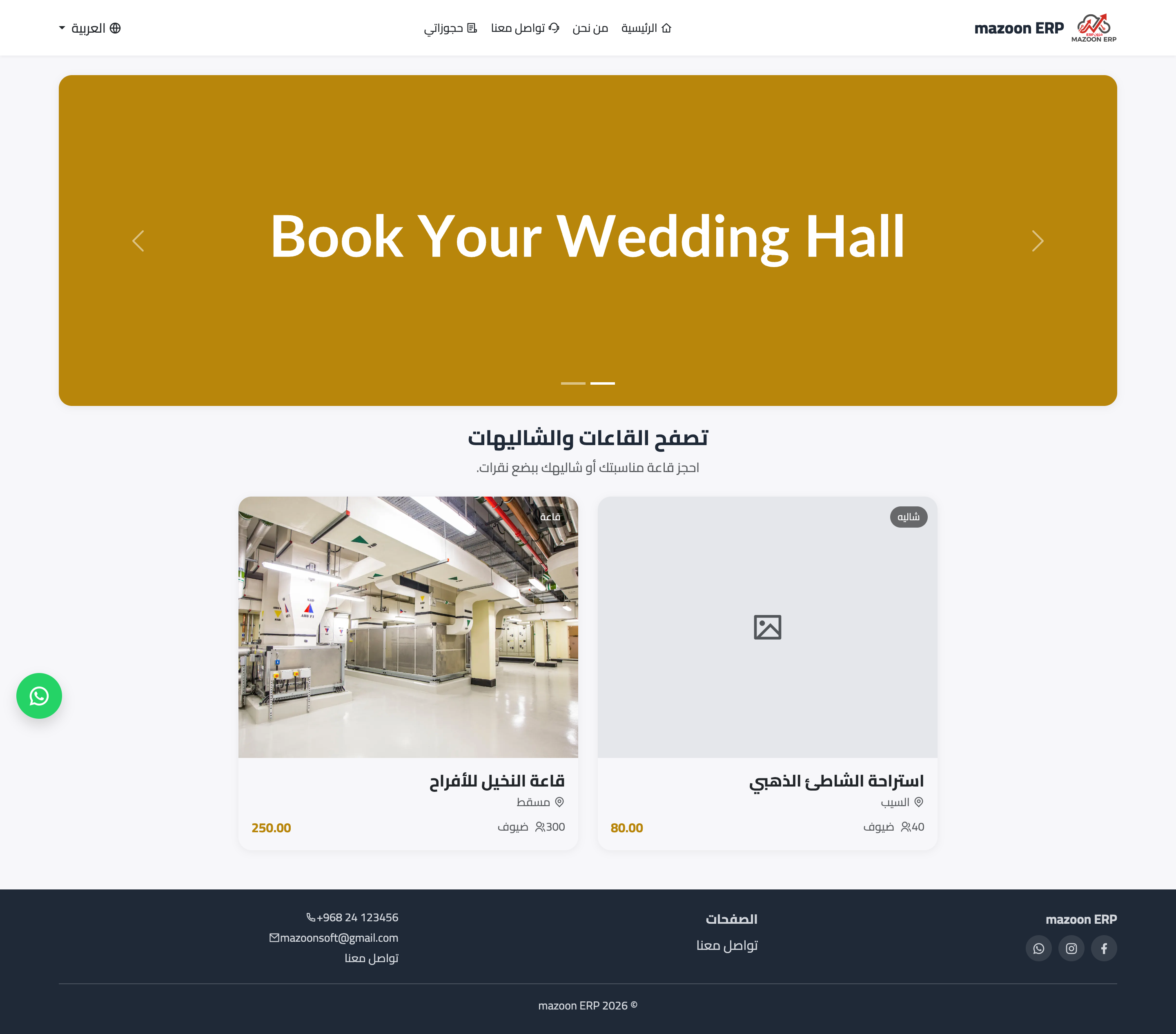
Figure 2
Try what you just read on your own data
Open a free 7-day trial — no credit card, with your own company link in minutes.