
How do I block bookings for a certain period?
Sometimes a venue is unavailable without having a booking on it: maintenance, repainting, or an event of the management’s own. Blackout periods are the right place for that.
Steps
- From Venues open Blackout periods for the venue — Figure 1.
- Set the date from and date to, and write the reason clearly.
- Save. From that moment the days show as unavailable on the public site calendar and any booking attempt is refused.
- To lift it, delete the period from the table.
- Check the venue calendar — Figure 2 — to confirm the days really are closed.
When to use which
- Blackout period — the venue exists but is committed on dates known in advance.
- Deactivating the venue — the hall is out of service with no fixed end date.
- A booking in the management’s name — when you want the event to appear in the bookings calendar rather than just a closure.
Notes
- A blackout blocks booking both on the website and inside the system, so you do not need to remind staff.
- Write the reason as a useful sentence such as “repainting and lighting refresh” rather than the single word “maintenance”.
- Delete the period as soon as the work is done; a forgotten blackout is lost nights nobody notices.
- Schedule maintenance in the low season; closing the hall during wedding season costs you twice.
Screenshots
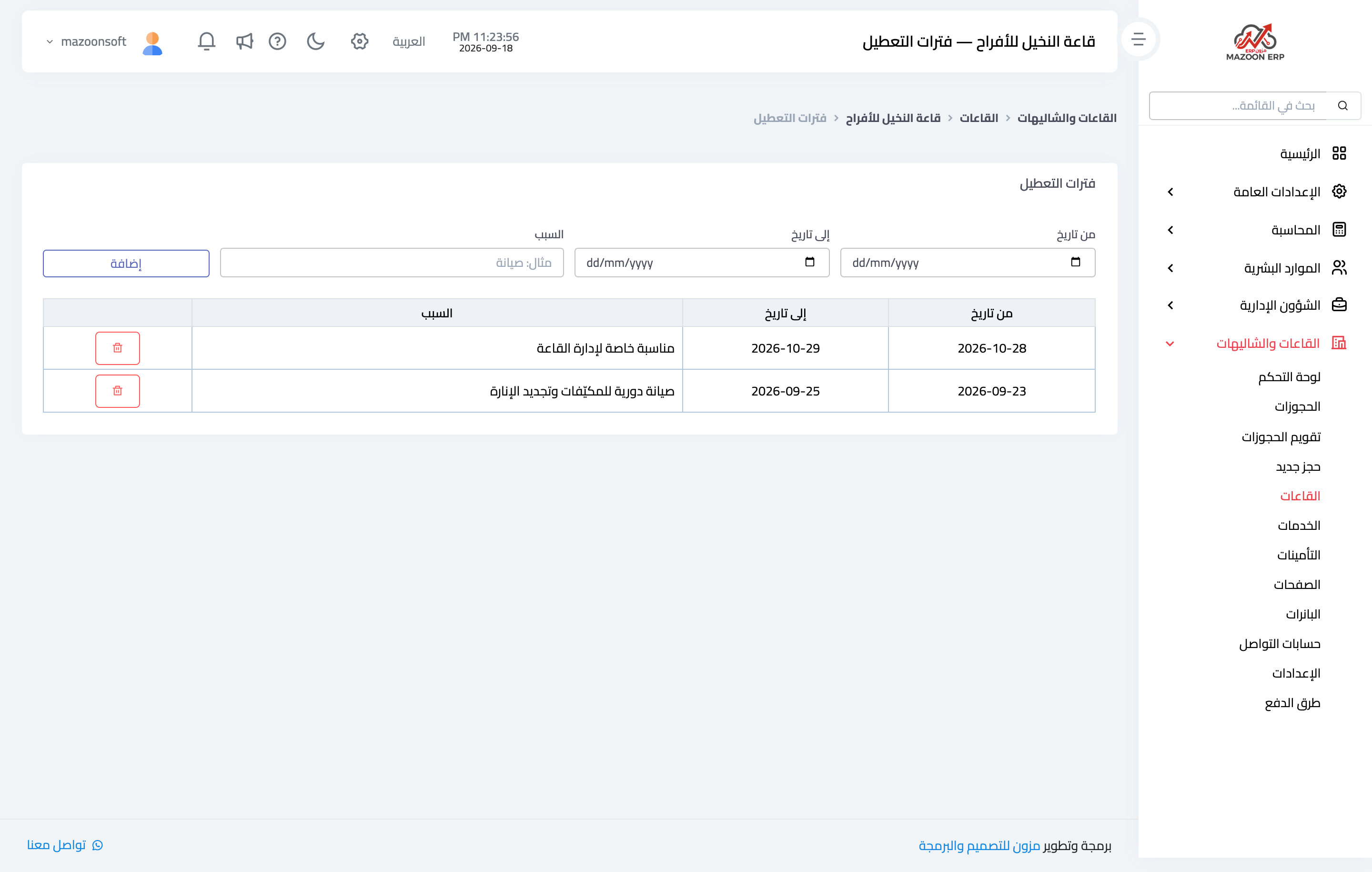
Figure 1
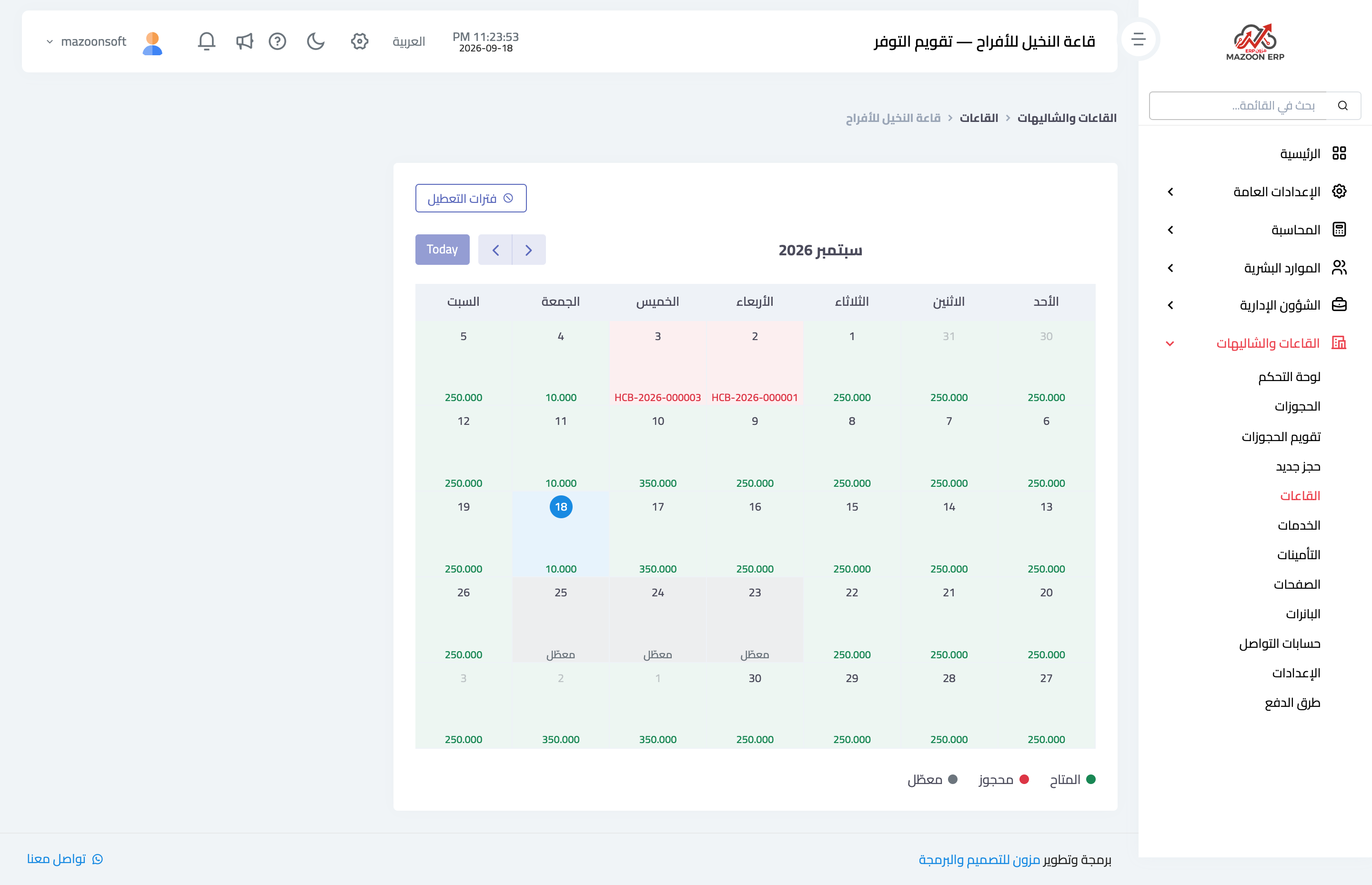
Figure 2
Try what you just read on your own data
Open a free 7-day trial — no credit card, with your own company link in minutes.