
How do I confirm, complete or cancel a booking?
What you are allowed to do to a booking follows its status, and there are only four.
The statuses
- Pending — on creation, before the deposit is taken or the booking confirmed. The date is held provisionally.
- Confirmed — after the deposit is taken and the date agreed.
- Completed — after the event, once the account and the deposit are settled.
- Cancelled — and the date becomes available to someone else immediately.
Steps
- Open the booking — Figure 1 — and you will see the buttons available for its current status.
- To confirm: take the deposit first, then confirm the booking.
- To complete: after the event press Mark as completed, and do not do so before the balance and the deposit are settled.
- To cancel: press Cancel booking, then decide the fate of the deposit under your cancellation policy.
- Filter the Bookings list — Figure 2 — by status to see what needs following up.
Notes
- A pending booking holds the date and blocks everyone else, so review pending bookings every morning rather than letting them pile up.
- Do not delete a booking to fix a mistake; cancelling keeps the trail, deleting erases it.
- Completing a booking before refunding the deposit makes the deposits list mislead you about money you do and do not hold.
- The activity log at the bottom of the booking shows who changed the status and when; it is your reference in an internal dispute.
Screenshots
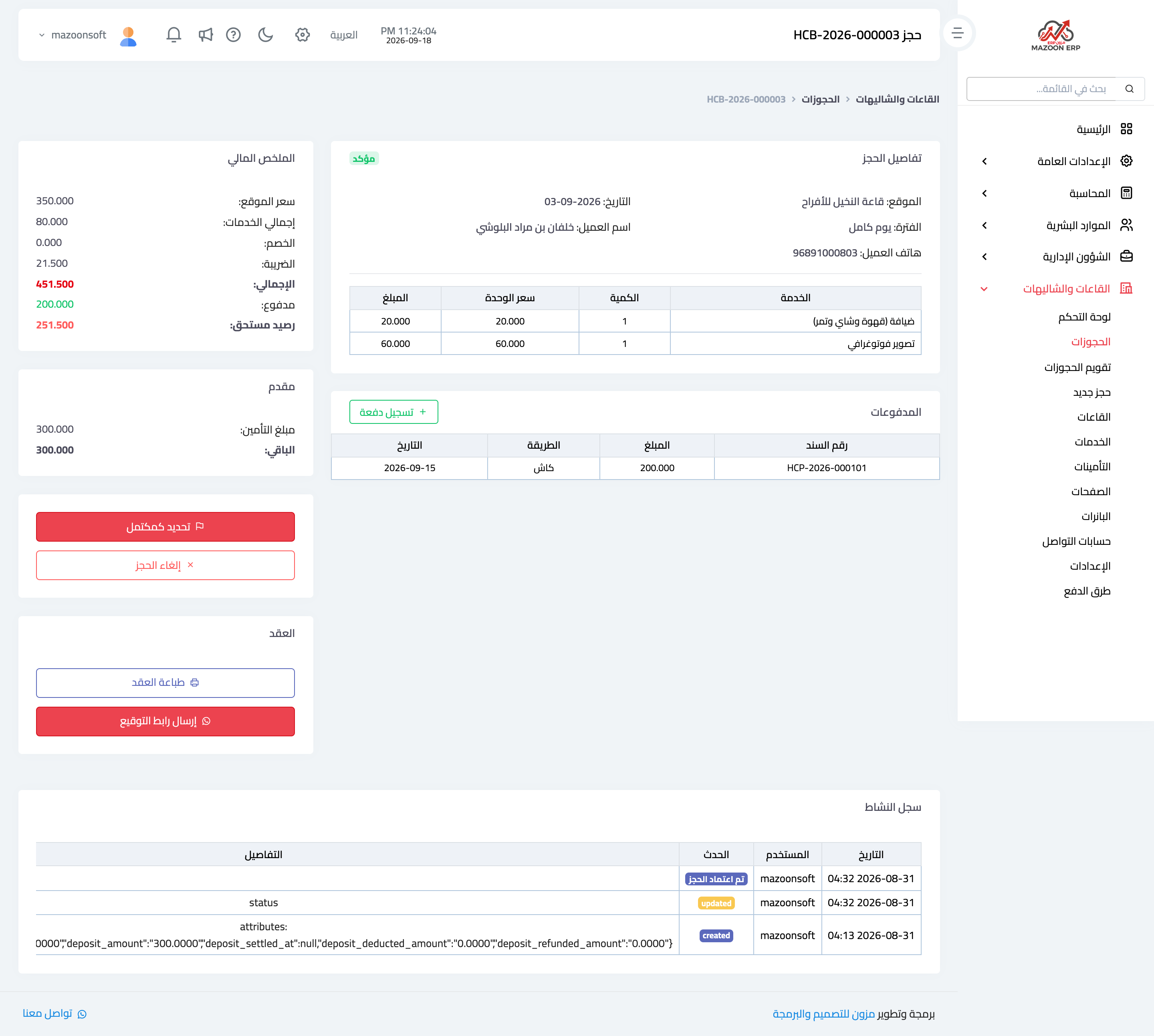
Figure 1
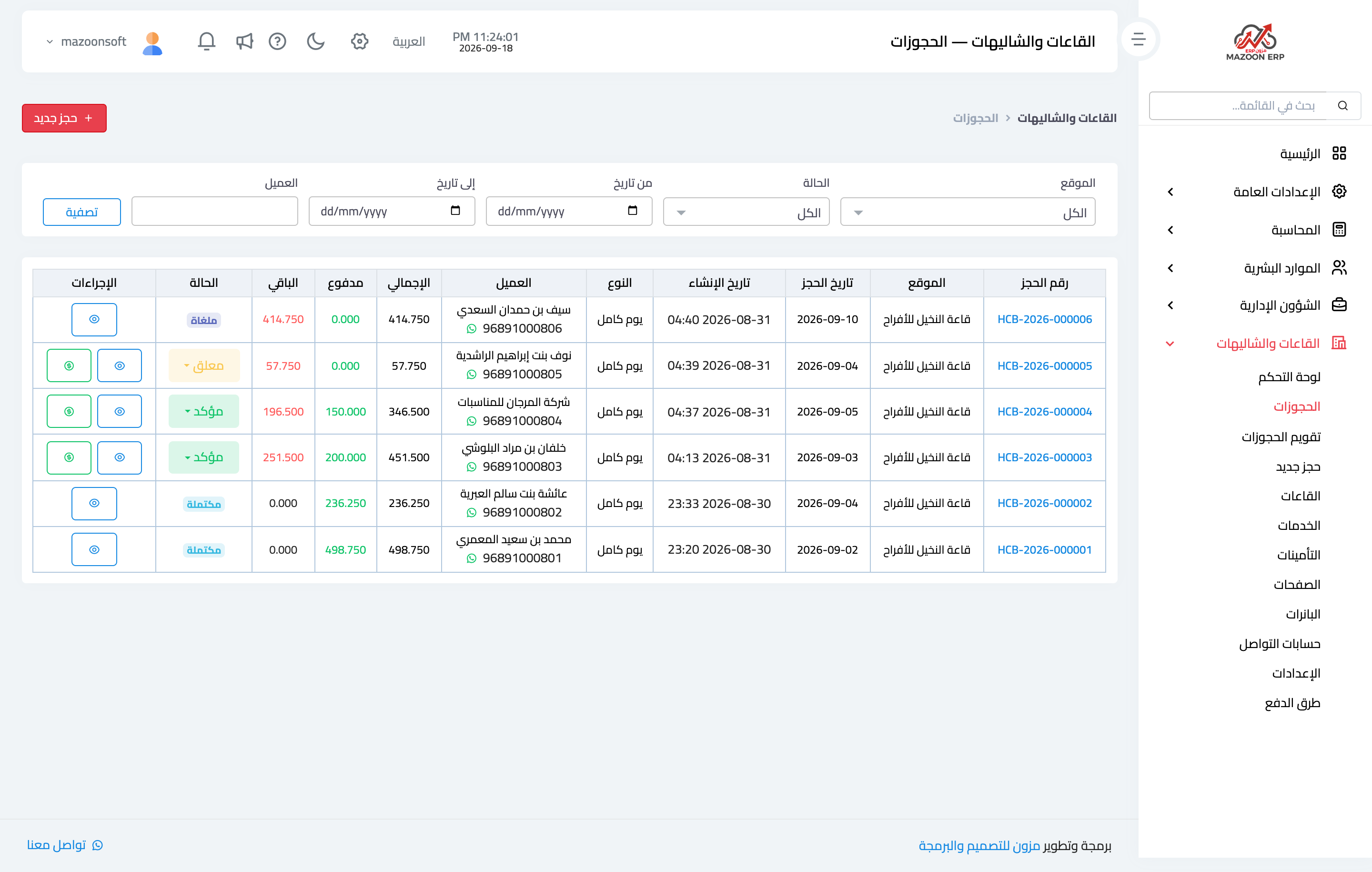
Figure 2
Try what you just read on your own data
Open a free 7-day trial — no credit card, with your own company link in minutes.