
How do I record a new booking?
The booking is the heart of the module: the invoice, the deposit, the contract and the calendar all come out of it.
Steps
- Open Halls & Chalets → New booking — Figure 1.
- Pick the venue, the booking date and the period: full day, morning or evening.
- Turn on with overnight if the venue supports it; the overnight surcharge is added.
- Pick the customer from contacts, or type their name and phone directly.
- Add the services and their quantities, then the discount and the tax percentage if any.
- Enter the deposit amount; the system suggests it from the venue settings.
- Save. The financial summary appears — Figure 2 — with the venue price, services total, tax, paid and balance due.
After saving
The booking starts as pending until it is confirmed. From the booking page you can record payments, print the contract, send the signing link, and complete or cancel the booking.
Notes
- The system refuses two overlapping bookings on the same venue in the same period; if a date is rejected, check the calendar and the blackout periods.
- Do not confirm a booking before the deposit is taken; bookings with no deposit are often cancelled and cost you a serious customer.
- Record the customer’s phone correctly; the signing link and the date reminder go to it.
- Put any special agreement in the notes — a particular layout, an early access time — because what is not written is forgotten on the day.
Screenshots
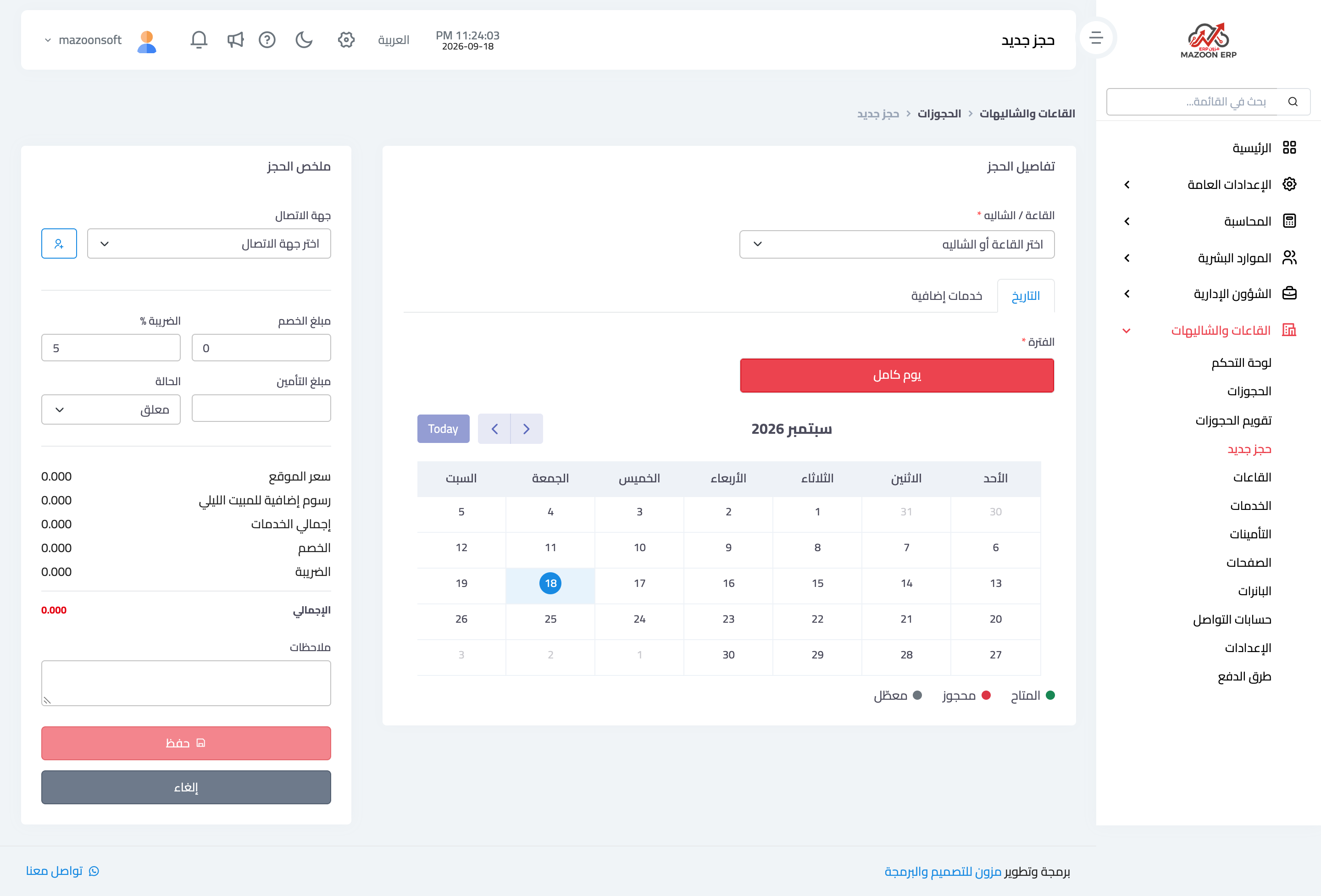
Figure 1
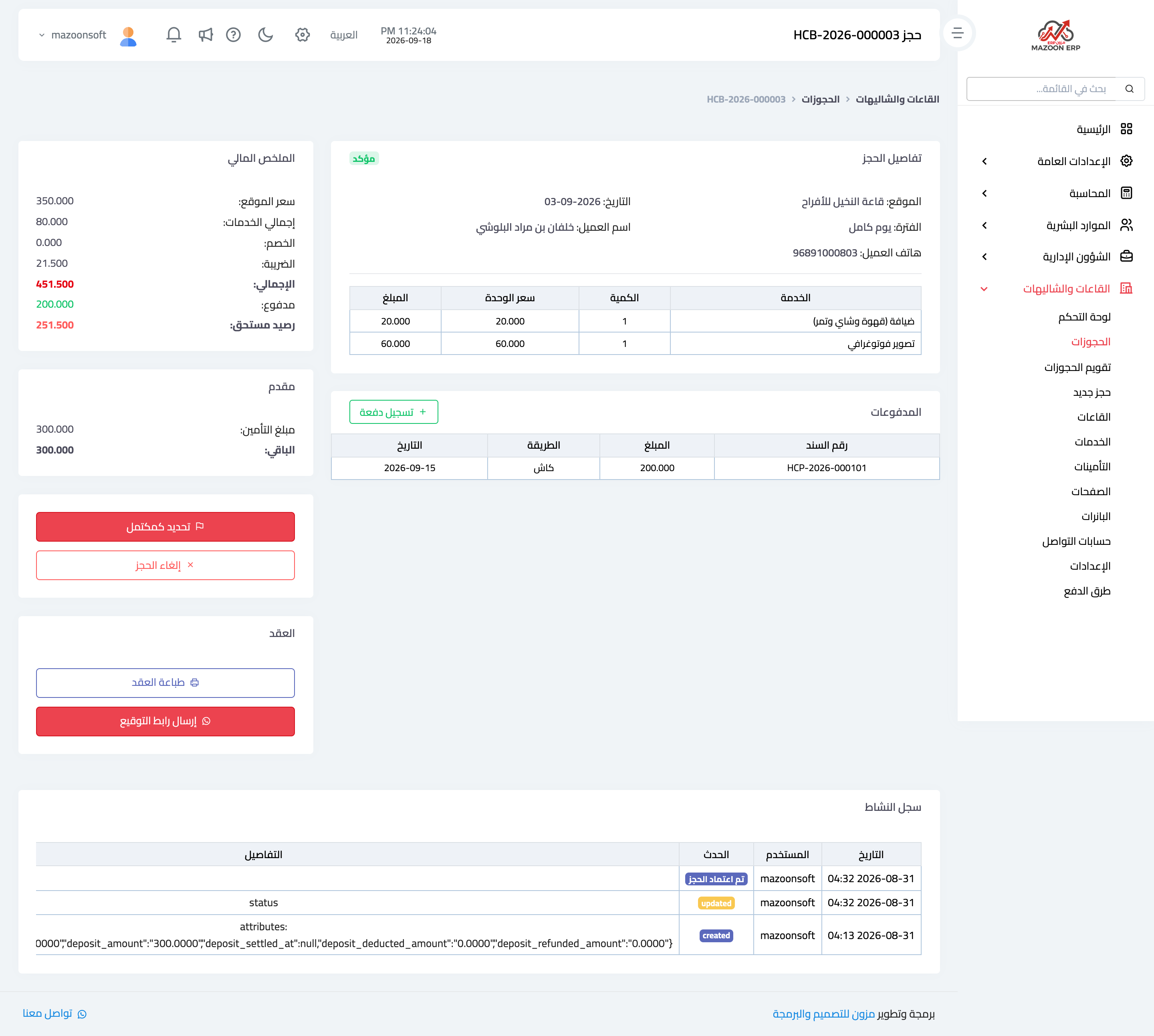
Figure 2
Try what you just read on your own data
Open a free 7-day trial — no credit card, with your own company link in minutes.