
How do I print the contract and send the signing link to the customer?
A signed contract is what protects you the day a customer says “that is not what we agreed” — and it is already prepared inside the booking, not retyped.
Printing
- Open the booking and press Print contract — Figure 1.
- It prints with the venue details, the date, the period, the services and the amounts, together with the contract terms and the cancellation policy from the settings.
Signing remotely
- Press Send signing link; WhatsApp opens with a ready message to the customer’s phone.
- The customer opens the link and sees the whole contract without needing an account in the system.
- They sign with a finger; the signature is stored on the booking with its date and appears on the printed contract.
- Follow what happened to the booking in the activity log at the bottom of the same page.
Notes
- Write the contract terms and the cancellation policy once in the settings and they appear on every contract.
- Do not hand over the venue before the contract is signed; an unsigned booking will not protect you in a damage dispute.
- Check the amounts and services before sending the link; editing after signature empties it of meaning.
- A clear, signed cancellation policy prevents most of the arguments in this business.
Screenshots
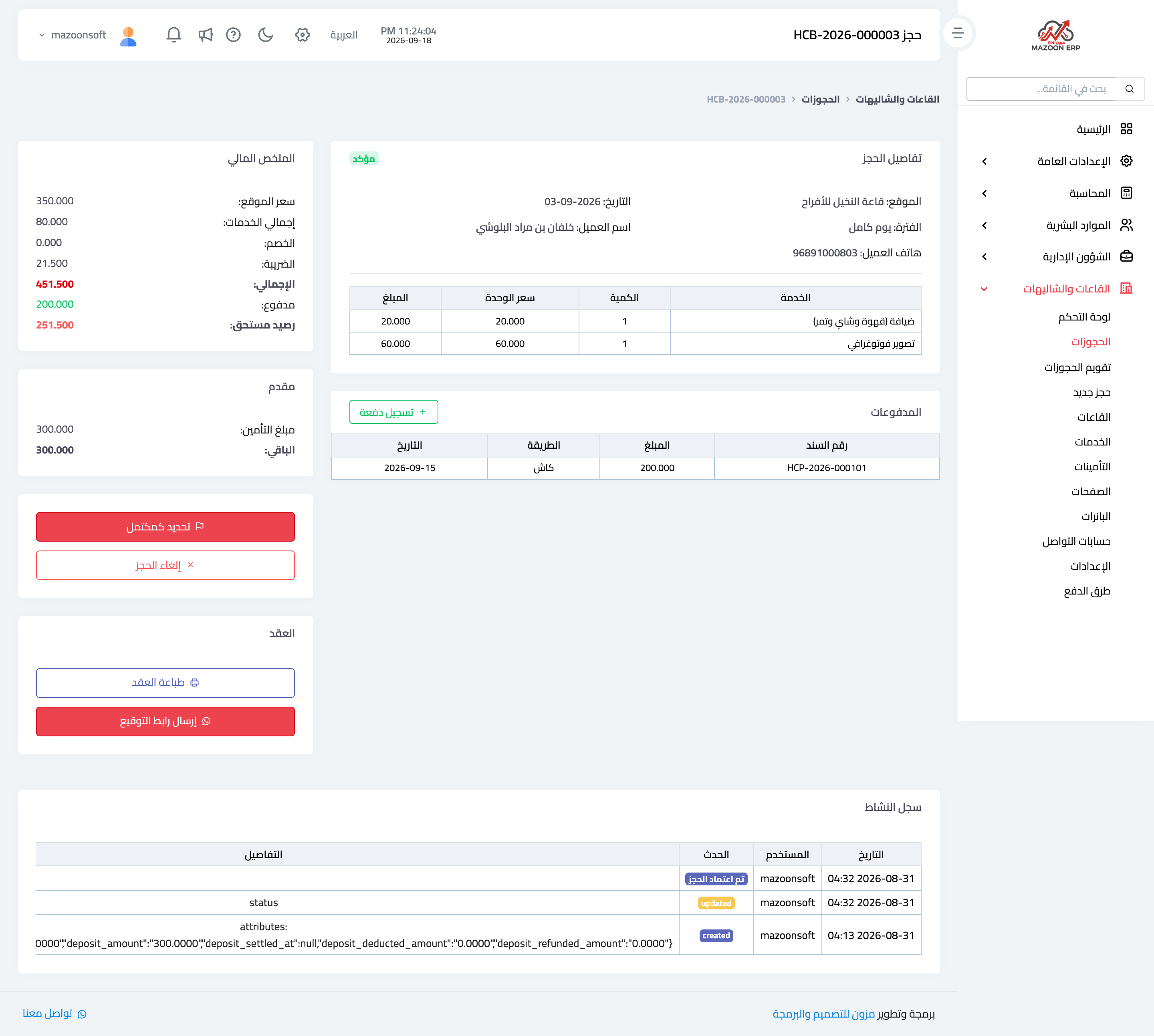
Figure 1
Try what you just read on your own data
Open a free 7-day trial — no credit card, with your own company link in minutes.