
How do I add a new hall or chalet?
Everything in this module revolves around the venue: bookings are made on it, pricing is set for it, and it is what the public booking site displays. This is where you start.
Steps
- Open Halls & Chalets → Venues — Figure 1 — then a new venue — Figure 2.
- Enter the Arabic and English name and choose the venue type: hall, chalet or rest house.
- Enter the capacity in people, the city, the address and the WhatsApp number.
- Enter the base price, the full-day rate before any seasonal pricing rule.
- Set the minimum notice in days; it stops a booking arriving hours before the event that you cannot prepare for.
- Write the amenities and the description in both languages, and paste the Google Maps embed code.
- Set the status to active and save.
Notes
- Capacity is not a marketing field; customers compare on it before they call, and overstating it comes back as a complaint on the day.
- A sensible minimum notice protects your setup team more than it protects the calendar.
- Do not delete a venue that has past bookings; set it inactive so its financial history survives.
- Saving the venue does not show it to customers — see “How do I publish a venue on the booking site?”.
Screenshots
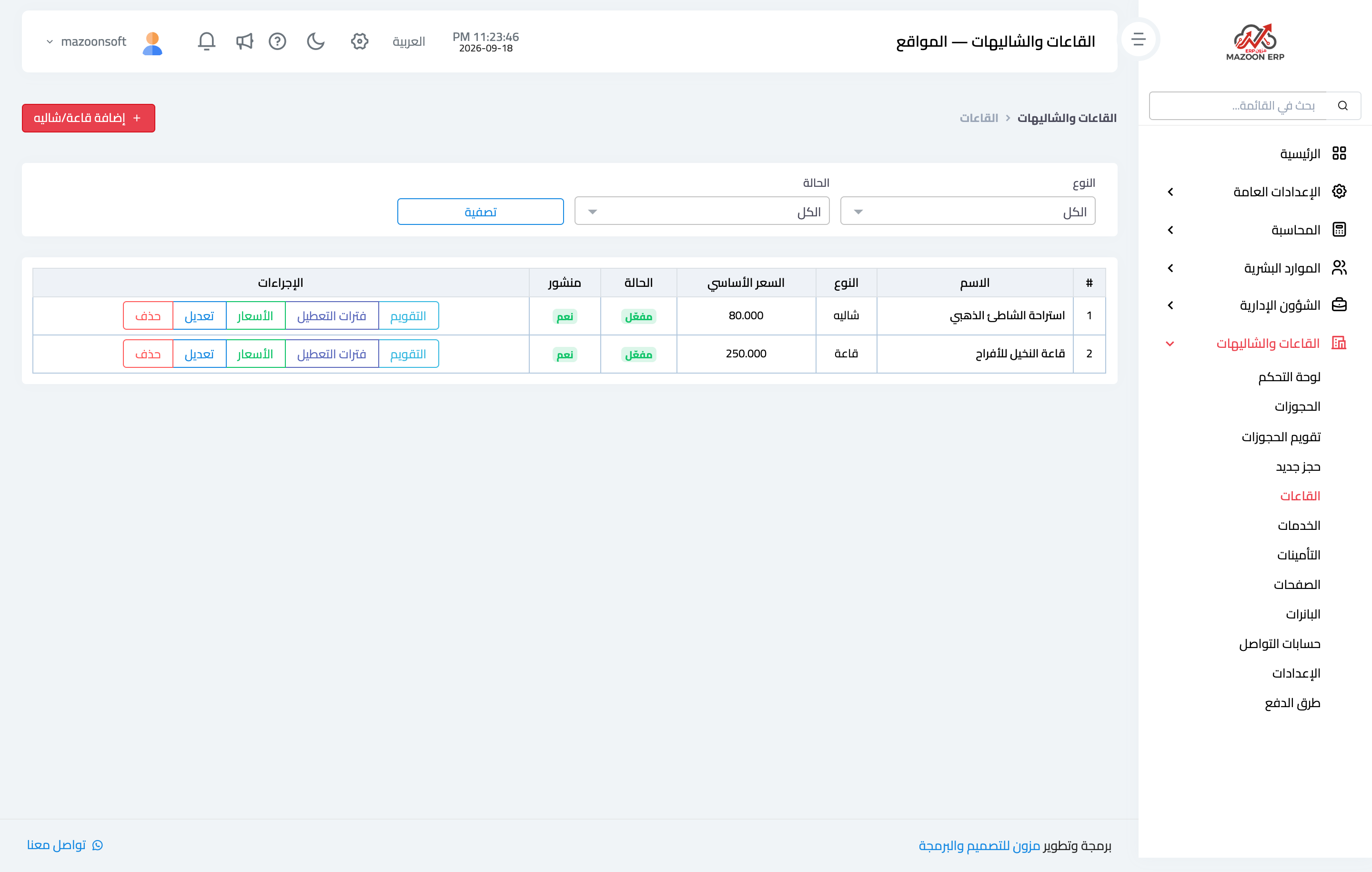
Figure 1
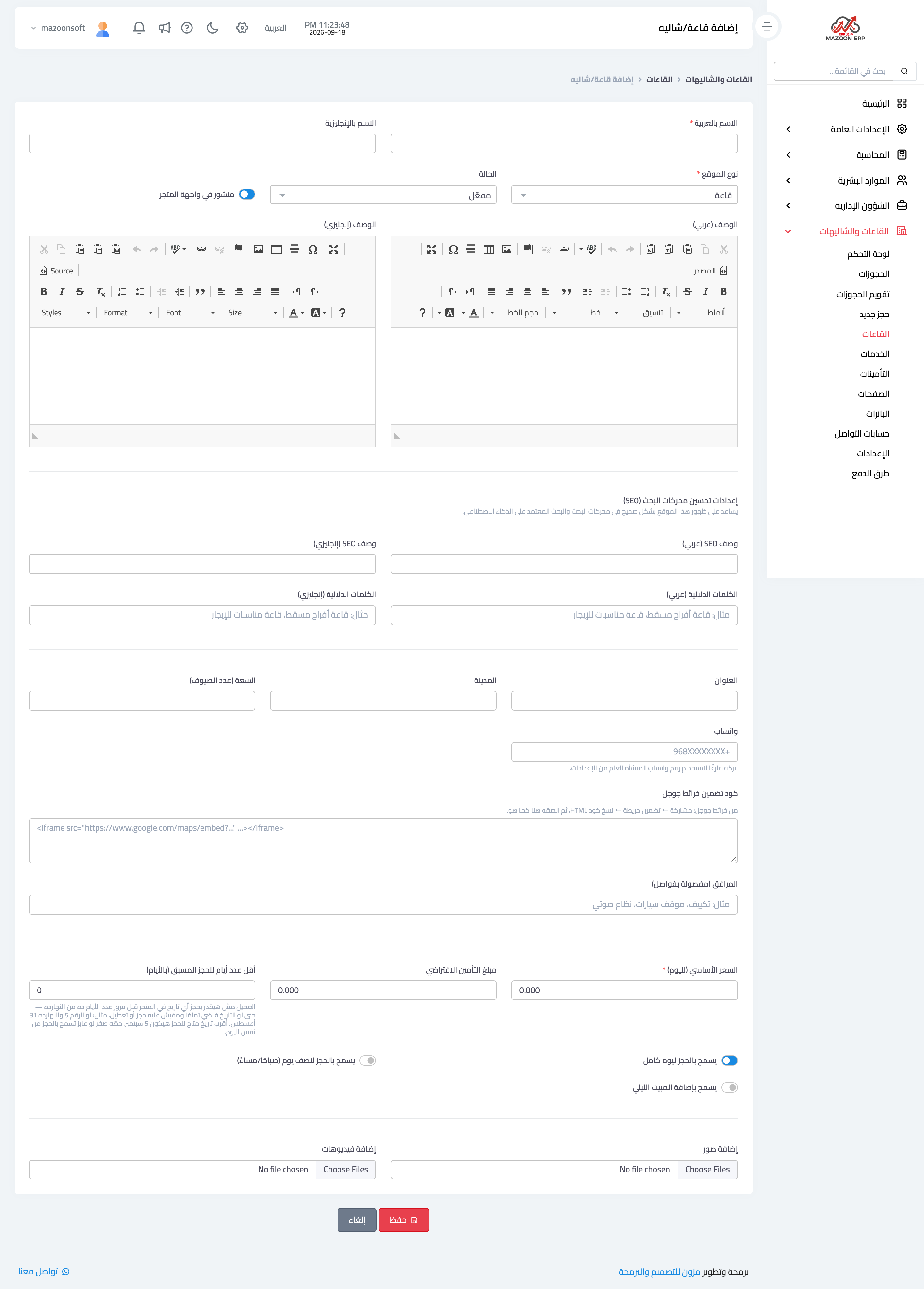
Figure 2
Try what you just read on your own data
Open a free 7-day trial — no credit card, with your own company link in minutes.