
How do I add pages, banners and social links to the booking site?
The booking site is more than a list of venues: it has informational pages, rotating banners on the homepage, and social links in the footer.
Pages
- Open Pages — Figure 1 — and add a page.
- Write the title and the content in both languages — things like “About us” and “FAQ”.
- Set the page active so it shows on the site.
Banners
- Open Banners — Figure 2 — and add a banner with its image, name and the link the visitor goes to.
- Set the sort order; banners rotate at the top of the homepage.
Social links
- Open Social links — Figure 3 — and add the platform and the URL.
- These links appear in the site footer.
Notes
- In this sector an FAQ page saves you dozens of calls: capacity, parking, outside catering, access time.
- A banner with no link is wasted space; point it at a venue or a specific offer.
- Do not delete a page linked from the footer without removing its link; deactivating it is safer.
- Refresh the banners each season; a banner for an expired offer does more harm than good.
Screenshots
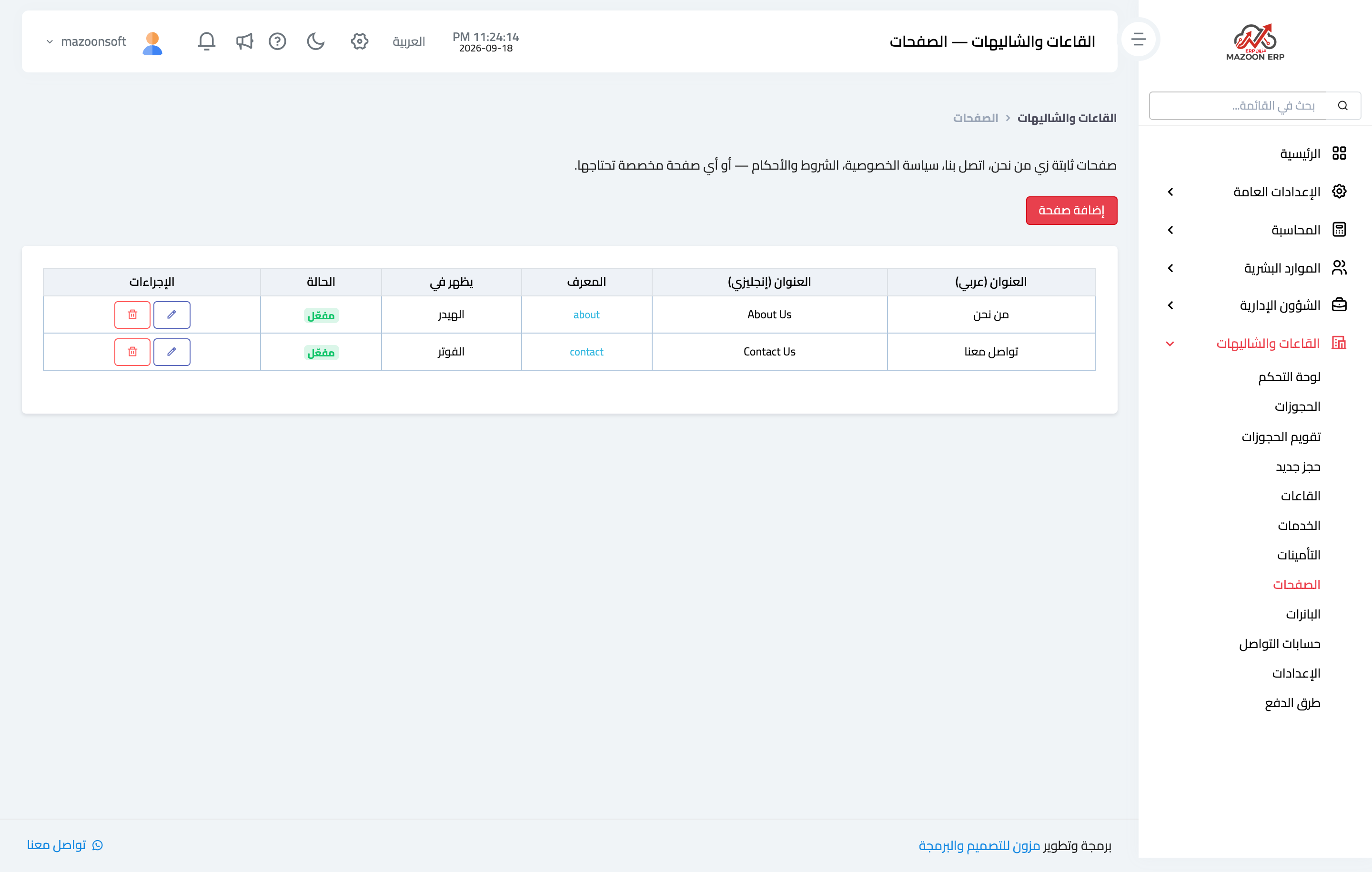
Figure 1
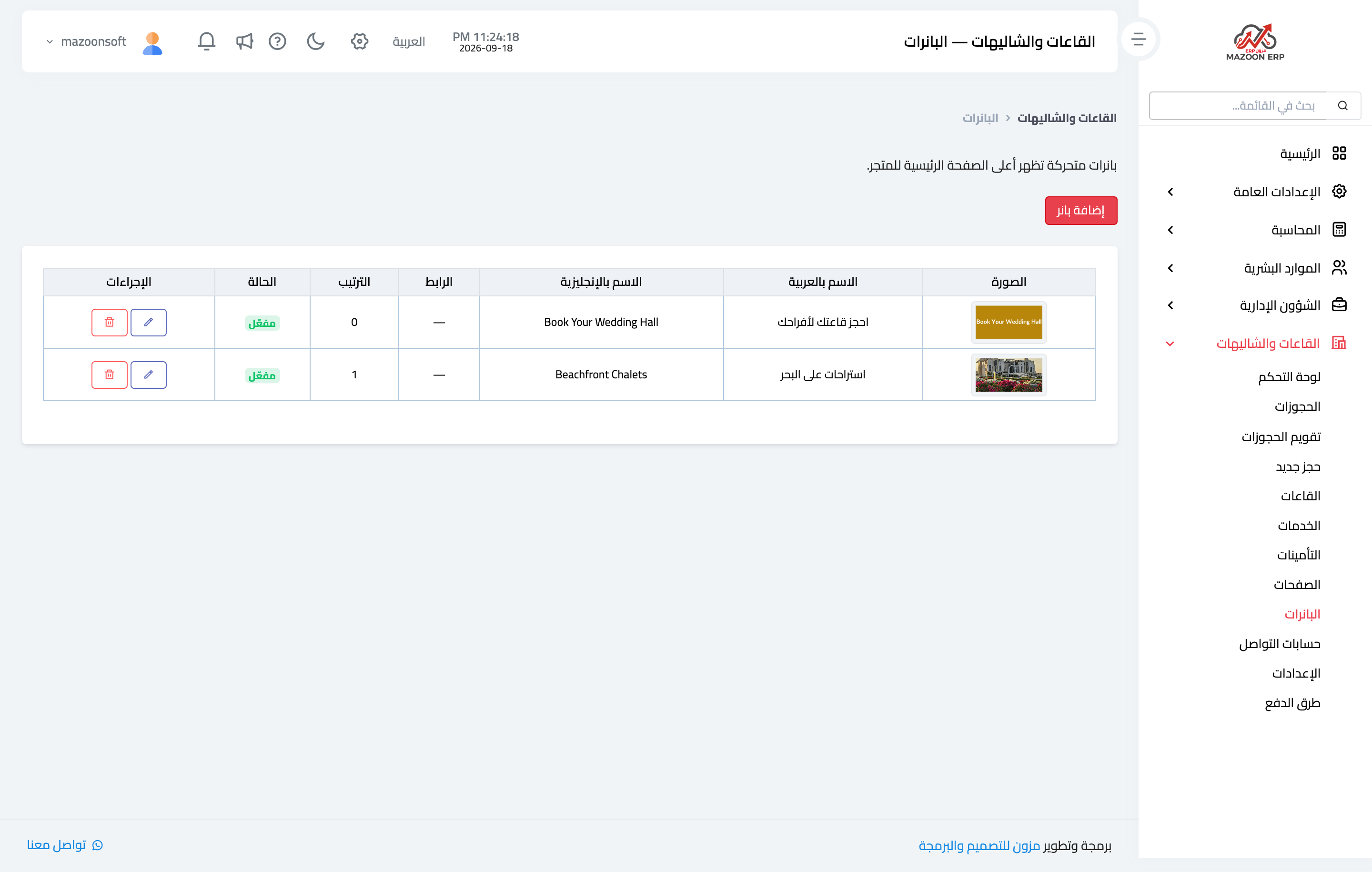
Figure 2
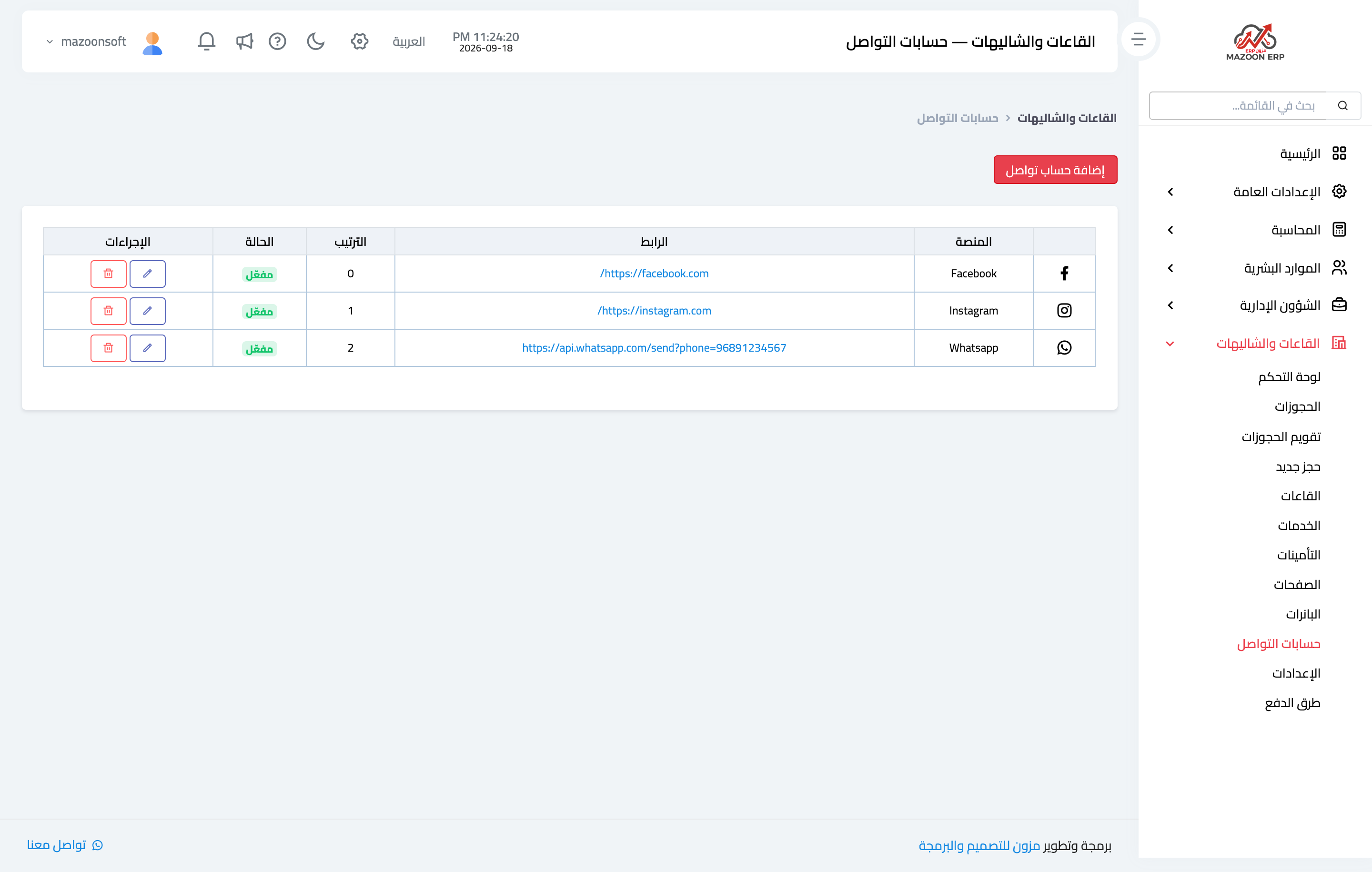
Figure 3
Try what you just read on your own data
Open a free 7-day trial — no credit card, with your own company link in minutes.