
Laundry overview and its service list
The Laundry module runs to a different rhythm from the rest: many small-value orders, a customer standing at the counter waiting, and pieces coming in and going out that must not go missing. That is why its heart is a fast point of sale rather than long forms.
The dashboard
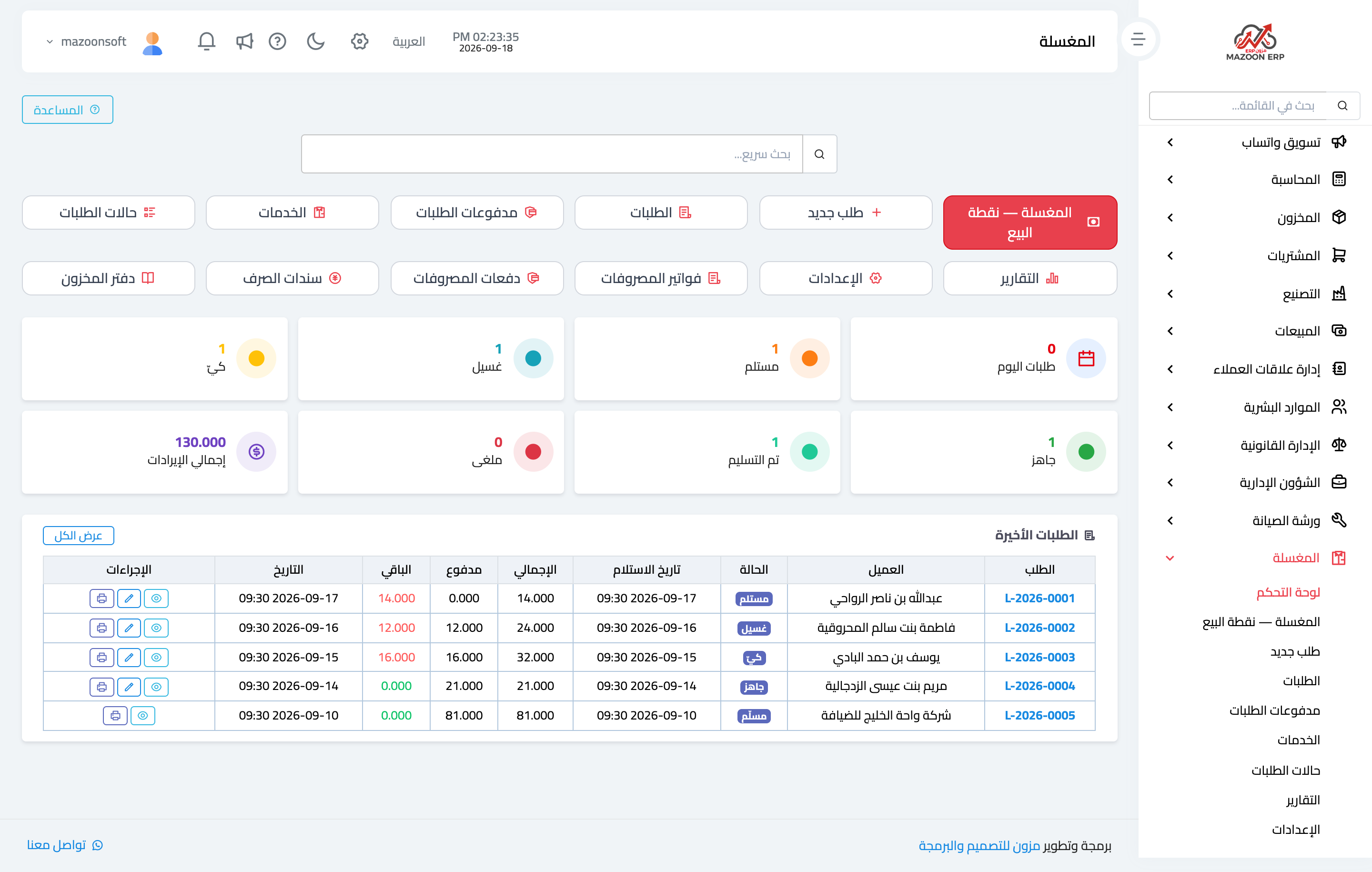
Open Laundry → Dashboard, as in Figure 1. It shows the day’s and the period’s figures: number of orders, how many sit at each stage of the work, what was collected, and what customers still owe.
Services and the price list
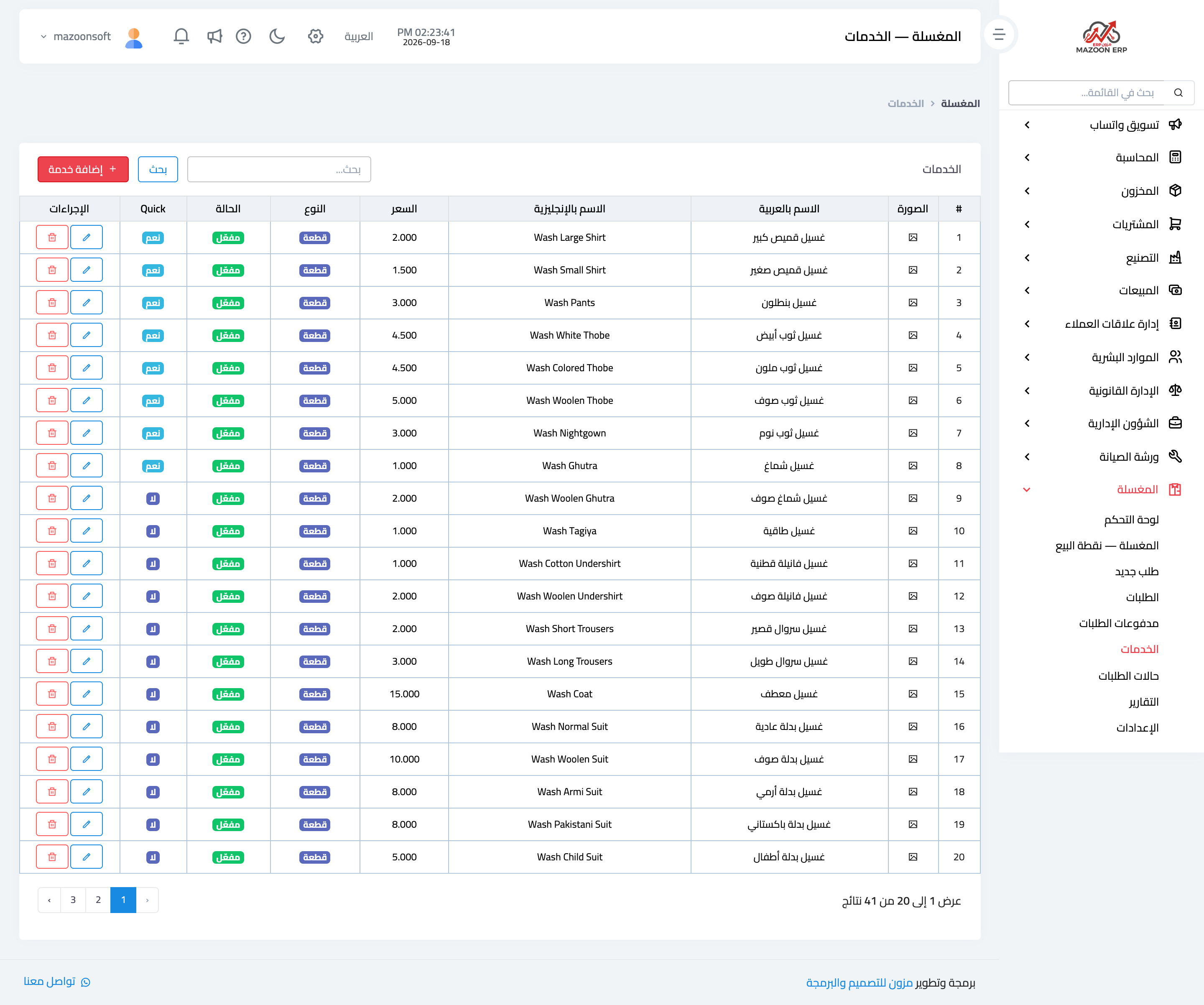
The service list is the foundation of the whole module, set under Services as in Figure 2. The system ships with a ready list covering the usual items — shirt, trousers, white thobe, coloured thobe, shemagh, cap — and your job is to set their prices and add whatever is missing.
Each service has:
- An Arabic and English name and a price.
- Type — per piece or by weight. This distinction is not cosmetic: a per-piece service generates a barcode tag for every piece, while a by-weight service gets no tags.
- Category, SKU, barcode, and image.
- Show in quick services — this is what lifts a service to the top row in the point of sale, so it is added with a single click.
- Sort order and active flag.
A practical tip: put your ten most requested services in the quick row and order them by demand. That alone shaves seconds off every order, and those seconds add up.
Order statuses
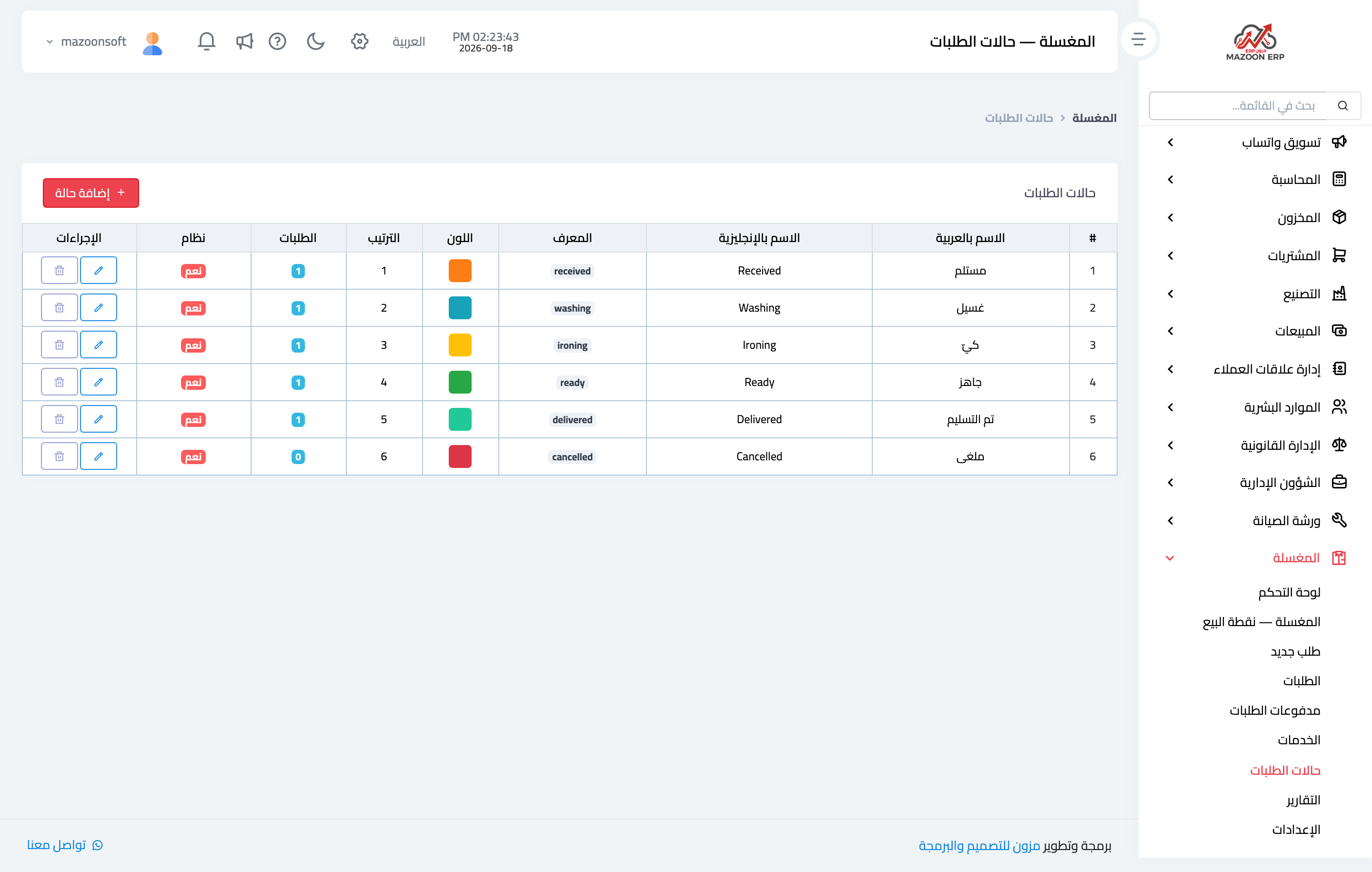
Six statuses ship ready, representing a piece’s path through the shop, as in Figure 3: received, then washing, then ironing, then ready, then delivered, with cancelled alongside.
Each status has a colour shown in the tables and at the piece scan station, and you can change names and colours or add a status that suits your shop — “folding and packing”, for instance.
Settings
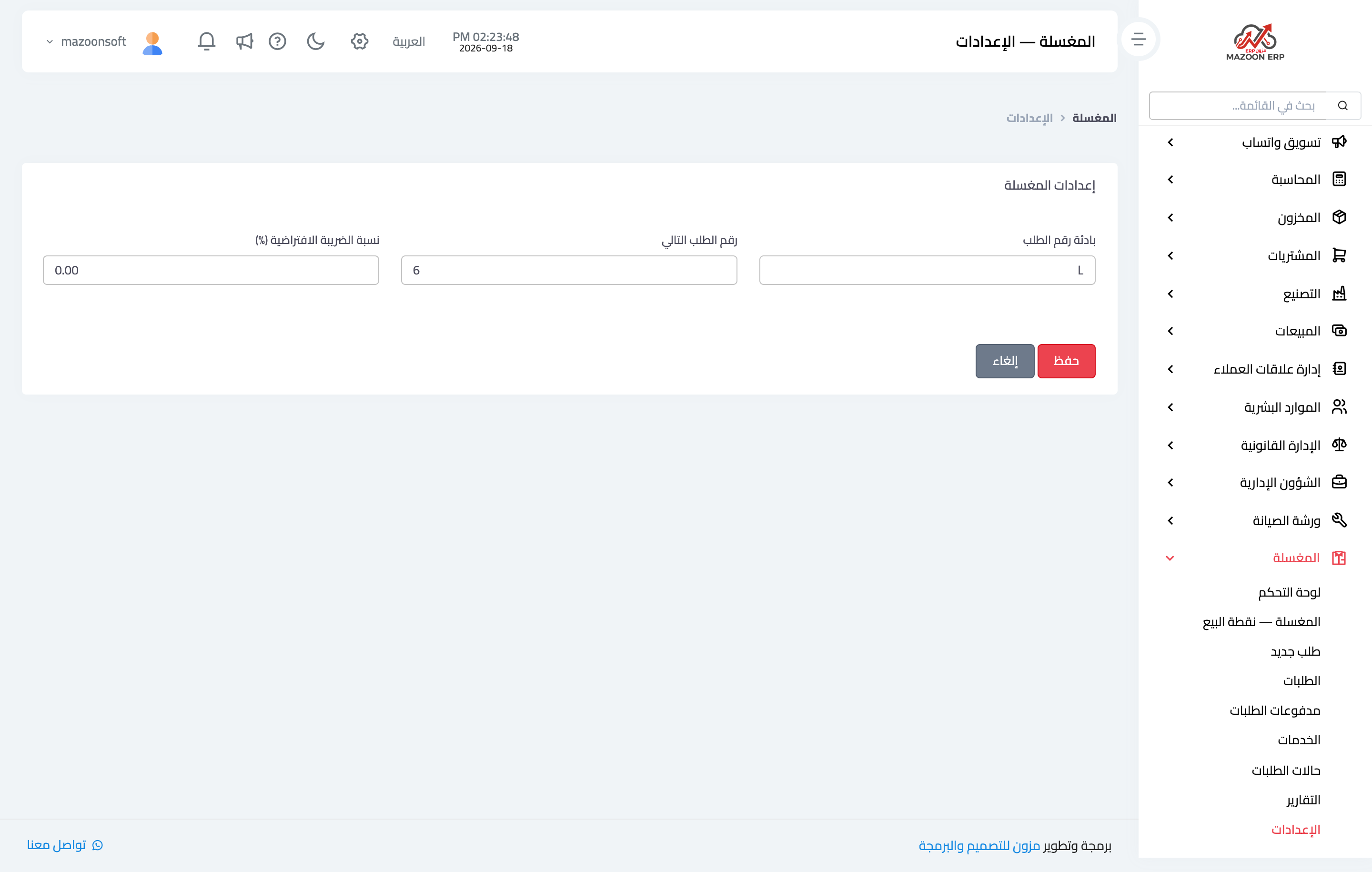
The laundry settings are short, as in Figure 4: the order number prefix, the next number, and the default tax rate. The prefix and number together build both the order number and its barcode.
Notes
- Set your prices before the first order; changing a service price does not alter orders already recorded at the old price, and that is correct behaviour.
- Deactivate a service you no longer offer rather than deleting it, so old orders stay readable.
- The service type (piece or weight) decides whether piece tags are printed, so choose it carefully at creation.
Screenshots
Try what you just read on your own data
Open a free 7-day trial — no credit card, with your own company link in minutes.