
How do I hold an order at the counter and resume it later?
A customer is halfway through handing over their pieces when they remember the rest of the bag is in the car. Do not cancel what you entered, and do not hold up the queue behind them: hold the order.
Holding
- On the POS screen with items in the cart, press Hold (or F2).
- The cart is stored under the customer name and the screen clears for the next customer.
Resuming
- Press Held orders (or F7) — Figure 1.
- Each held order is listed with its number, date, customer and total.
- Press Resume; the cart comes back exactly as you left it. Add the remaining pieces and press Save order.
- If the customer never comes back, press the delete button next to the held order.
Notes
- A held order is only a temporary snapshot of the cart: it has no final sequence number, it does not enter the reports, and no piece tags are printed for it.
- On resume a new real order is created and the held one is deleted, so there is no duplication to worry about.
- Do not let holding become a way to postpone work; a held order from yesterday means there are pieces in the shop with no order behind them.
Screenshots
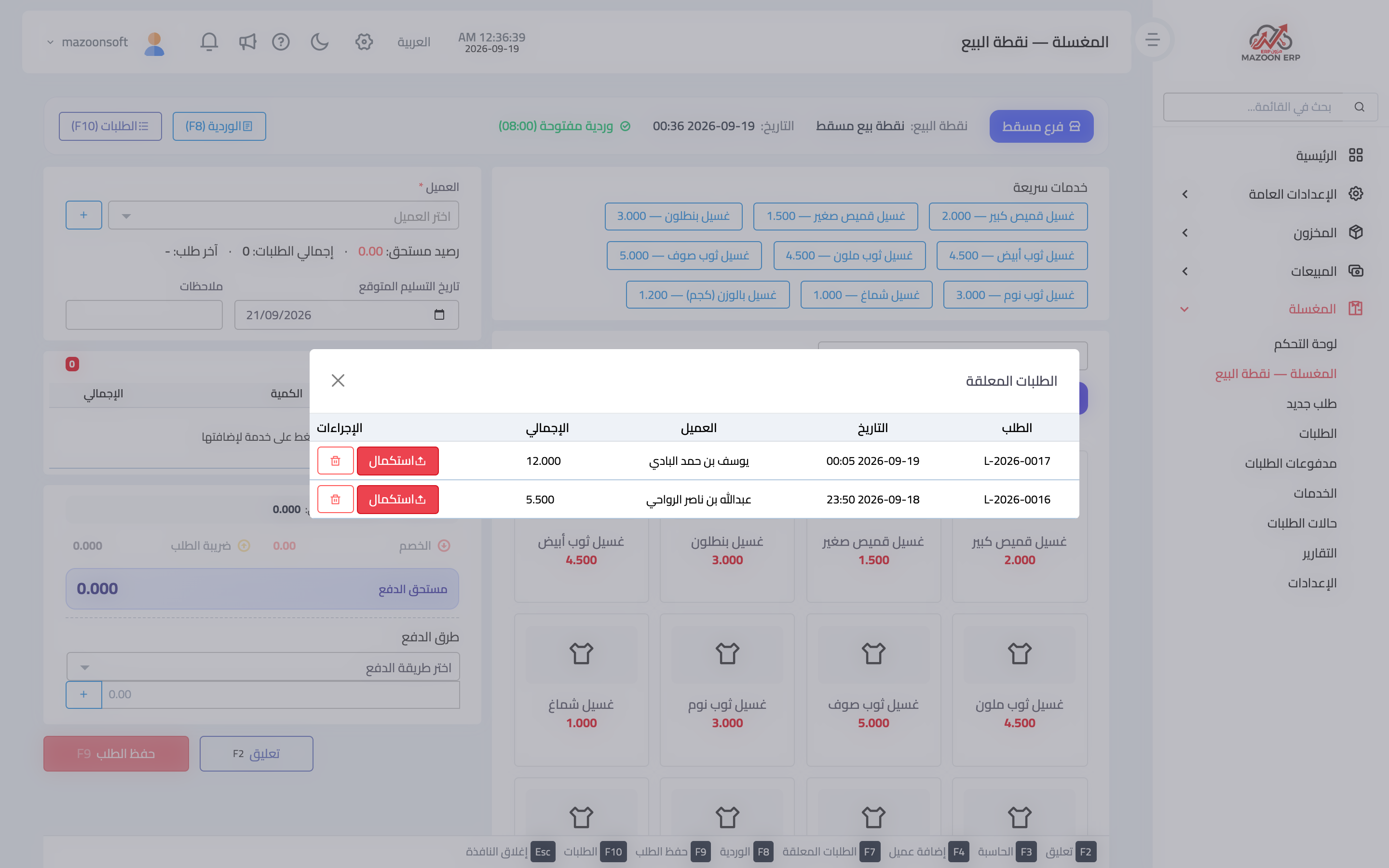
Figure 1
Try what you just read on your own data
Open a free 7-day trial — no credit card, with your own company link in minutes.