
How do I print piece tags and use the piece scan station?
Nothing wears a laundry down like a piece lost between two orders. The cure is a small tag on every piece.
Printing the tags
- Open the order from Laundry → Orders, then press Print Piece Tags.
- Choose the label size that matches your printer — Figure 1.
- Each piece gets a tag with the order number, the piece number (#1, #2…), the service name and its own barcode.
- Press Print and attach each tag to its piece.
The piece scan station
- Open Orders → Piece Scan Station — Figure 2 — and leave it open on a device in the work area.
- Scan the piece barcode with a reader, or type it in.
- You immediately see the order, the customer, the piece description and its current status, and you can move it to the next stage.
- From the orders list you can also scan a barcode to open an order directly when a customer arrives with their receipt.
Notes
- If you change the order lines after printing, press Regenerate piece tags, print again, and destroy the old tags.
- The tag belongs to the piece, not the order; that is what lets you locate each individual piece inside the shop.
- Use labels that survive water and heat; a tag that dissolves in the washer does you no good.
Screenshots
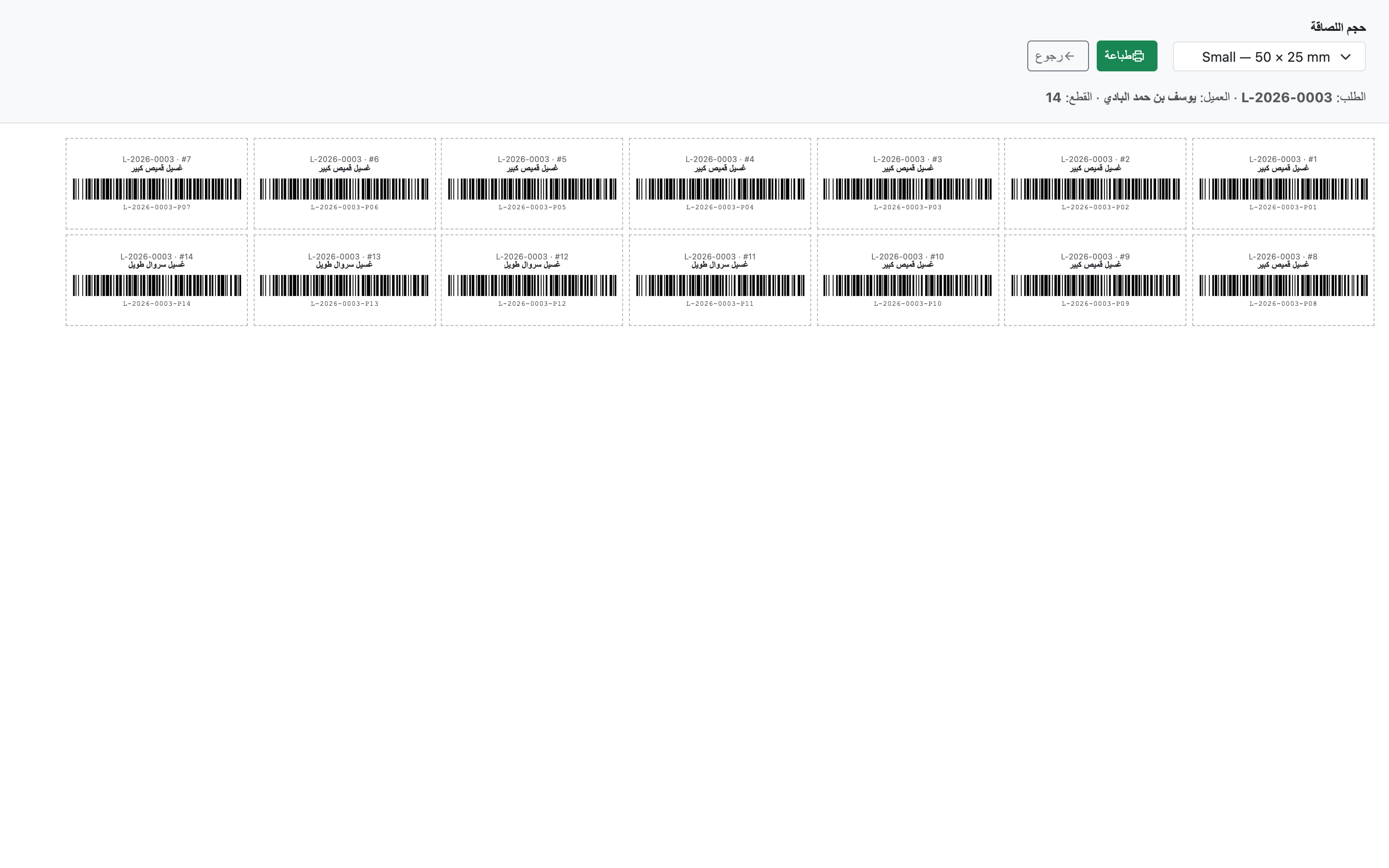
Figure 1
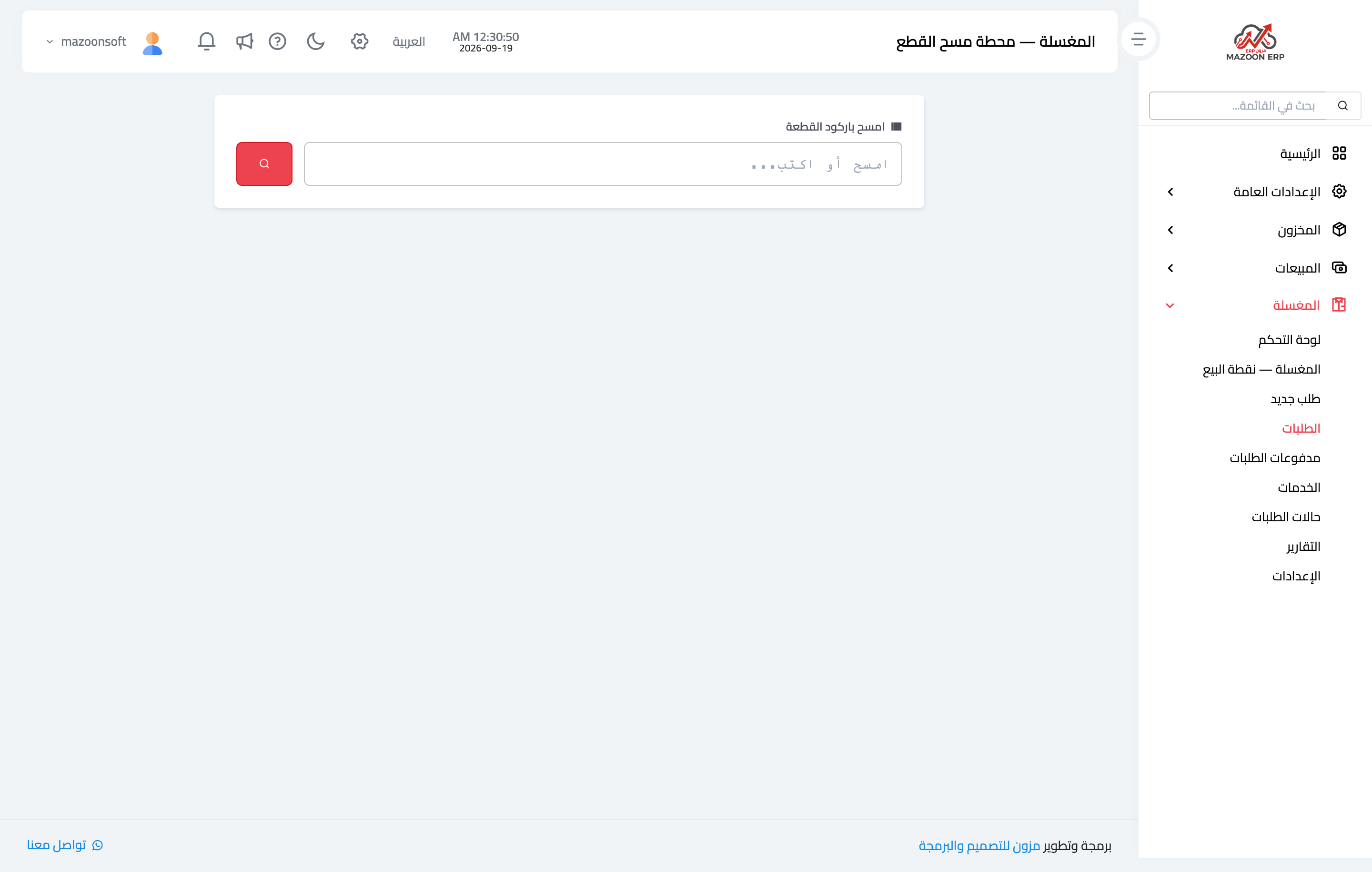
Figure 2
Try what you just read on your own data
Open a free 7-day trial — no credit card, with your own company link in minutes.