
How do I create a new laundry order?
This is the detailed entry screen, and it suits orders with many pieces or with notes. For a quick order at the counter, the POS screen is faster.
Steps
- Open Laundry → New Order — Figure 1.
- Pick the customer, or press Add Contact to register a new one with name and phone without leaving the screen.
- Set the branch and the expected delivery date. That date is your promise to the customer, so do not treat it lightly.
- Click a service in Quick Services or search for it; it is added to the cart. Then set the quantity.
- Enter the discount and tax rate if they differ from the defaults.
- If the customer pays up front, choose the payment method and enter the payment amount, or press Pay full amount.
- Write notes if any piece needs care, then press Create Order.
Notes
- A note such as “oil stain on the left sleeve” protects you from a dispute at handover; write it while the customer is still in front of you.
- A weight service takes its quantity in kilograms, and fractions (such as 2.5) are accepted.
- On save the order gets a barcode and a tag for every piece; that is what makes later tracking possible.
Screenshots
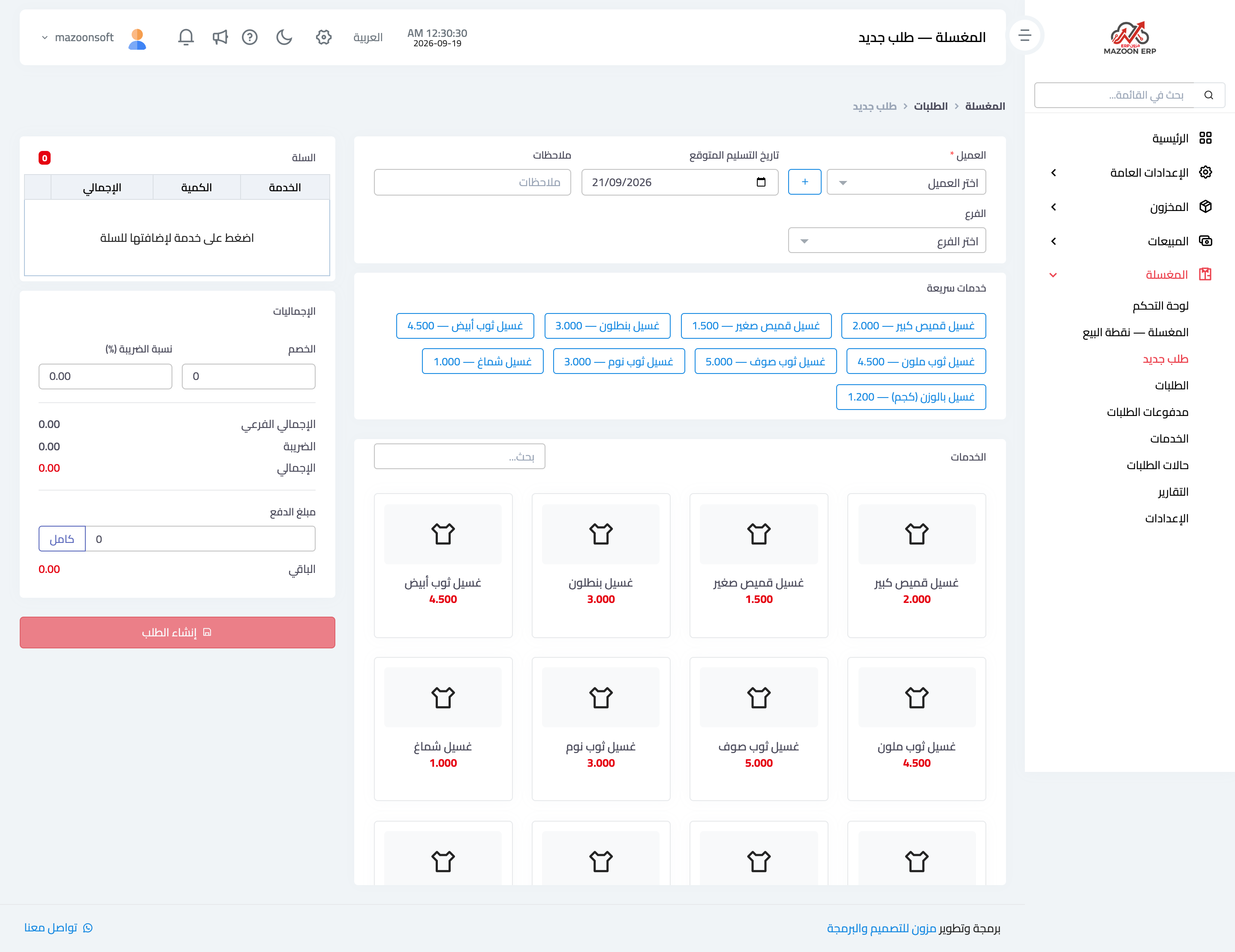
Figure 1
Try what you just read on your own data
Open a free 7-day trial — no credit card, with your own company link in minutes.