
How do I use the POS screen and open a cashier shift?
The POS screen is built for the counter with a customer standing in front of you: big buttons, keyboard shortcuts, and instant printing.
Opening the shift
- Open Laundry — POS — Figure 1.
- If no shift is open, press Open Shift (or F8) and enter the opening cash actually in the drawer.
- The header then shows Shift open with the opening time, and from that moment every payment is attributed to this shift.
Taking an order
- Pick the customer from Select customer, or add one with F4.
- Press the Quick Services buttons, filter by category (menswear, womenswear, linens…), or scan the service barcode.
- Set the expected delivery and the discount, then add a payment method and amount.
- Press Save order (or F9) and the receipt prints straight away.
Closing the shift
At the end of the day press Shift (F8) at the top of the screen to open the shift summary — Figure 2 — which shows the opening drawer balance, total sales, expected cash and credit sales. Count the drawer, enter the actual cash at closing, then press Close shift.
Notes
- No order saves from this screen before a shift is open. That is deliberate: cash must belong to a shift and a person.
- The shortcuts are listed along the bottom: F2 hold, F3 calculator, F7 held orders, F10 orders.
- A cash difference at closing is not an accusation; a difference every single day is a signal worth looking into.
Screenshots
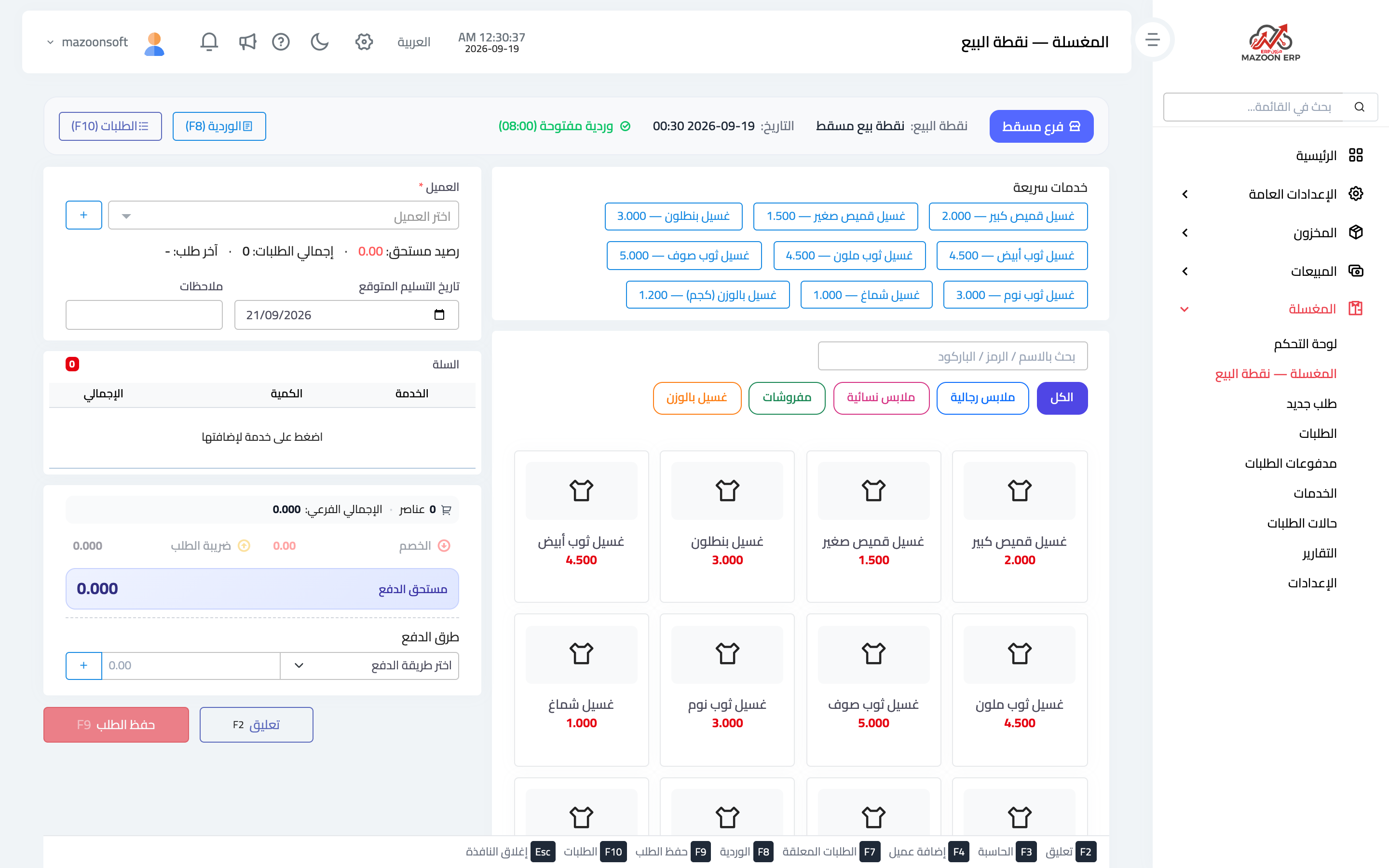
Figure 1
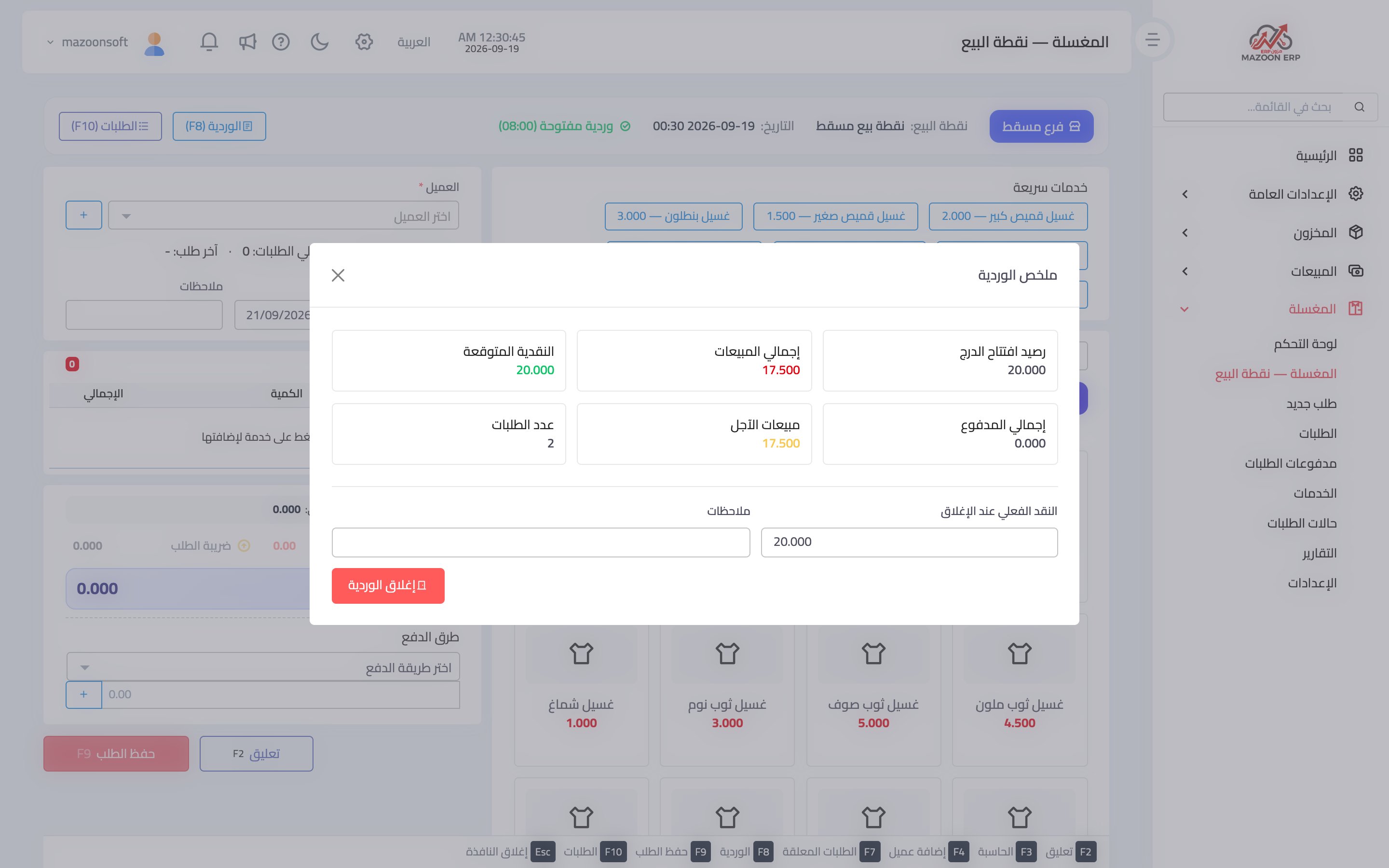
Figure 2
Try what you just read on your own data
Open a free 7-day trial — no credit card, with your own company link in minutes.