
What does the schools dashboard show and how do I configure the school settings?
Two screens you open rarely and benefit from greatly: one you configure once, and one you open every morning.
School settings
- Open Schools → School settings — Figure 1.
- Set the school details that print on contracts and receipts.
- Write the contract terms in both languages once, and they appear on every new contract.
- Have your lawyer review these terms once; they print on every contract that leaves the school.
The dashboard
Open the schools dashboard — Figure 2 — and you get: the student count and their distribution across grades, the unsigned contracts, collected against due, and the overdue instalments.
A suggested morning routine
- Start with the unsigned contracts; every unsigned contract is an incomplete obligation.
- Then the overdue instalments; an early call works better than a late demand.
- Then yesterday’s absences; a student absent two days running deserves a phone call.
Notes
- The dashboard numbers are only honest if payments and attendance are recorded as things happen.
- The school details printed on the contract represent you to the guardian, so get them right once and be done.
- Review the settings at the start of each academic year before contracts begin.
Screenshots
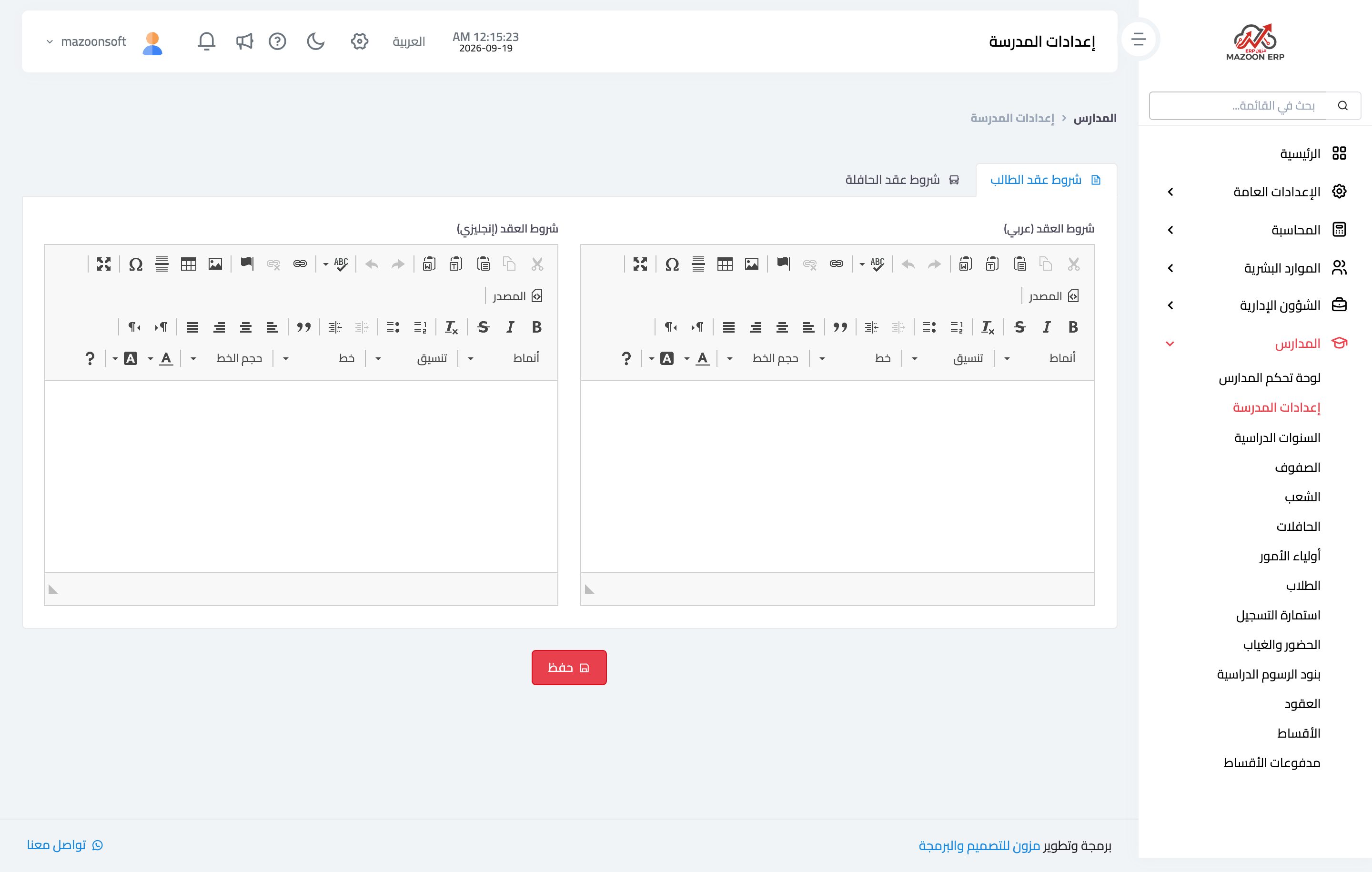
Figure 1
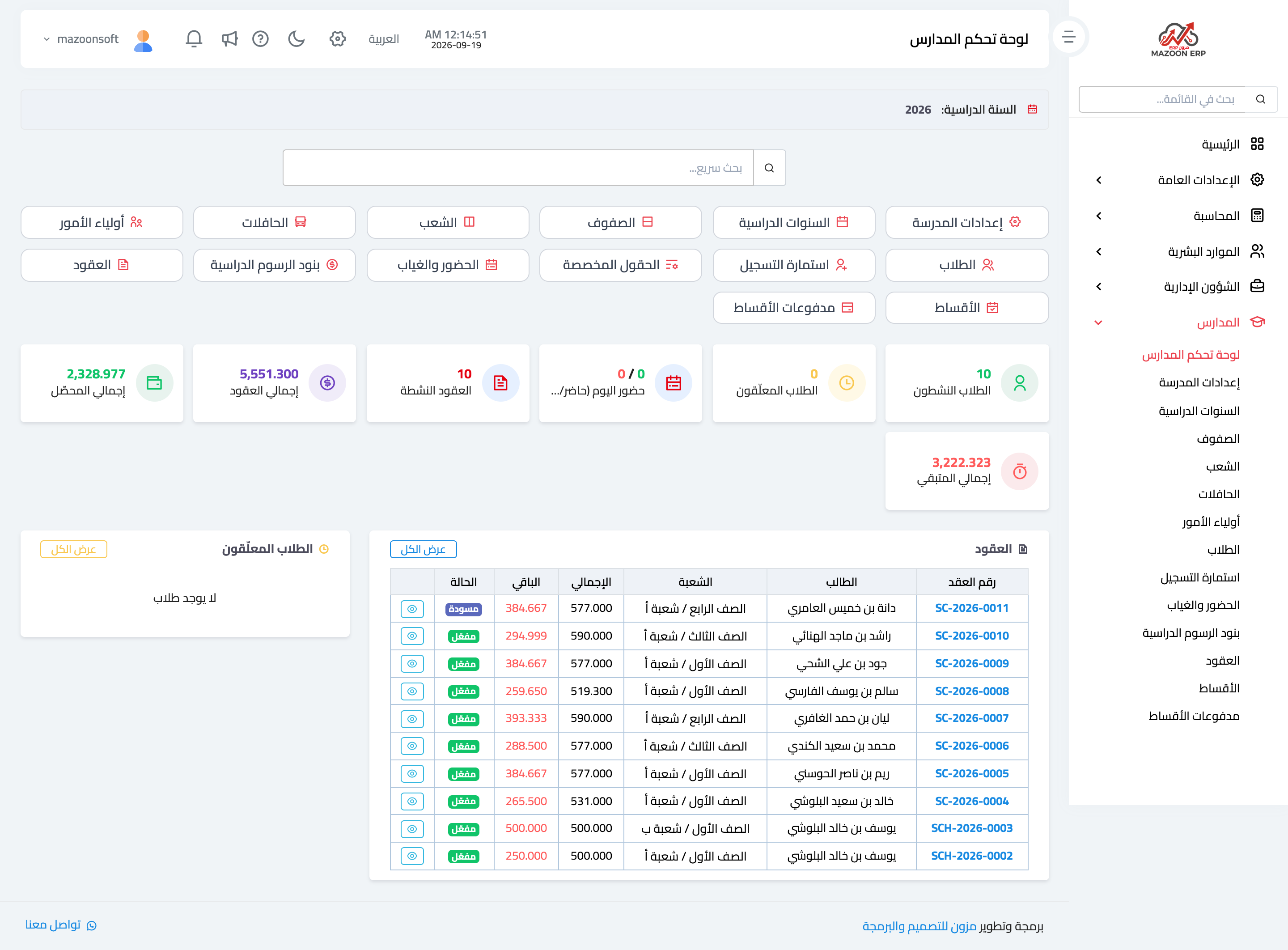
Figure 2
Try what you just read on your own data
Open a free 7-day trial — no credit card, with your own company link in minutes.