
How do I create an enrolment contract and apply a discount?
The enrolment contract is the centre of the module: the fees, the instalments, the claims and the guardian’s signature all come out of it.
Steps
- Open Schools → Contracts — Figure 1 — then New contract — Figure 2.
- Pick the student; their guardian appears automatically.
- Set the academic year, the grade, the section and the contract date.
- If they use transport, pick the bus.
- Add the fee items from the ready list, and remove whatever does not apply to this student.
- Apply a discount: a percentage or a fixed amount — a second-sibling discount, for instance.
- Check the financial summary — Figure 3 — and save.
After saving
The contract gets an automatic number and shows three tabs: overview, fee items and instalments, with buttons to print the contract, the invoice and a promissory note.
Notes
- Only add bus fees for students who actually subscribe; it is the most repeated mistake of the registration season.
- Document the reason for a discount; a discount with no written policy will be demanded by every guardian who hears about it.
- Check the grade and section before saving; correcting them after signature needs a contract amendment.
- The contract starts as a draft, so do not chase the fees before it is approved and signed.
Screenshots
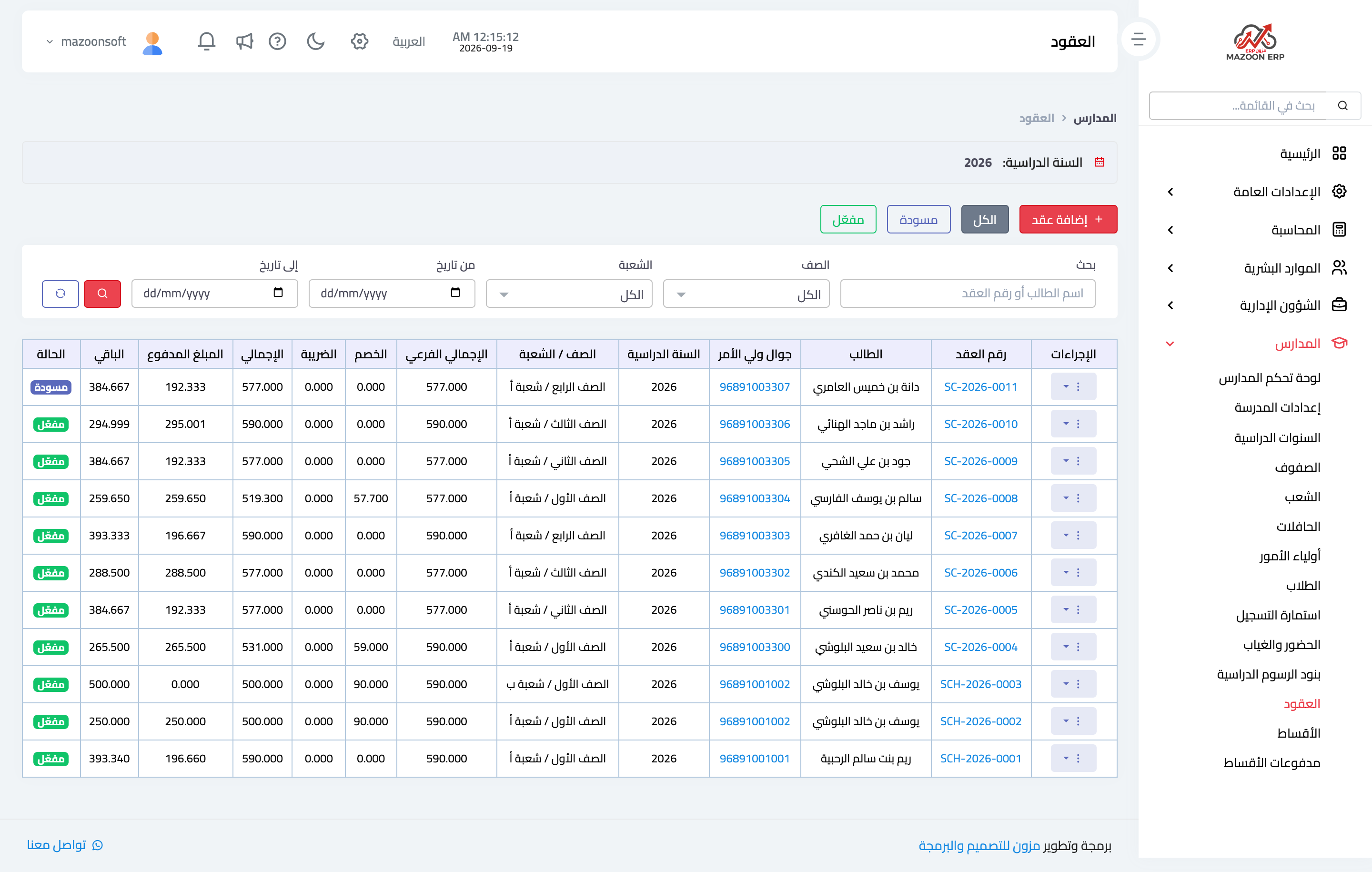
Figure 1
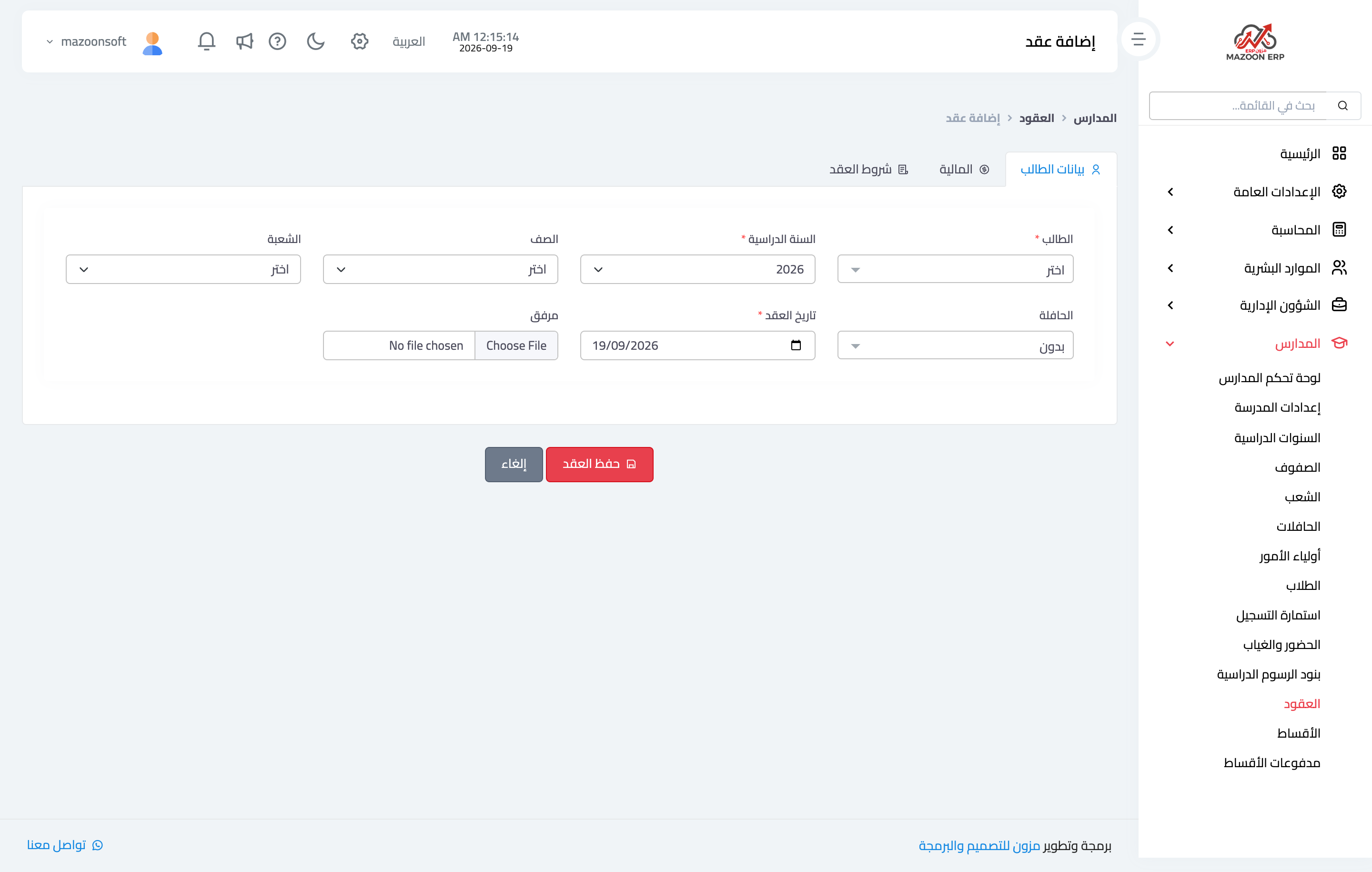
Figure 2
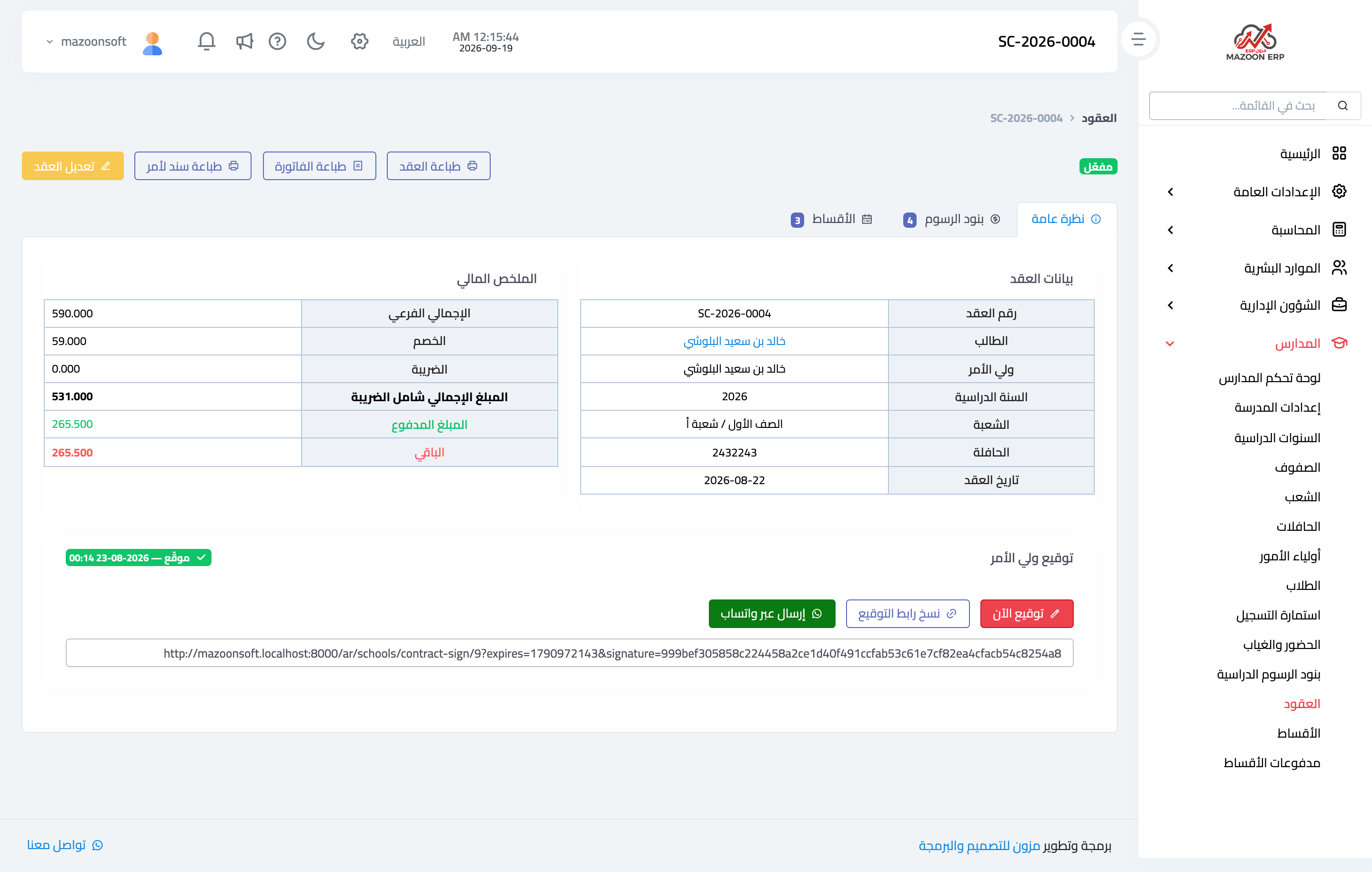
Figure 3
Try what you just read on your own data
Open a free 7-day trial — no credit card, with your own company link in minutes.