
Shared expenses: one bill covering several vehicles
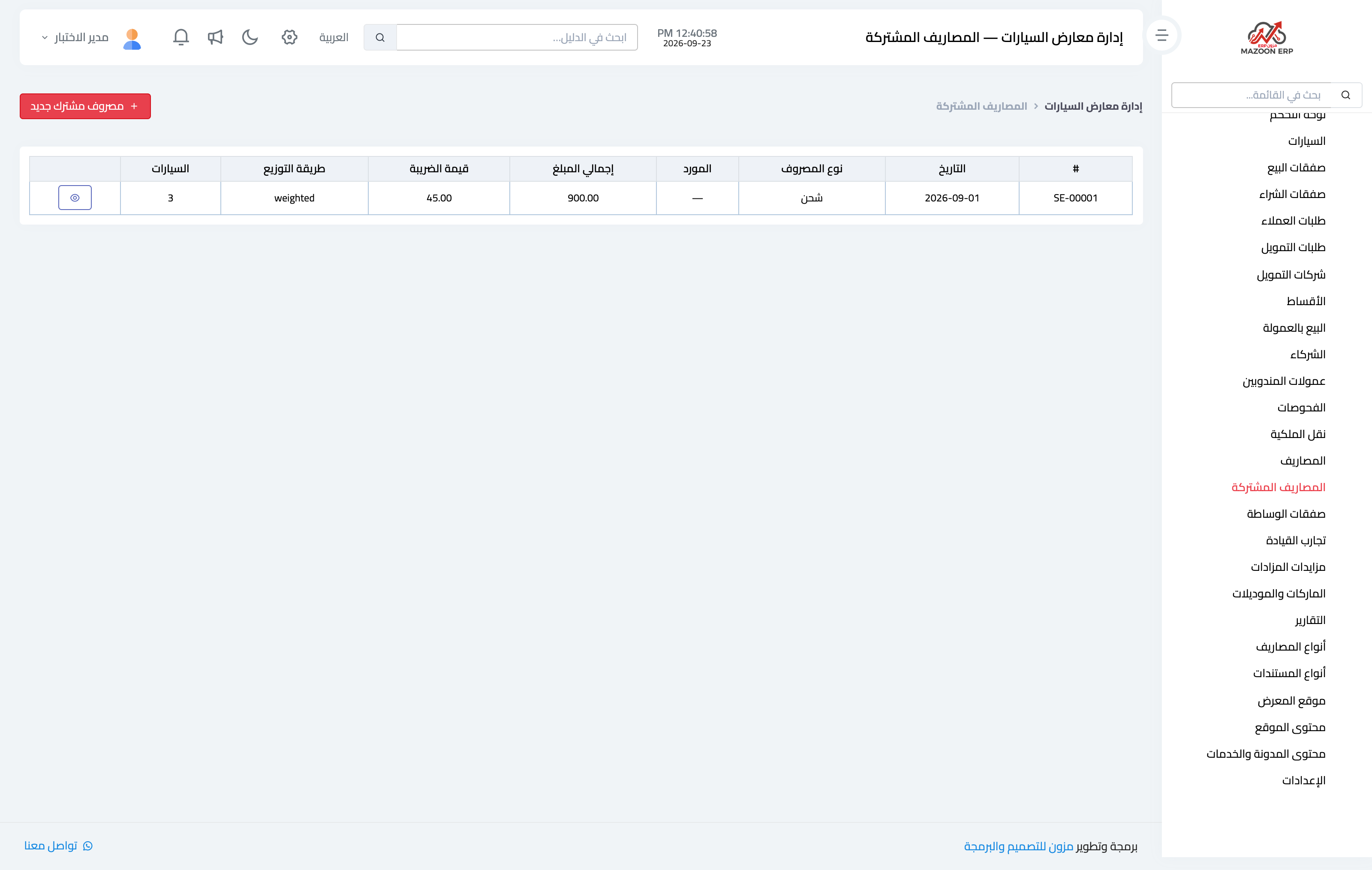
Sometimes a single bill covers a group of vehicles: a shipping container holding three cars, or customs clearance for a whole batch. Recording it against one vehicle corrupts everyone's cost, and splitting it by hand invites arithmetic errors. That is what the shared expenses screen is for.
Image 1 — the shared expenses screen.
How it works
You record the bill once at its total, pick the vehicles it covers, then choose an allocation method. The system creates a separate expense on each vehicle for its share, so each car's cost is right on its own card.
The three allocation methods
- Equally: the amount is divided evenly across the vehicles. Suited to charges unrelated to a car's value, such as parking ground fees.
- By purchase price: the more expensive vehicle carries a larger share. Usually the fairest method for shipping and insurance.
- Manual: you enter each vehicle's share yourself when you know the real split.
Rounding
Division can produce fractions that do not add back exactly to the total. The system puts the rounding difference on the last vehicle in the allocation, so the shares always sum to the bill precisely. That keeps stray baisas out of your accounts.
Who bears a shared expense?
The same distinction applies as for an ordinary expense: borne by the showroom, it enters each vehicle's cost; borne by the customer, it is added to each vehicle's own sales invoice. VAT is split in the same proportion as the allocation.
Deleting
Deleting a shared expense removes every sub-expense it generated in one go, so nothing is left behind on a vehicle you forgot about.
Screenshots
Try what you just read on your own data
Open a free 7-day trial — no credit card, with your own company link in minutes.