
Setting the module up before your first vehicle
Before you enter a single vehicle, the module's settings are configured once. These are not cosmetic details: several of them feed straight into cost, profit and alerts, and changing them later does not recalculate what came before.
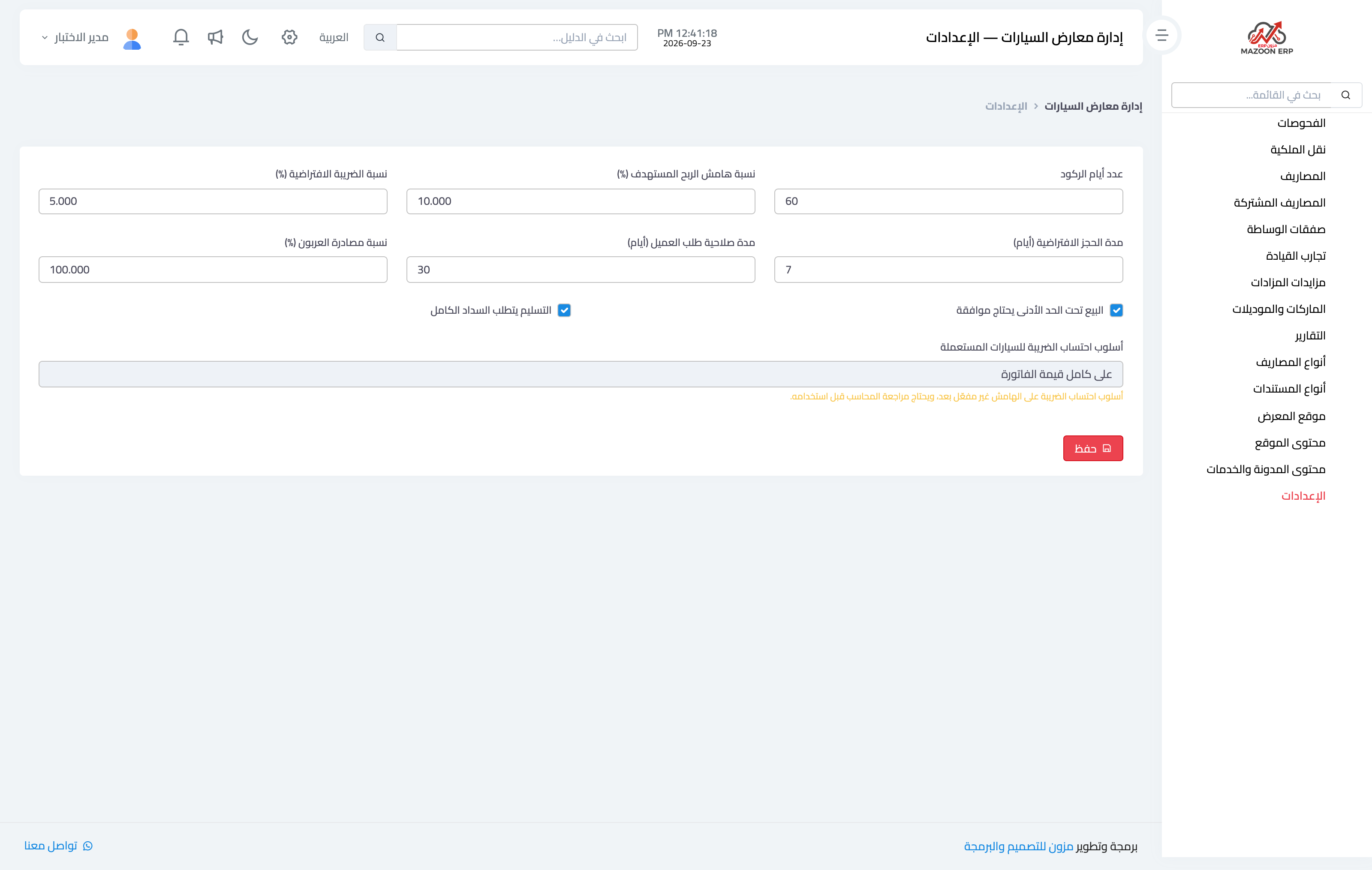
Image 1 — the module settings screen.
Settings that move the numbers
- Stagnation threshold (days): a car that sits in stock beyond this many days is flagged red on the cars screen and listed under "stagnant cars" on the dashboard. Set it to match your real selling cycle; sixty days is a common figure.
- Target margin: used to suggest a listing price when you price a vehicle, and to warn you if a sale price falls below the line.
- Minimum price: blocks a sale below a set figure unless the user holds a specific permission, so a salesperson cannot go under what you allow.
- Document numbering: the prefix and sequence for purchase deals, sales deals and customer requests. The number is generated for you and is never typed by hand.
Linking the accounting accounts
The module posts an accounting entry for every operation, so it needs to know which account holds inventory and which hold revenue, cost and expenses. These accounts are created automatically when the module is enabled for a tenant, and the mapping can be adjusted from the "account links" screen in Accounting if you run a custom chart of accounts.
Important: if you see "could not post the accounting entry: the module's accounts are not configured", one of the required accounts is unlinked — fix the mapping before carrying on, because operations will not post without it.
Branches
If you run more than one showroom, enable branches in General Settings. Every vehicle and every deal is then assigned to its branch, and you can filter each screen and report by branch.
Screenshots
Try what you just read on your own data
Open a free 7-day trial — no credit card, with your own company link in minutes.