
How do I share one trip between several branches?
Many agencies sell the same trip from more than one branch: a Ramadan Umrah may be sold in Muscat, Salalah and Sohar, on one flight and one hotel. The system keeps it as one trip, each branch enters its own travellers and invoices on it, and the head office sees the whole picture.
Opening the trip to branches
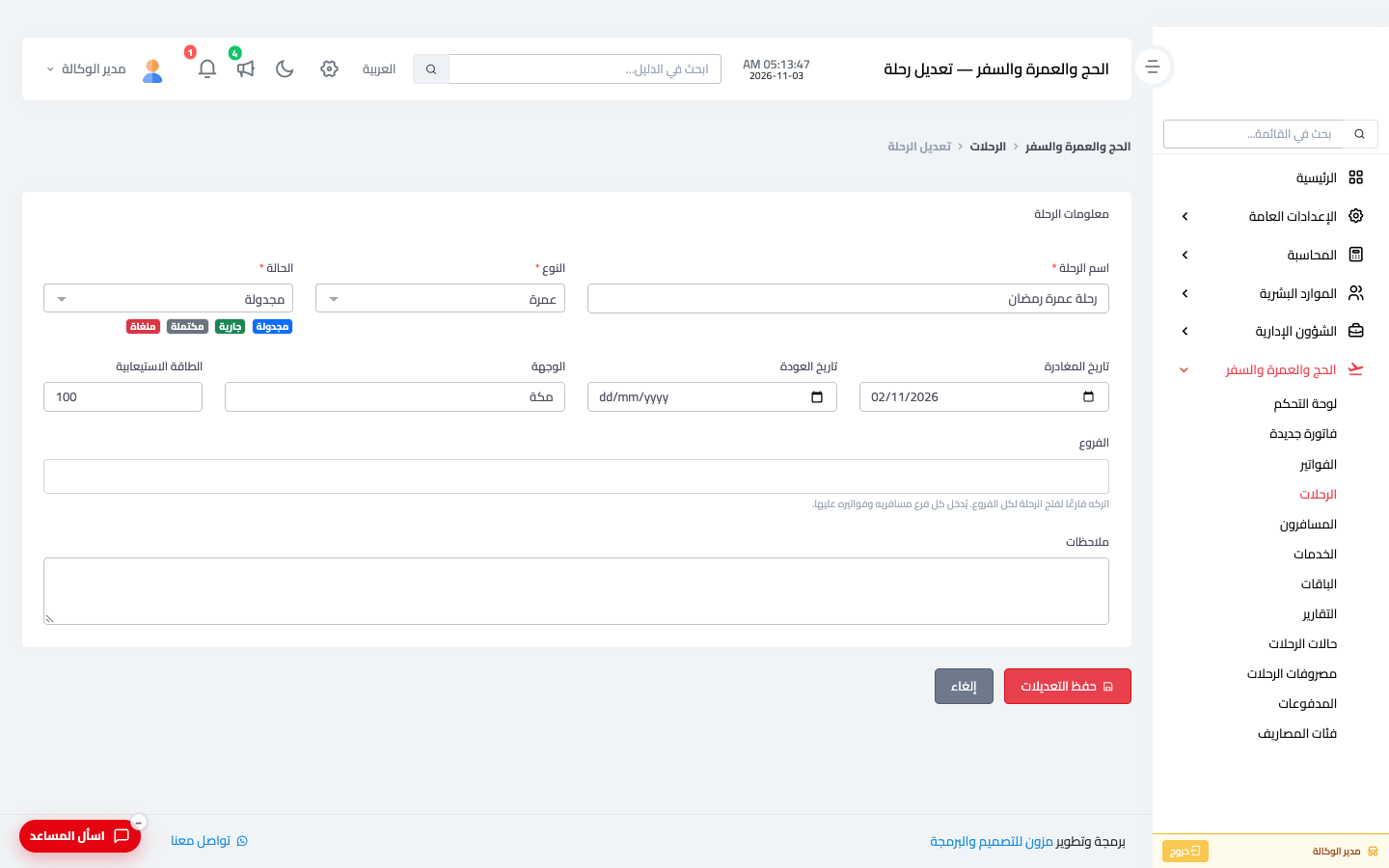
- Under Travel → Trips, create or edit the trip — Figure 1.
- Leave the Branches field empty to open it to every branch, or pick only the branches that sell it.
- Save: the trip appears in those branches' lists, and their staff pick it on their invoices.
What does a branch employee see?
- Only the trips open to their branch.
- On the trip: only their branch's travellers, invoices and expenses, plus the booked seats of all branches, so they never exceed the capacity.
- Their invoices, payments and expenses go to their branch automatically; they cannot pick another branch.
- They cannot edit, change the status of, or delete a shared trip; that belongs to the head office.
What does the head office see?
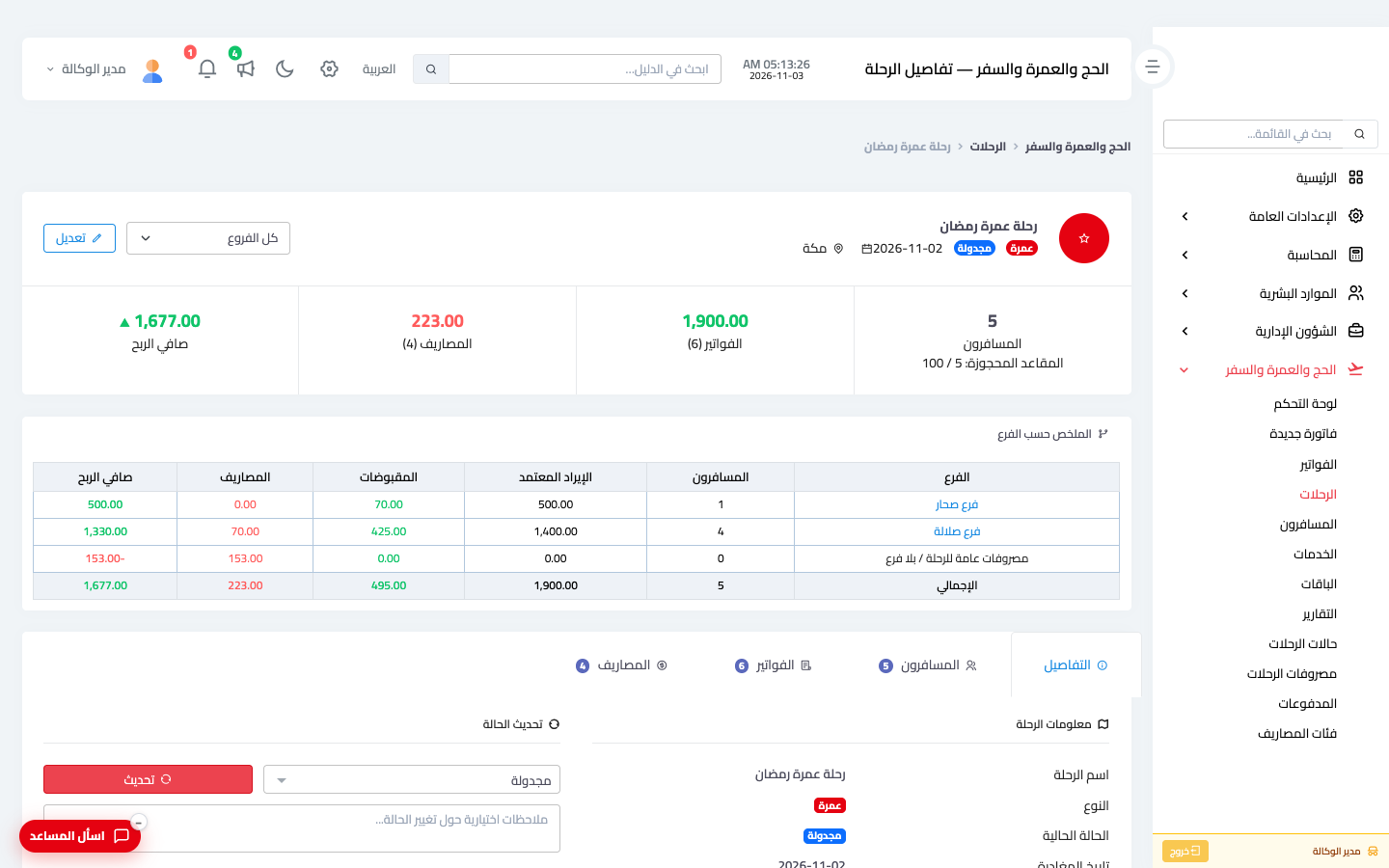
The head office (a user not tied to a branch) sees the whole trip — Figure 2:
- The four figures at the top of the trip, for all branches together.
- The Summary by Branch table: travellers, confirmed revenue, collections, expenses and net profit for each branch, then a General trip expenses / no branch row, then the total.
- The Branch field next to the edit button narrows the tabs to one branch.
Invoices from the head office
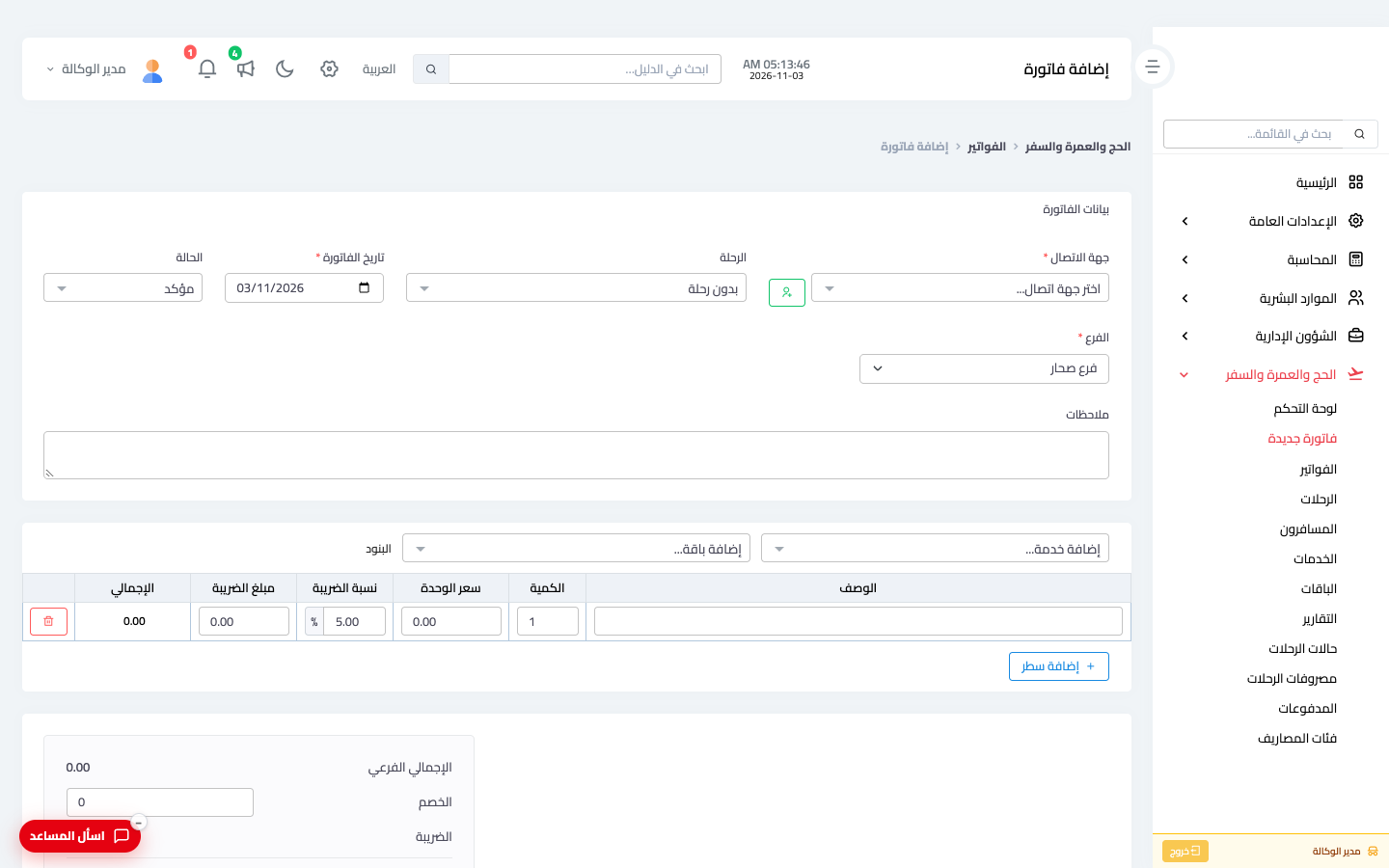
When the head office issues an invoice, it picks the Branch first — Figure 3 — so the trip field offers only trips open to that branch, and the payment methods only those available to it. Numbering is one sequence for the whole company, so no invoice number repeats between two branches.
Shared expenses
Group tickets and the hotel belong to the whole trip, not to one branch, so the head office records them as General — the whole trip. They come off the trip's profit and are charged to no branch's profit. What a branch spends itself, such as transport for its travellers to the airport, it records on its own branch.
Notes
- The branch fields appear only when your company has more than one active branch.
- A traveller is one record across all branches: if another branch registered them, use the existing record and issue them an invoice from your branch rather than creating a second copy.
- A branch cannot be removed from a trip once it has travellers, invoices or expenses on it.
- A branch's profit in the summary excludes general expenses; read the trip's profit from the total row.
Screenshots
Try what you just read on your own data
Open a free 7-day trial — no credit card, with your own company link in minutes.