
Setting up WhatsApp automation and automatic messages
The WhatsApp Automation module connects your WhatsApp Business account to the system, so invoice messages, payment confirmations, and installment reminders reach your customers automatically with no manual work.
What you need before you start
Sending runs through the Meta WhatsApp Business API, and you need three things from it: an Access Token, a Phone Number ID, and a Meta Business Account ID. You get all three from the Meta developer console once your company WhatsApp number is connected.
The settings screen
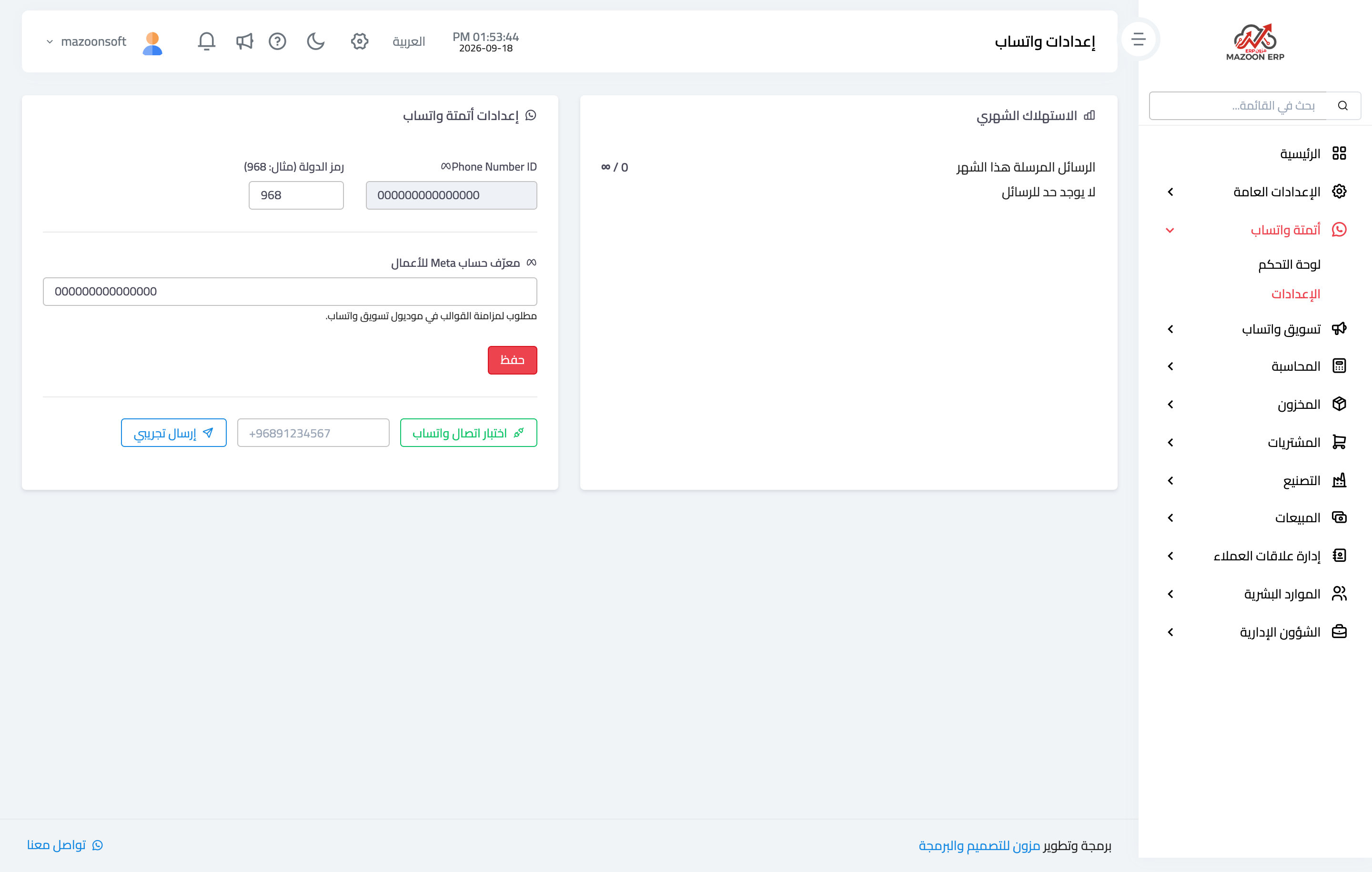
Open WhatsApp Automation → Settings as in Figure 1, then fill in the fields:
- Phone Number ID — the WhatsApp number you will send from.
- Country code — 968 for Oman, for example. The system uses it to normalise customer numbers stored in local format and convert them to international format before sending.
- Meta Business Account ID — required to sync templates in the WhatsApp Marketing module.
After saving, use Test WhatsApp Connection to confirm the credentials work, then Test Send to your own number so you see a message actually arrive before you rely on it with customers.
The card beside it shows Monthly usage: how many messages have been sent this month against the limit in your plan.
Automatic messages
The system does not send messages at random; each one is tied to a specific event:
- Invoice created — when an invoice is created in Accounting with the WhatsApp option enabled, the customer receives a signed link that opens their invoice.
- Payment received — when a payment is recorded against an invoice, a confirmation message with the amount and date is sent.
- Installment reminder — a daily task checks installments falling due soon and reminds the customers concerned.
In every case the contact must have a valid phone number, because the message goes to the number stored on the customer record.
The message log
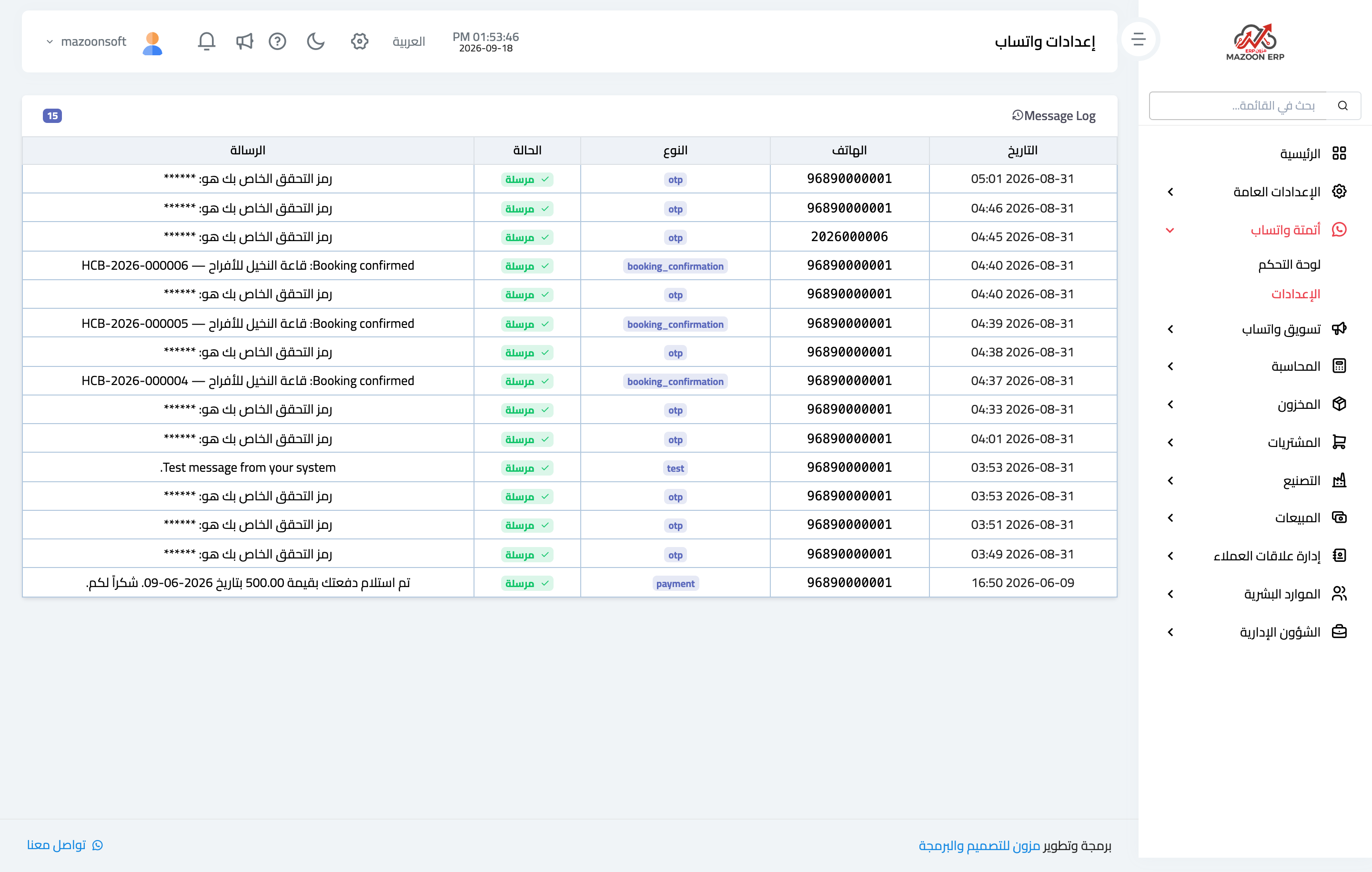
The Message Log at the bottom of the screen lists everything the system has sent, as in Figure 2: date, recipient number, message type (booking confirmation, verification code, payment notice), status, and text.
This log is the first thing to check when a customer says nothing arrived. If the status is “sent”, the message left the system and the problem is at the recipient or with their number; if there is no entry at all, the event never triggered a send.
Important notes
- Write numbers in international format, e.g. 96891234567; the country code setting fixes numbers entered locally.
- Message logs are kept for review and audit, so messages do not disappear after sending.
- The Meta access token is sensitive. Do not share it outside the admin team, and regenerate it in the Meta console if you suspect it leaked.
Screenshots
Try what you just read on your own data
Open a free 7-day trial — no credit card, with your own company link in minutes.