
WhatsApp marketing campaigns: templates, recipients, and opt-out lists
Where WhatsApp Automation sends one message on one event, WhatsApp Marketing covers the opposite case: one message to hundreds of customers at once — a seasonal greeting, an offer announcement, or a reminder.
Templates: where it starts
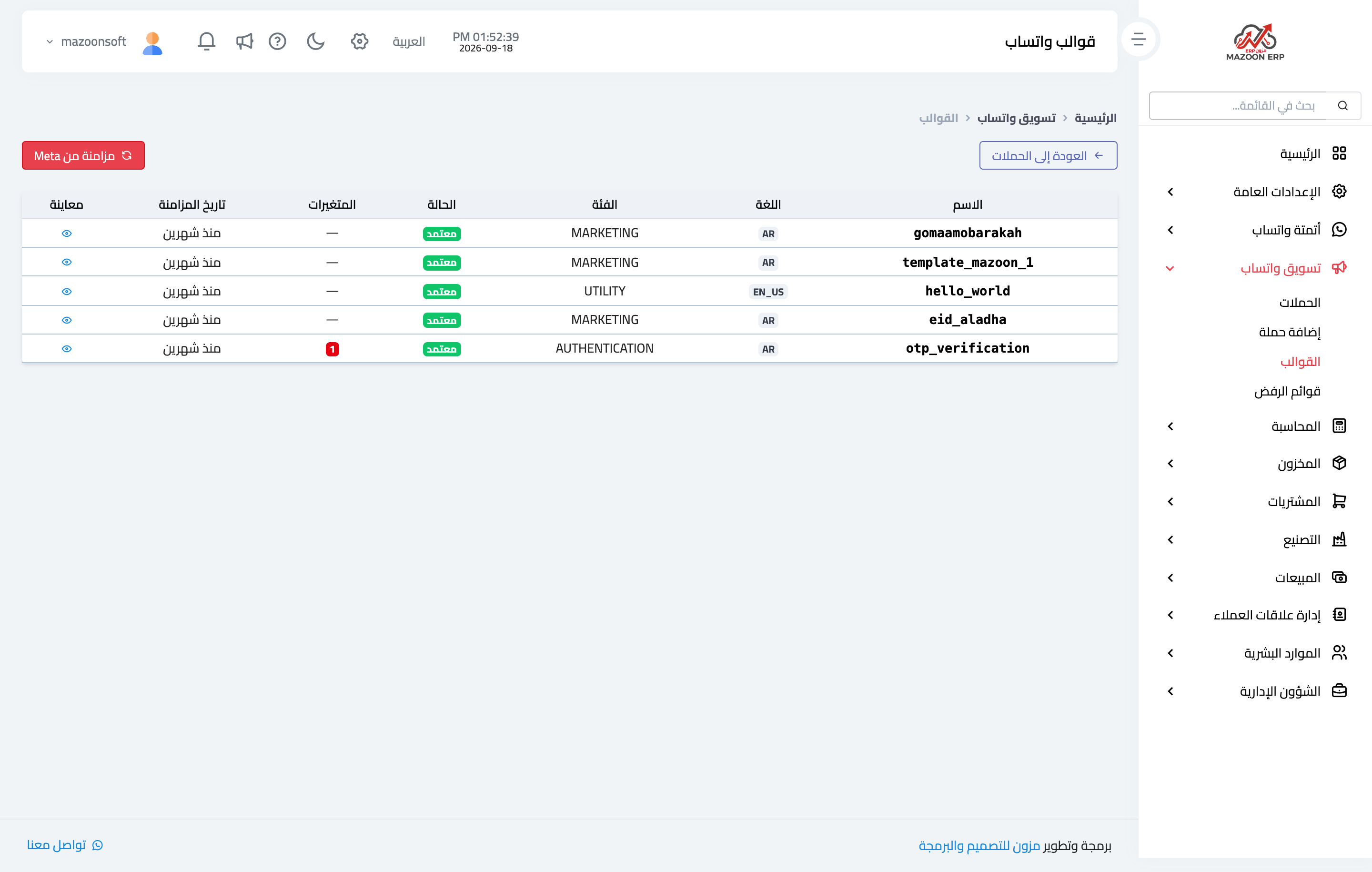
WhatsApp does not allow free text to numbers that have not messaged you first; it requires a template approved in advance by Meta. So every campaign begins on the Templates screen, as in Figure 1.
Templates are created and approved in the Meta console, then you press Sync from Meta and the system pulls the list in here. For each template the table shows its name, language, category (MARKETING for offers and greetings, UTILITY for service notices, AUTHENTICATION for verification codes), status, number of variables, and last sync time.
Variables are the blanks inside the template text that are filled per recipient, such as their name or order number. The preview button shows the full template text before you build a campaign on it.
The campaign list
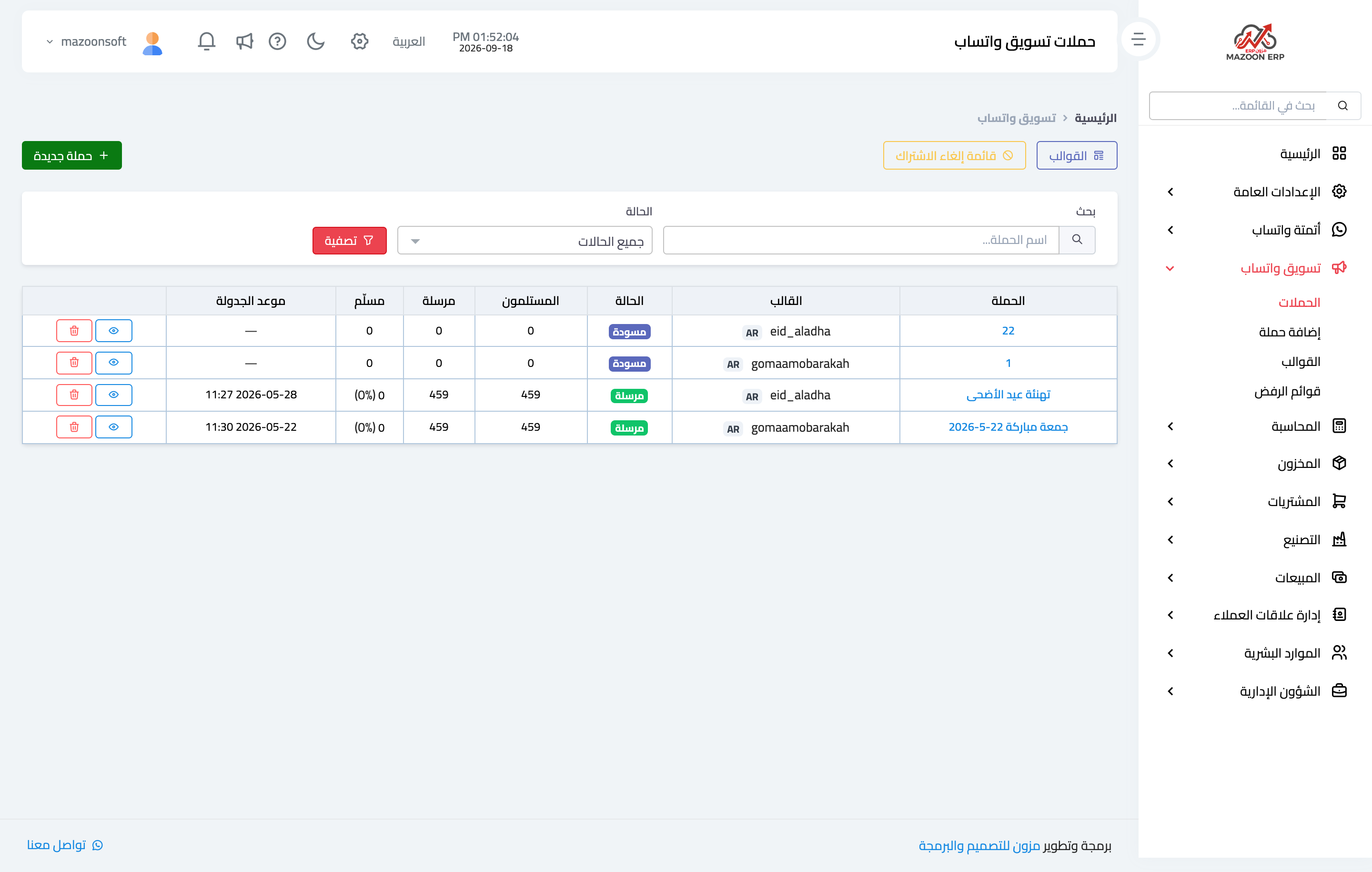
The Campaigns screen — Figure 2 — lists every campaign with its template, status, recipient count, how many were actually sent, the delivery rate, and the scheduled time. A campaign moves through four states: draft while you prepare it, scheduled if you set a time, sending, then sent.
Creating a campaign
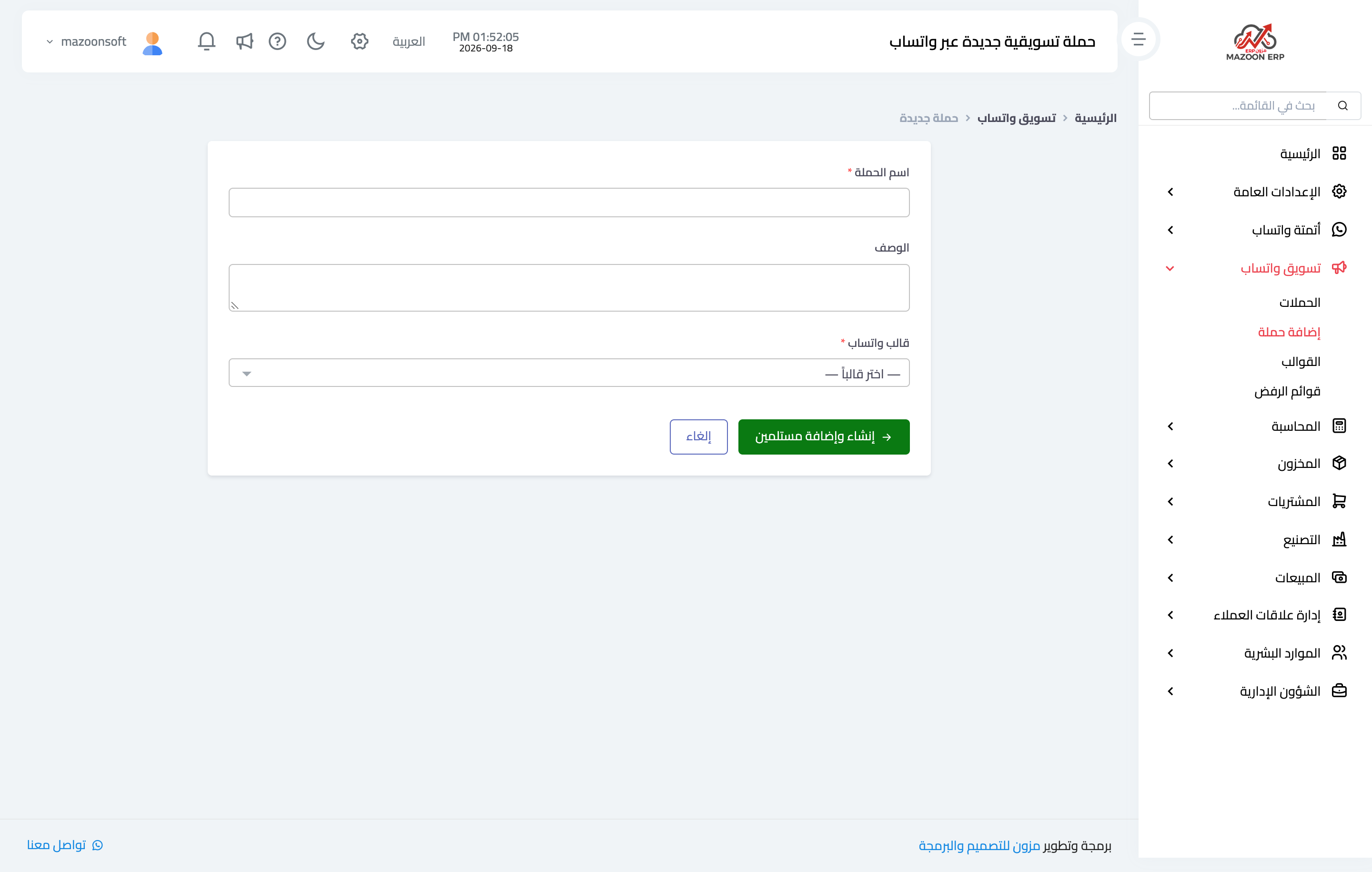
Press New campaign and a short screen appears, as in Figure 3: a campaign name for internal reference, an optional description, and the template to send. Then Create and add recipients takes you to the next step.
Adding recipients
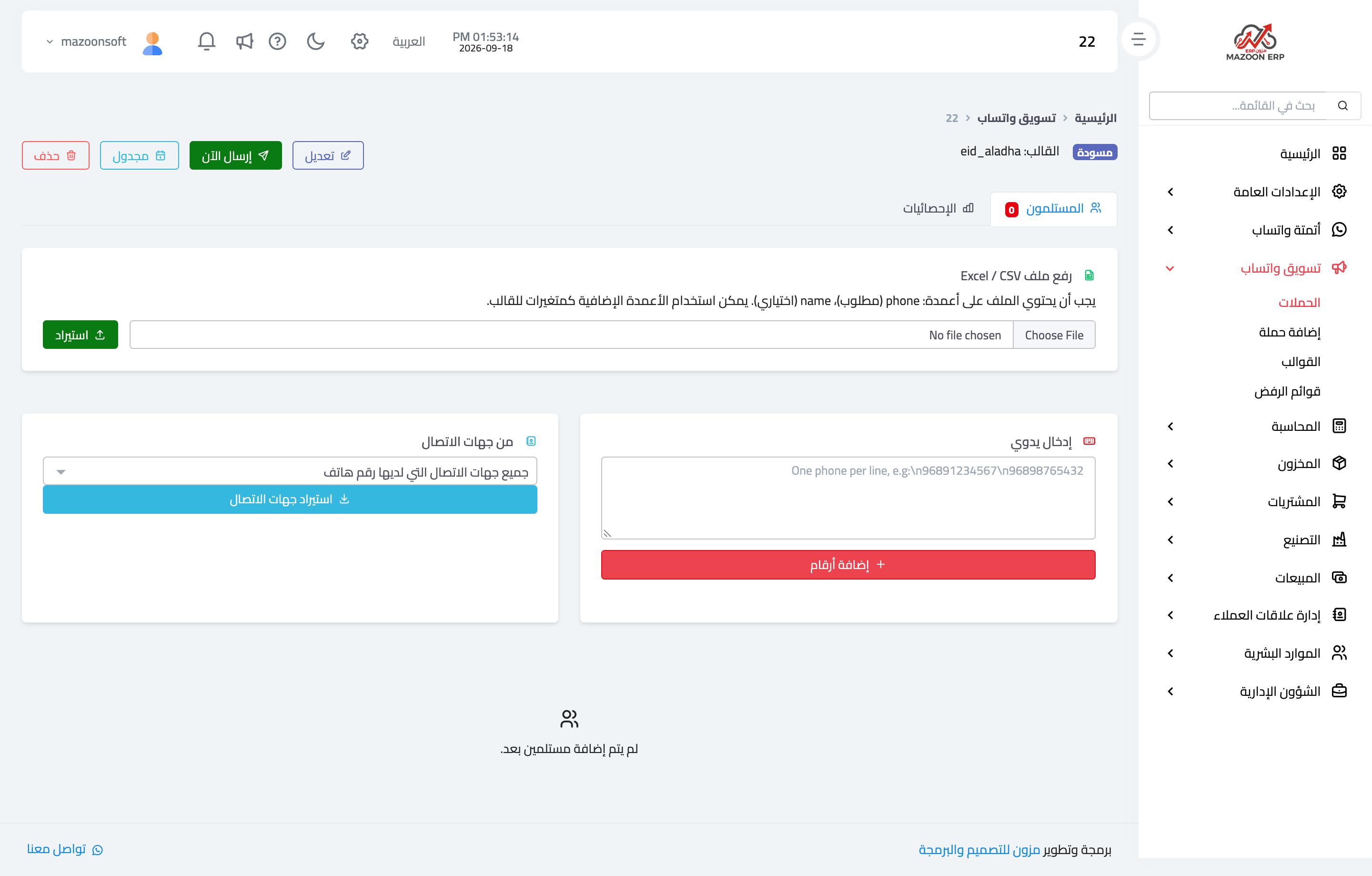
The campaign page opens on the Recipients tab, as in Figure 4, with three ways to fill it:
- Upload an Excel or CSV file — a
phonecolumn is required and anamecolumn is optional. Any extra columns can feed the template variables. - Manual entry — one number per line, best for a short list.
- From contacts — imports the phone numbers of customers already in the system, with no export and re-import.
If the template has variables, set variable mappings to say where each one comes from: a column in the file, or fixed text sent to everyone.
Sending and tracking
Once the list is ready you have two options: Send now to start immediately, or Schedule to pick a date and time for the system to send. A scheduled campaign can be cancelled as long as it has not started.
During and after sending, the Stats tab shows each recipient state: pending, sent, delivered, read, failed, or opted out.
Opt-out lists
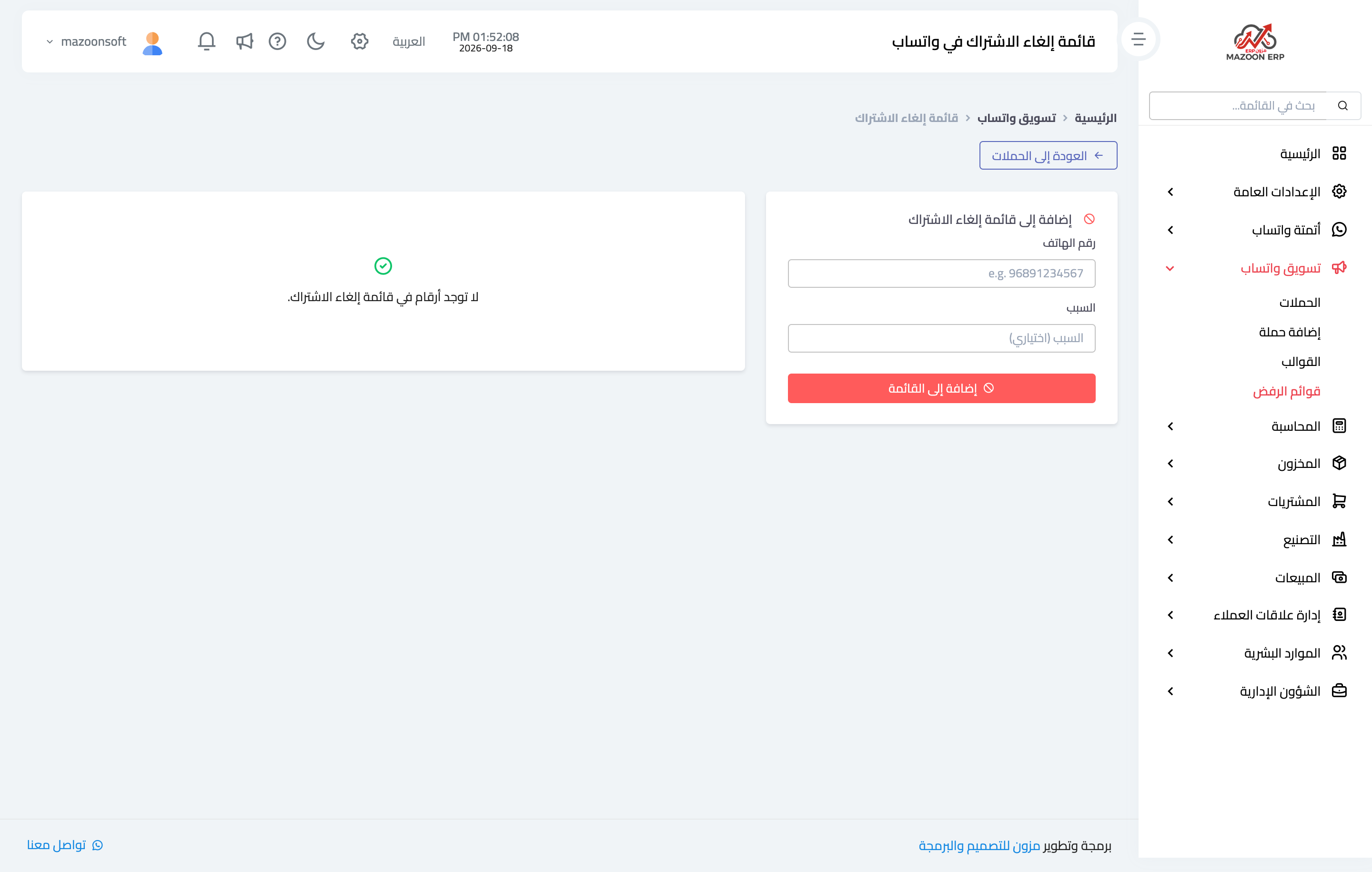
Anyone who asks you to stop messaging them must actually stop receiving messages. Record their number in the opt-out list, as in Figure 5, with an optional reason for the record, and the system excludes them from every later campaign automatically instead of relying on you to remember.
Important notes
- A template that Meta has not approved will not send, and the fix is in the Meta console, not in the system.
- Review the recipient list before sending; a sent campaign cannot be recalled.
- Too many marketing messages raise user reports against your number and WhatsApp may restrict it, so make each campaign relevant and worth receiving rather than repetitive.
Screenshots
Try what you just read on your own data
Open a free 7-day trial — no credit card, with your own company link in minutes.