
CRM: leads
The CRM module handles what happens before a sale: who showed interest, how far the conversation went, and when to follow up. It answers the question whose answer usually gets lost in phones and messages: what is each lead waiting on right now?
The CRM dashboard
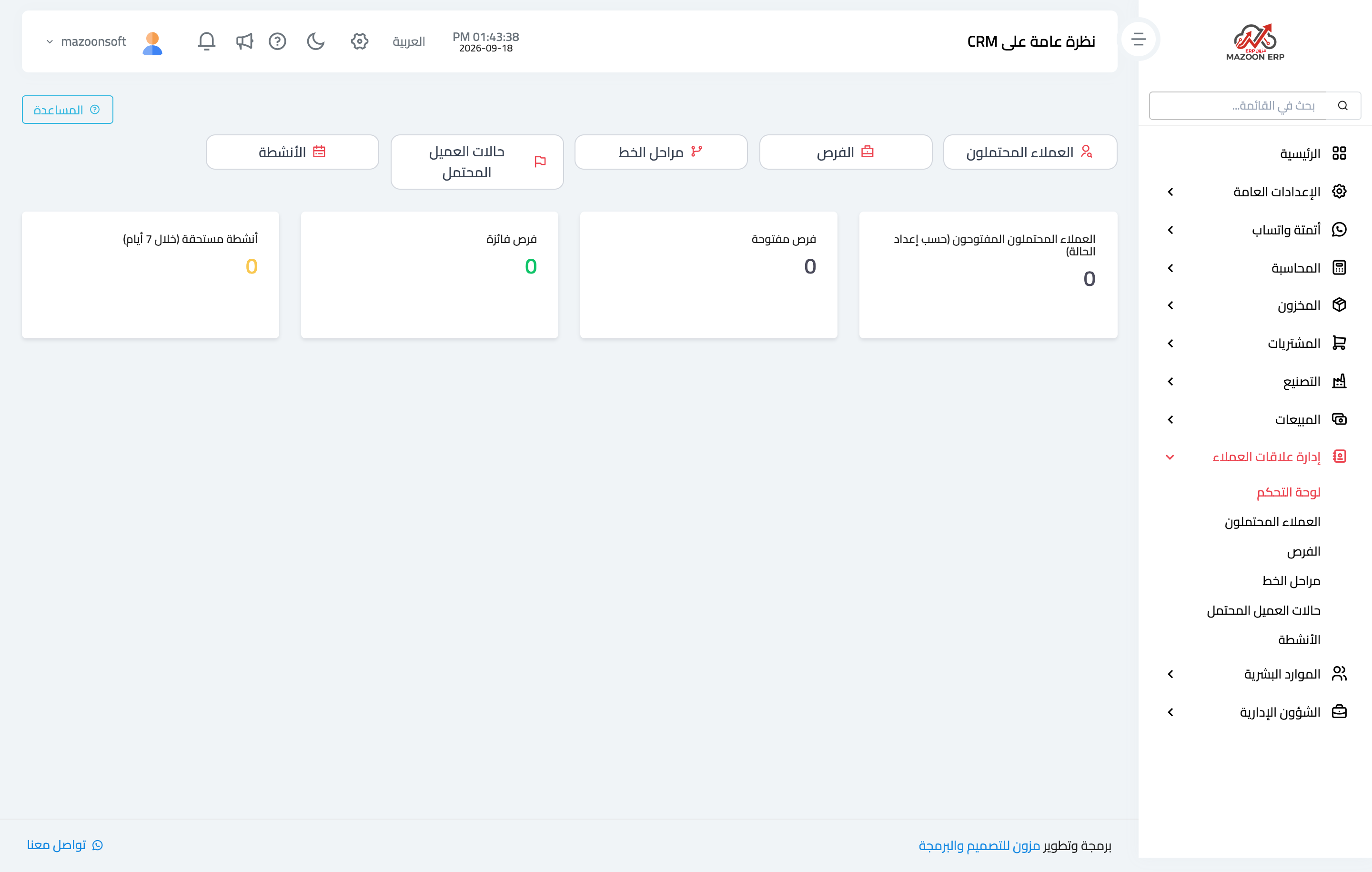
In the sidebar choose CRM — image 1 — for an overview with indicators: open leads, open opportunities, won opportunities, and activities due within 7 days.
Leads
A lead is someone who has shown interest but is not a deal yet: an inbound call, an exhibition visitor, an enquiry from the website.
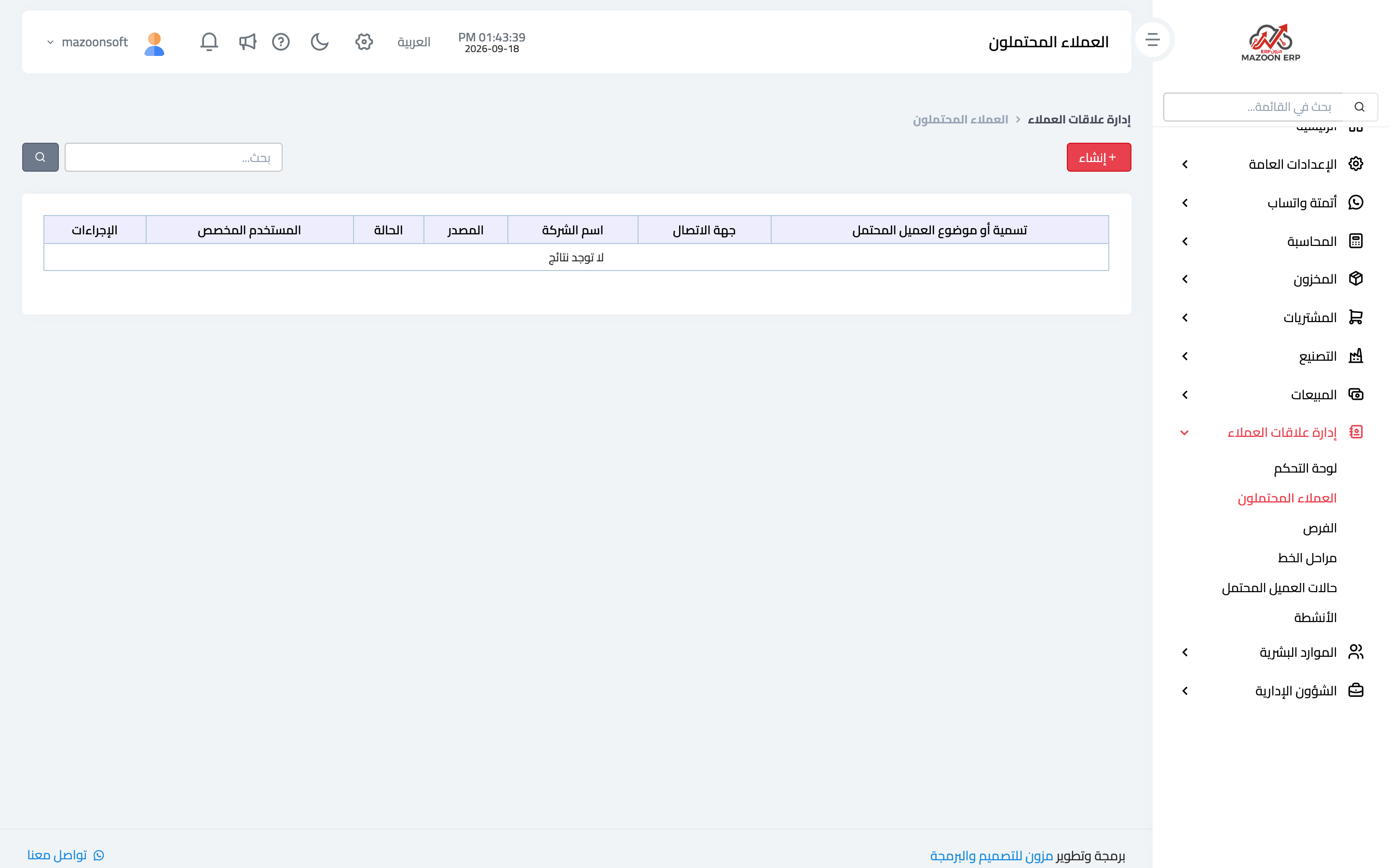
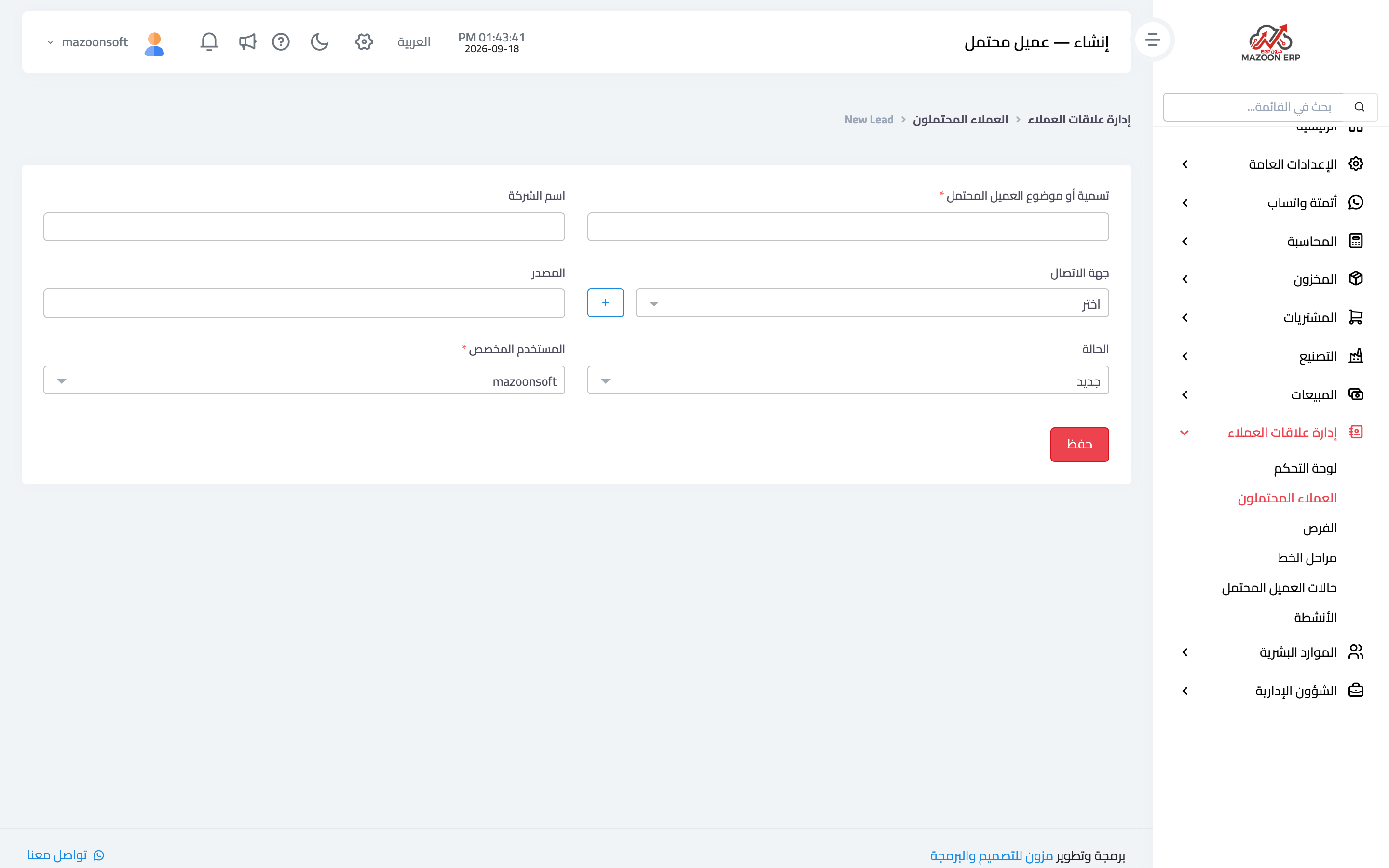
The Leads card — image 2 — lists them with their status and owner. To add one press New as in image 3:
- Lead title — a short description of the opportunity, such as "Accounting system enquiry — Al Bayan Co".
- Contact — link an existing contact, or add a new one from the same button.
- Company name.
- Status — from the lead statuses you defined.
- Source — where it came from: an advert, a referral, an exhibition, the website. This field is what later tells you which channel deserves your spend.
- Assigned user — who follows it up.
Lead statuses
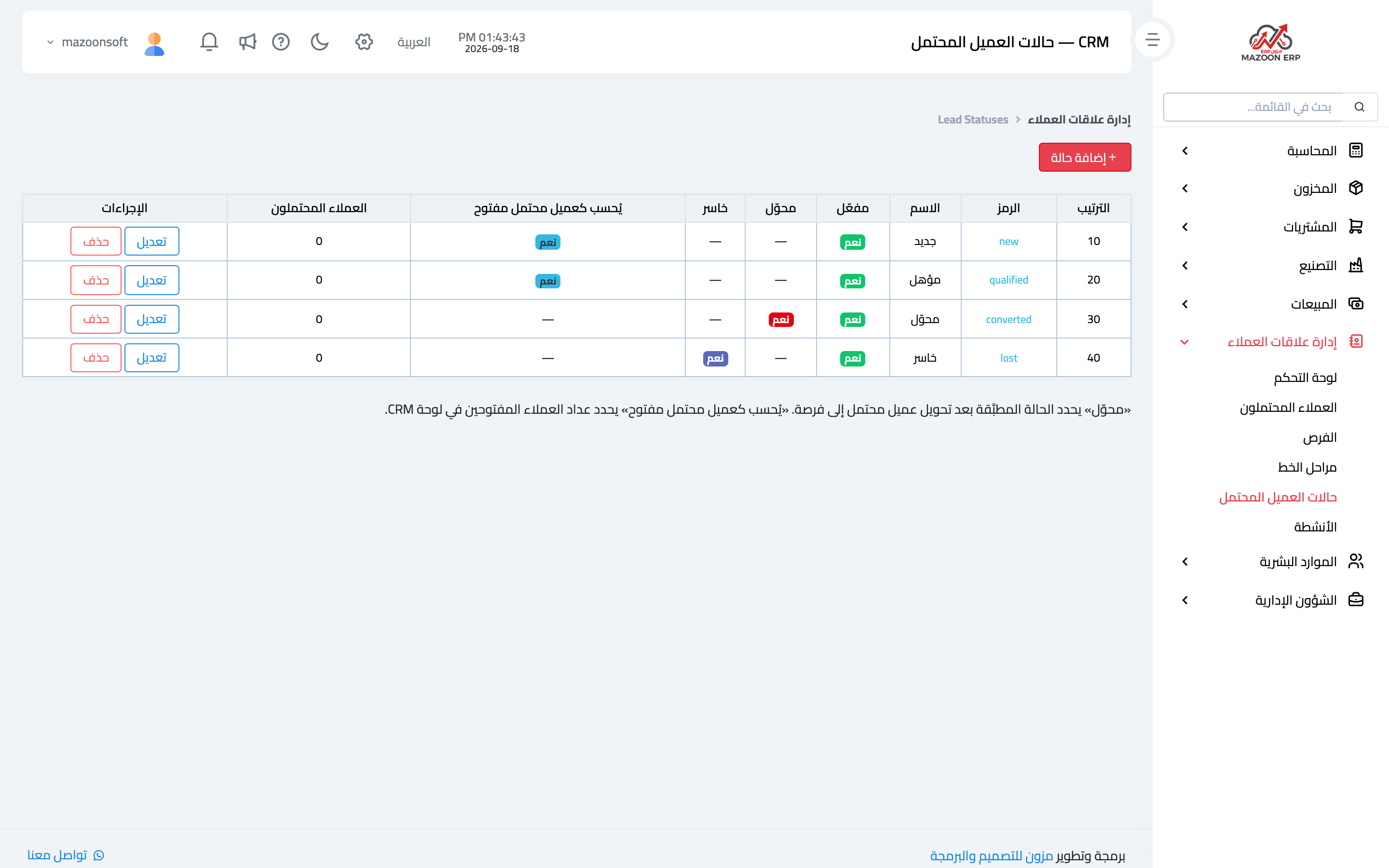
The Lead Statuses card — image 4 — defines the stages a lead moves through: new, contacted, qualified, not interested… each with a setting for whether it counts as "open".
Start with four or five clear statuses. Too many, and everyone parks leads in "following up" forever.
From lead to opportunity
When interest becomes serious, with an expected value and a likely close date, convert it into an opportunity — as described in the next article. A lead answers "is this person interested?"; an opportunity answers "how big is this deal and when does it close?".
Tips
- Record a lead the day the enquiry arrives; what is not recorded is forgotten within three days.
- Never leave a lead without an owner; what is everyone's responsibility is no one's.
- Always fill in the source, then read after three months which source produced actual deals.
Screenshots
Try what you just read on your own data
Open a free 7-day trial — no credit card, with your own company link in minutes.